
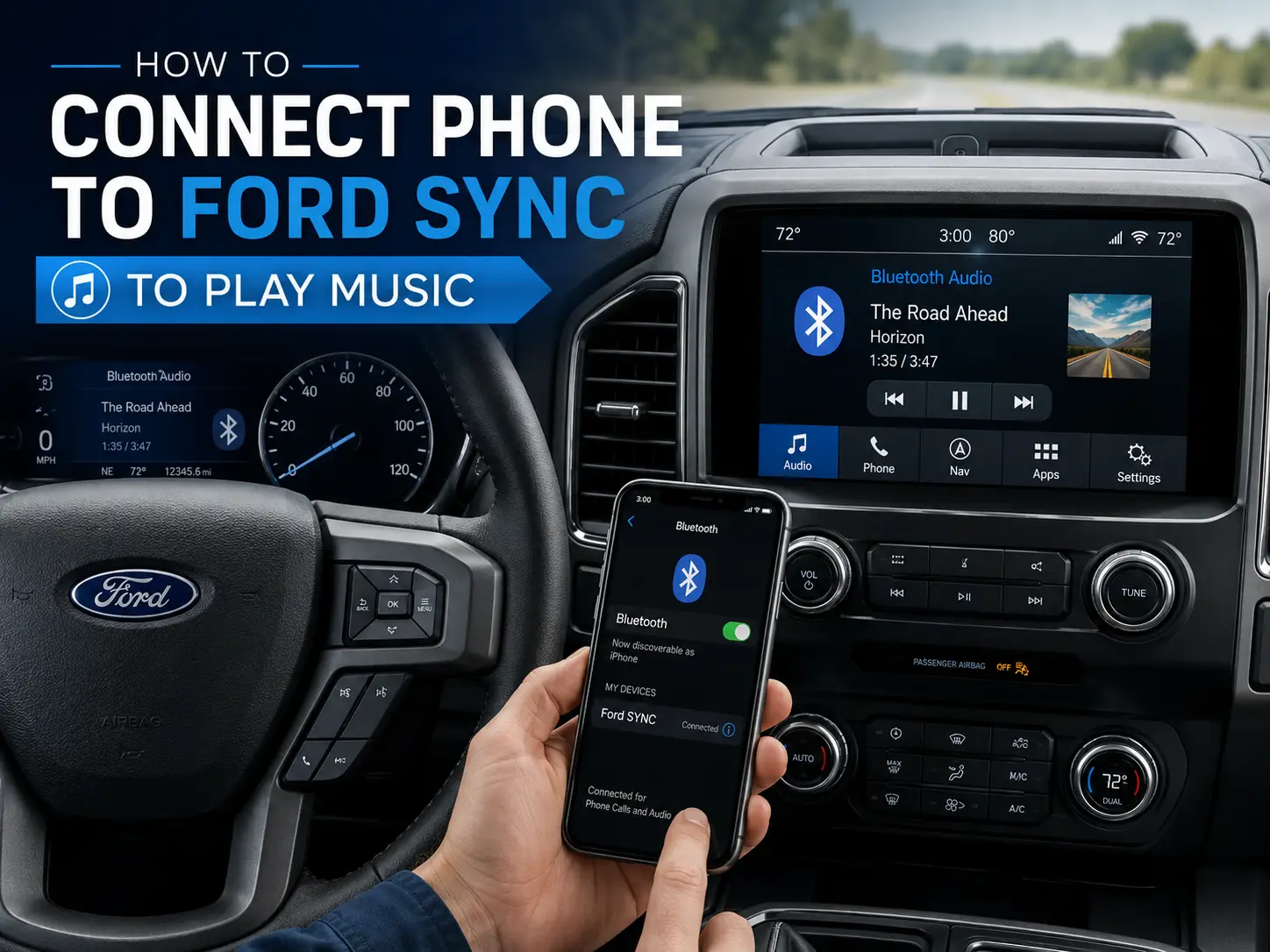
How to Connect Phone to Ford SYNC to Play Music (All Versions)

Trying to connect your phone to Ford SYNC to play music — but hitting dead ends? The most common reason is simple: Ford released four completely different SYNC generations between 2007 and 2026. The pairing steps are different for every one of them.
This guide walks you through the exact steps for every SYNC version — 1, 2, 3, and 4 — plus how to select Bluetooth as your audio source, how to set up Apple CarPlay and Android Auto, and a full four-level troubleshooting hierarchy when your phone connects but produces no sound.

Prime for Young Adults — 6 Months Free
Students and 18–24s get six months of Prime free, then half price.
Start 6 Months Free As an Amazon Associate I earn from qualifying purchases.Quick Answer: Start the car, open your phone’s Bluetooth settings, navigate to SYNC’s Phone or Settings menu, tap “Add Device,” confirm the 6-digit PIN on both screens, then select Bluetooth Stereo or Bluetooth Audio as your audio source. Exact steps vary by SYNC version — jump to your generation below.
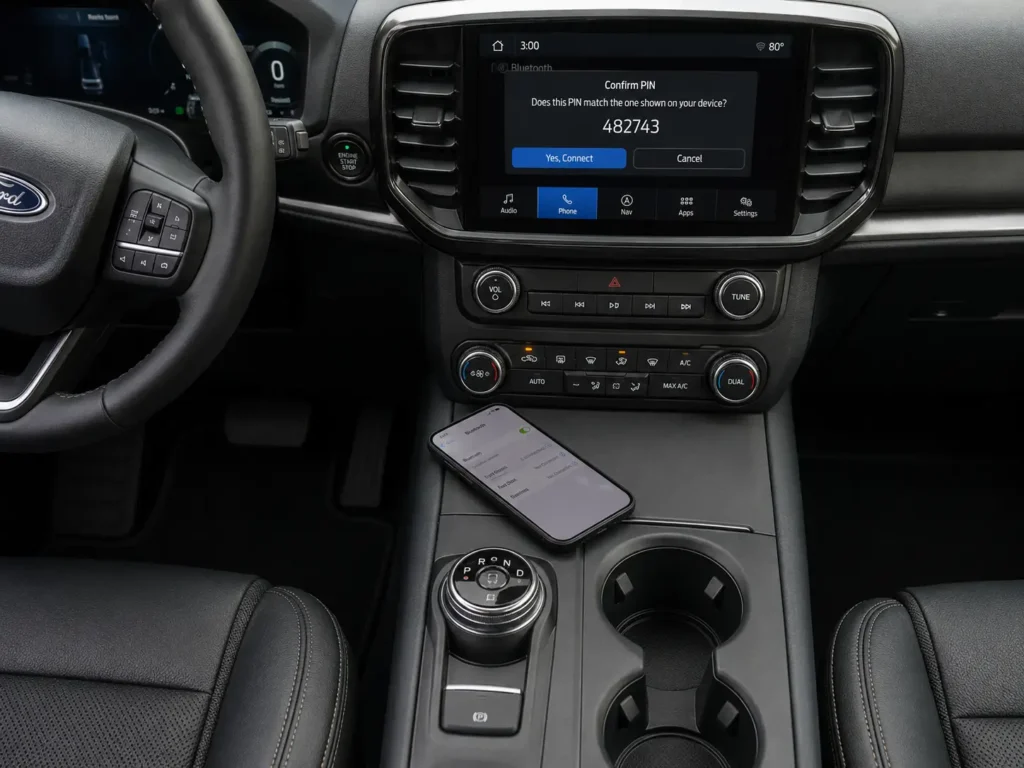
Ford SYNC Phone Connection Guide — all versions, pairing steps, troubleshooting
Recommended Best Deal Products


Step 1: Identify Which Ford SYNC Version You Have
Before anything else, you need to identify your SYNC generation. Attempting a SYNC 3 pairing sequence on a SYNC 2 display leads straight to dead ends. Use the visual cues below to confirm which system you’re working with.
| SYNC Version | Operating System | What It Looks Like | How to Confirm Software Version |
|---|---|---|---|
| SYNC 1 | Windows Embedded Automotive | 2-line monochrome text display or basic 4.2-inch color screen. No touchscreen — uses physical buttons and a directional pad. | Press AUX → Menu → System Settings → Advanced → System Info → view FPN number |
| SYNC 2 (MyFord Touch) | Windows Embedded Automotive | 8-inch resistive touchscreen divided into 4 color-coded quadrants: Yellow (Phone), Green (Info), Red (Entertainment), Blue (Climate). | Settings → Help → System Information → locate “CCPU S/W Version” number |
| SYNC 3 | BlackBerry QNX | 8-inch capacitive touchscreen. Clean light blue/white background with a persistent horizontal feature bar across the bottom. | Settings → General → About SYNC |
| SYNC 4 / 4A | BlackBerry QNX | 8″, 12″ horizontal, or 15.5″ vertical portrait display. Modern card-based UI. Supports wireless CarPlay/Android Auto. | Settings → General → About SYNC (4A: Home → Settings → General → About SYNC) |
If you have SYNC 2, there’s one more step worth doing: check your CCPU software version number and compare it to the table below. Early SYNC 2 builds had Bluetooth latency bugs that caused audio streaming failures — not user error, but outdated firmware.
| CCPU Identifier | SYNC 2 Software Version |
|---|---|
| 10212 | Version 1.8 |
| 10308 | Version 2.3 |
| 11038 | Version 2.7 |
| 11081 | Version 2.10 |
| 12023 | Version 3.0.2 |
| 12156 | Version 3.2.2 |
| 13171 | Version 3.6.2 |
| 14122 | Version 3.7 |
| 15128 | Version 3.8 |
| 16180 | Version 3.10 |
If your CCPU version is below 3.6, updating the firmware via USB from ford.com/support may resolve persistent audio streaming failures without any hardware changes. 👉 Related: How to Update Ford SYNC Software — All Versions
How to Connect Phone to Ford SYNC 1 to Play Music
Recommended Best Deal Products


SYNC 1 has no touchscreen. All navigation happens through physical dashboard buttons and voice commands. The system also requires a six-digit PIN confirmation — keep your phone in hand during this process.
Before starting: park safely, start the engine for uninterrupted voltage to the APIM, and turn your phone’s Bluetooth to On and Discoverable.
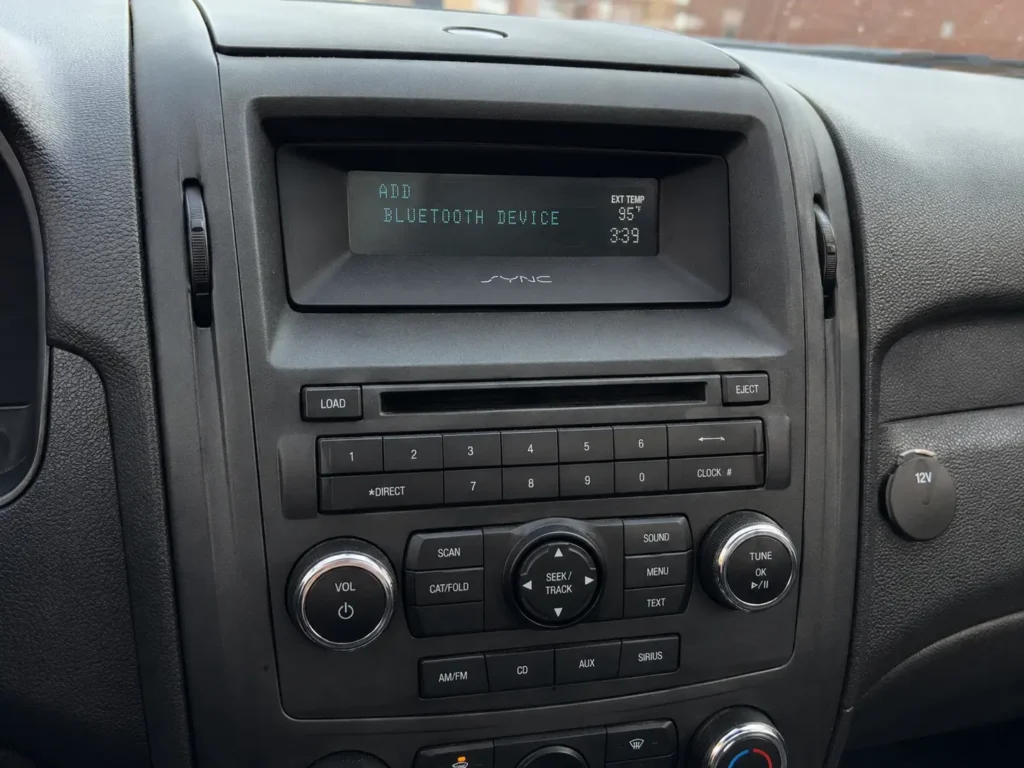
Pairing Steps — SYNC 1
- Press the Phone button on the dashboard. The display will show the option to “Add Bluetooth Device.”
- Press OK to select “Add Bluetooth Device,” then press OK again to start “Find SYNC.”
- On your phone, look for SYNC in the list of available Bluetooth devices and tap it.
- The vehicle display will generate a unique 6-digit PIN. Enter that exact PIN on your phone when prompted and press Confirm.
- The APIM saves your phone’s MAC address. Respond to any final audio prompts via the OK button.
- Accept permission prompts on your phone for contact sync, call history, and media streaming.
Selecting Audio Source on SYNC 1
Pairing alone does not start music. On SYNC 1, press the Voice button on the steering wheel, wait for the chime, then say “Bluetooth Audio” followed by “Play.”
Alternatively, say “Line In” to cycle the source to the connected Bluetooth device. Once locked, use steering wheel controls or voice commands like “Next Track” and “Previous Track” to navigate your library.
How to Connect Phone to Ford SYNC 2 (MyFord Touch) to Play Music
SYNC 2 uses an 8-inch resistive touchscreen — it responds to physical pressure, not just touch. Press the buttons with deliberate, firm pressure. Light taps often fail to register on resistive displays.

Audible — Listen Free for 30 Days
One free credit a month and thousands of titles included.
Listen Free for 30 Days As an Amazon Associate I earn from qualifying purchases.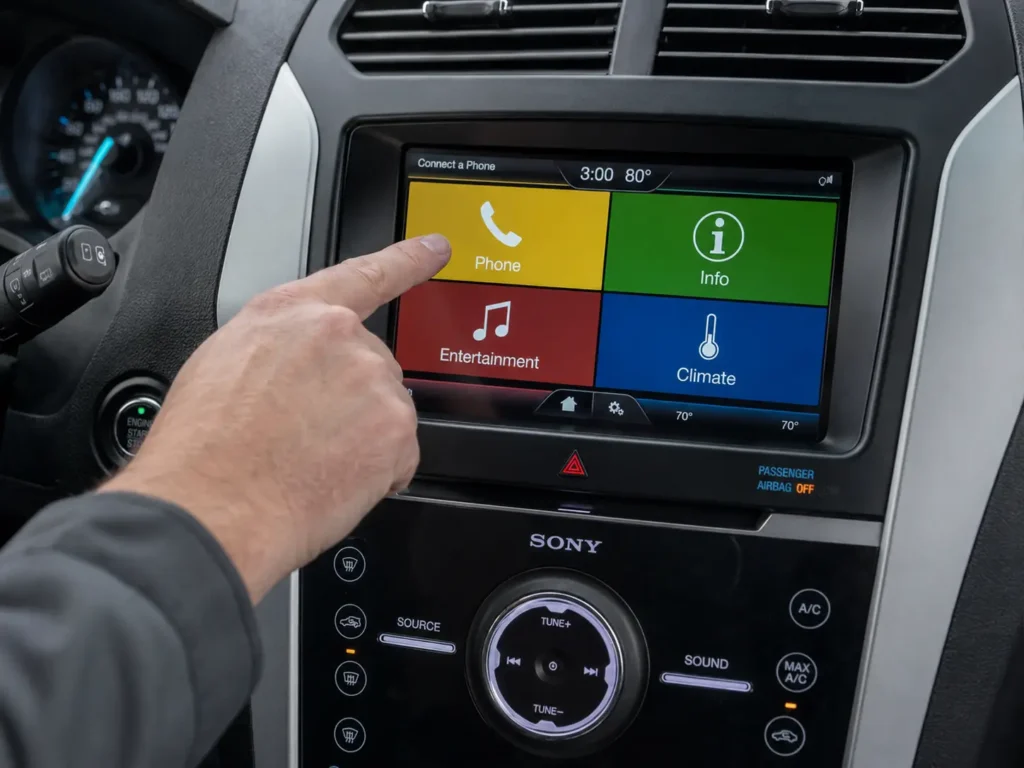
Pairing Steps — SYNC 2
- Tap the yellow upper-left quadrant (Phone) on the 8-inch screen.
- Tap Add a Phone or Connect, then tap Add Device.
- Keep your phone’s Bluetooth menu open and discoverable. The vehicle generates a 6-digit PIN on screen.
- Select SYNC from your phone’s “Available Devices” list. A PIN verification dialog appears.
- Confirm the PIN matches on both screens — tap Yes on the vehicle, tap Pair on your phone.
- Follow on-screen prompts for 911 Assist setup and device designation. Approve media, phonebook, and text access permissions on your phone.
Selecting Audio Source on SYNC 2
Tap the red lower-left quadrant (Entertainment) to open the audio interface. From the list of inputs — AM, FM, Sirius, CD, USB — select Bluetooth Stereo.
Once selected, the APIM requests media metadata from your phone via AVRCP protocol, populating the screen with song title, artist, and album art. Playback is then controlled directly through the red quadrant interface.
👉 Related: Ford SYNC 2 (MyFord Touch) Common Problems and Fixes
How to Connect Phone to Ford SYNC 3 to Play Music
Recommended Best Deal Products
SYNC 3 runs on BlackBerry QNX and uses a capacitive touchscreen — the same technology as a smartphone. It responds instantly to light touch. The interface is clean and modern, with a persistent feature bar at the bottom of the screen.
SYNC 3 introduced native Apple CarPlay and Android Auto support via wired USB connection. If you want to use CarPlay or Android Auto, jump to that section below. Otherwise, follow these steps for standard Bluetooth audio.
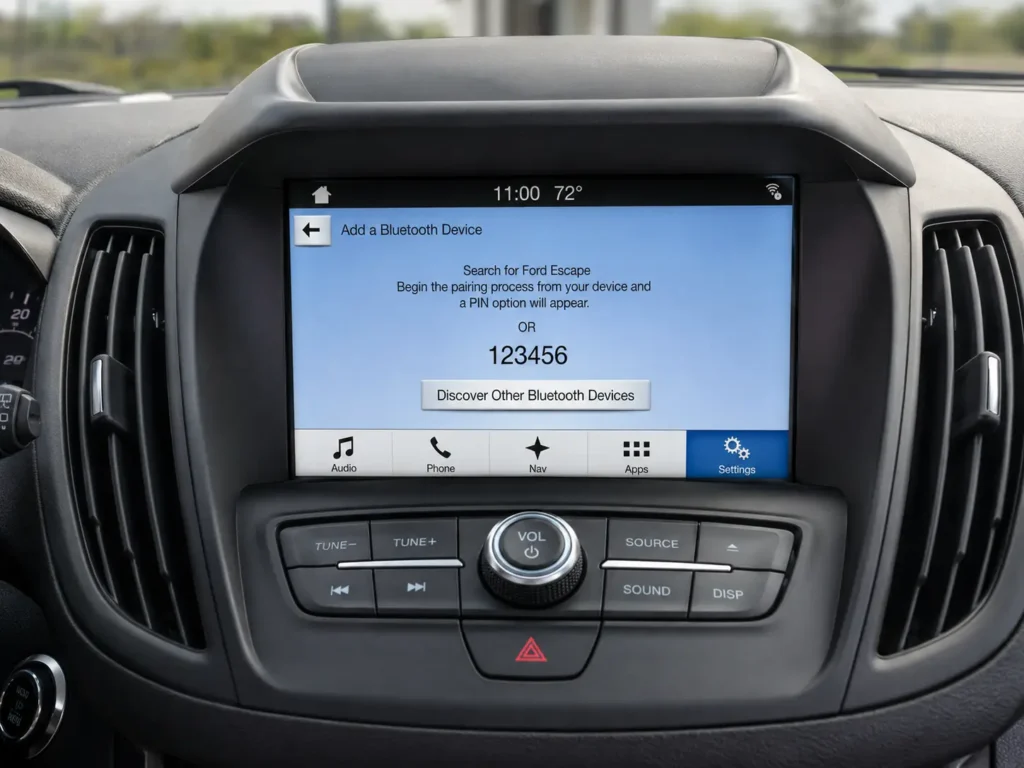
Pairing Steps — SYNC 3
- Tap the Settings icon in the feature bar at the bottom of the SYNC 3 screen.
- Tap Bluetooth Devices, then tap Add a Bluetooth Device, then tap Connect.
- On your phone, search for new Bluetooth devices. Select SYNC from the discovered list.
- A randomized 6-digit PIN appears on both screens simultaneously. Verify it matches.
- Tap Yes on the SYNC screen. Tap Pair on your phone.
- Follow on-screen prompts to activate automatic phonebook download and 911 Assist. Grant audio routing and contact sync permissions on your phone.
Selecting Audio Source on SYNC 3
Navigate to the Audio or Media tab on the bottom navigation bar. Tap the Sources icon to reveal the input matrix. Select your phone’s name or the Bluetooth icon to start the stream.
If you chose to use Apple CarPlay or Android Auto at the pairing screen, the native SYNC audio interface is bypassed. Open your music app (Spotify, Apple Music, etc.) directly within the projected interface and play from there.
👉 Related: Ford SYNC 3 Apple CarPlay Setup — Wired Connection Guide
How to Connect Phone to Ford SYNC 4 / 4A to Play Music
SYNC 4 and 4A feature massive 12-inch and 15.5-inch high-definition displays running on advanced QNX architecture. The biggest difference from SYNC 3: SYNC 4 supports wireless Apple CarPlay and Android Auto — no USB cable required.
Also notable: SYNC 4 vehicles broadcast the specific vehicle name (e.g., “Ford F-150” or “Ford Bronco”) during discovery instead of the generic “SYNC” label used by older generations.
Audible Premium Plus — Annual Membership
12 audiobook credits up front, plus the full Audible catalogue.
See Annual Plans As an Amazon Associate I earn from qualifying purchases.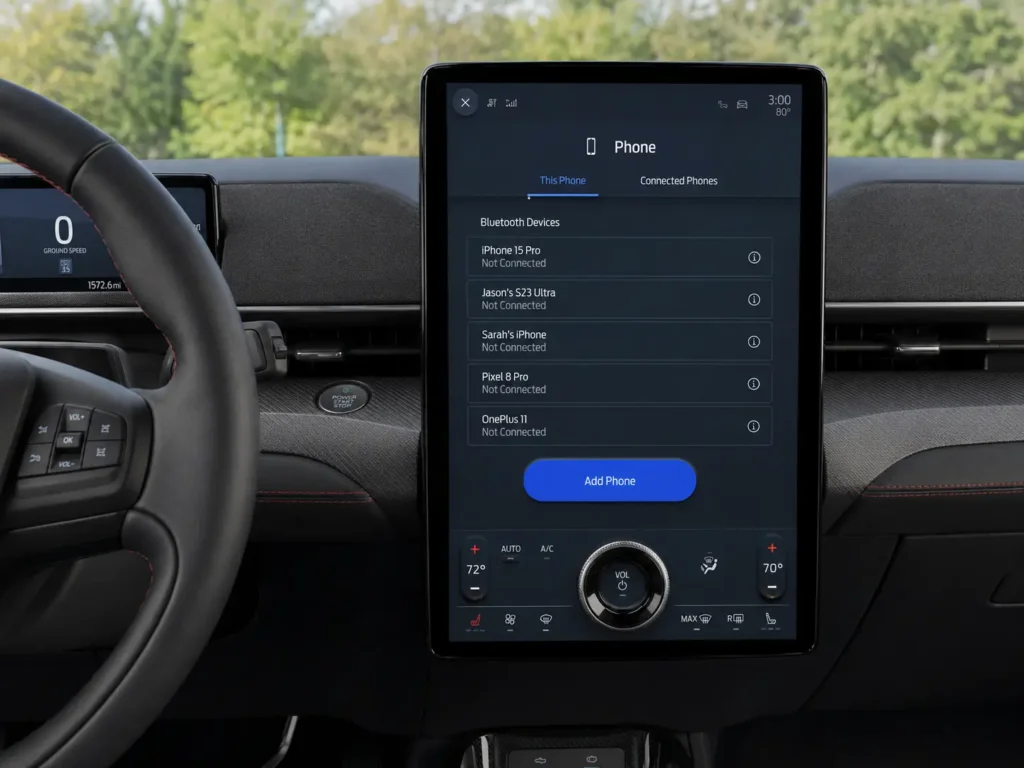
Pairing Steps — SYNC 4 / 4A
- Tap the Home icon or the Settings gear on the main display, then select the Phone menu.
- Tap Add Phone.
- On your phone, go to Bluetooth settings and search for devices. Select your vehicle’s name from the discovery list (not “SYNC”).
- A Bluetooth pairing request appears on both screens with a PIN. Verify it matches.
- Tap Yes on the vehicle screen. Tap Pair on your phone.
- Acknowledge the Apple CarPlay or Android Auto prompt. Tap Allow for contact sync. Choose Use CarPlay or Enable Android Auto if desired, or dismiss to use standard Bluetooth audio.
Selecting Audio Source on SYNC 4
Navigate to Audio → Sources and select your phone’s name or the Bluetooth icon. If wireless CarPlay or Android Auto is active, open your music app directly within the projected interface — audio routes via Wi-Fi Direct at higher fidelity than standard Bluetooth.
👉 Related: Ford SYNC 4 Wireless CarPlay and Android Auto Setup Guide
Apple CarPlay and Android Auto — Wired vs. Wireless
CarPlay and Android Auto give you full smartphone interface projection on the SYNC screen — your preferred music apps, maps, and voice assistant run natively on the dashboard. Understanding the connection method for your SYNC version prevents a lot of unnecessary troubleshooting.
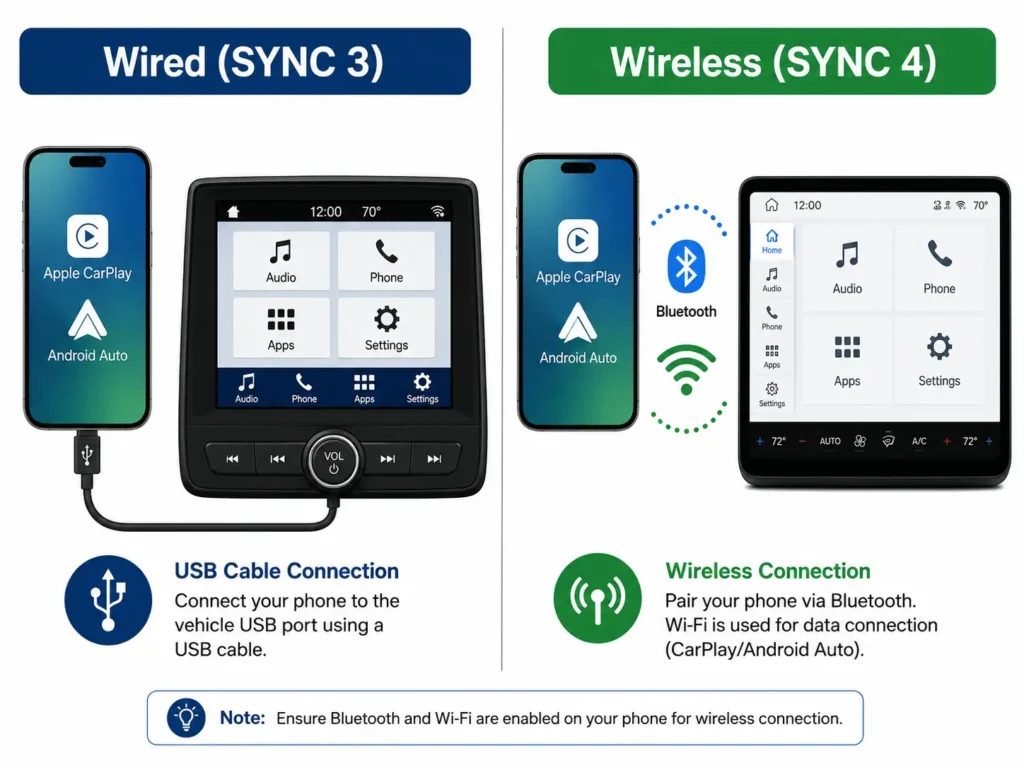
SYNC 3 — Wired Connection Only
SYNC 3 supports CarPlay and Android Auto exclusively through a physical USB cable. Connect your phone to the vehicle’s designated USB data port using a high-quality, manufacturer-certified cable (cheap cables are a major source of audio dropouts).
When the cable is inserted, SYNC 3 detects the device and prompts you to enable projection. Approving this replaces the native Ford interface with your phone’s automotive UI. Audio is routed through USB, providing superior bandwidth and fidelity compared to Bluetooth A2DP compression.
If you experience audio dropouts during wired CarPlay, replace the cable first — degraded USB cables cause data packet loss that mimics audio system failures.
SYNC 4 / 4A — Wireless Connection
SYNC 4’s wireless CarPlay and Android Auto uses a dual-protocol handshake. Bluetooth handles the initial authentication. Immediately after, the APIM instructs your phone to connect to a hidden Wi-Fi Direct network generated by the vehicle itself. All audio and video data — music streaming, map rendering, voice processing — runs over this Wi-Fi connection, not Bluetooth.
This is the critical requirement for wireless projection: both Bluetooth AND Wi-Fi must be enabled on your phone. If you disable Wi-Fi to save battery, wireless CarPlay and Android Auto will fail to initialize, and the system silently falls back to standard Bluetooth audio. No error message. It just stops working.
Troubleshooting: Phone Connected to Ford SYNC But No Sound
The most frustrating SYNC scenario: your phone shows a successful Bluetooth connection, but the speakers are silent. This typically means the APIM has hit a logic loop, an AVRCP handshake failure, or a hardware-level fault. Work through these four diagnostic levels in order — don’t skip ahead.
Level 1 — Check Phone Audio Routing
Modern phones can be paired to multiple Bluetooth devices simultaneously — smartwatch, earbuds, and the car at the same time. The phone may be sending audio to the wrong device.
On Android: Go to Bluetooth settings → tap the gear icon next to the SYNC connection → make sure the Media Audio toggle is enabled. Also confirm your phone volume is up.
On iPhone: Open Control Center → tap the AirPlay / Audio Routing icon inside the media widget → manually select the Ford vehicle as the output destination. iPhone frequently redirects audio to AirPods or HomePods without warning.
Level 2 — Soft Reset (APIM Reboot)
If audio routing is correct but the car is still silent, the Accessory Protocol Interface Module (APIM) may be in a transient software lockup. A soft reset forces the APIM to terminate all active processes, dump its volatile RAM, and reboot — without erasing paired devices, radio presets, or navigation waypoints.
This is the most effective first hardware intervention for sudden audio dropouts, frozen touchscreens, and unresponsive CarPlay.
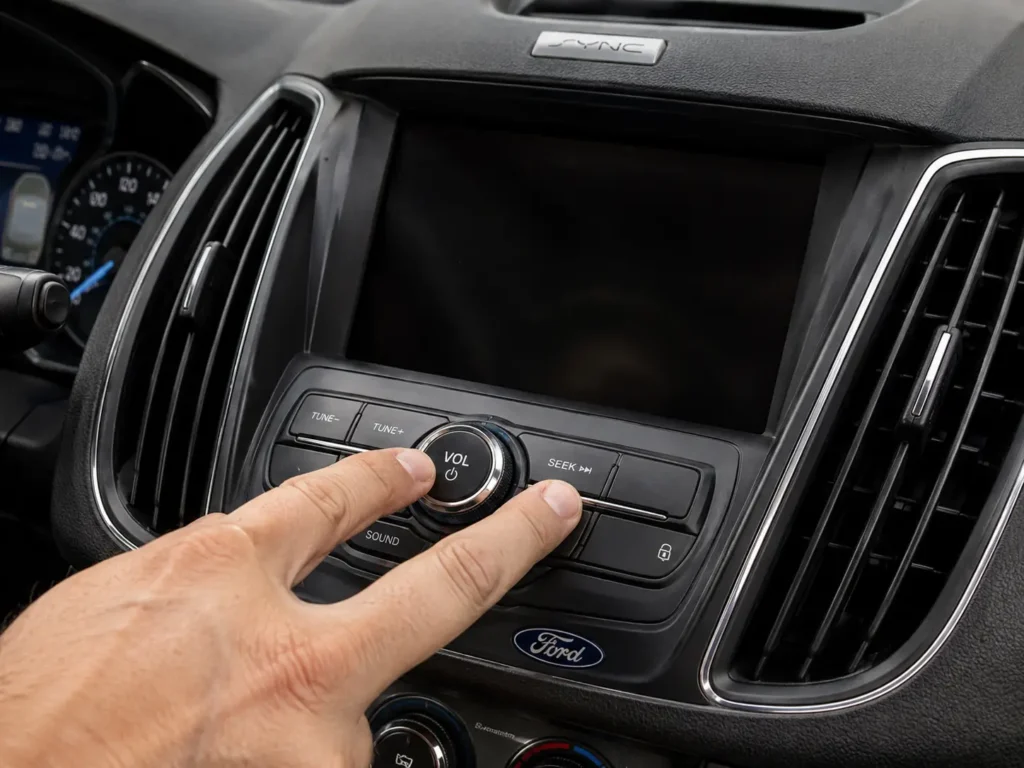
| Your Dashboard Setup | Soft Reset Button Combination | Hold Duration |
|---|---|---|
| Physical Power button available (center of volume dial) | Hold Power button + Seek Right (▶▶) simultaneously | 10–15 seconds |
| No dashboard power button (touchscreen only) | Hold Volume Down + Seek Right (▶▶) on steering wheel controls | 10–15 seconds |
| Specific SYNC 4A models | Hold OK button (pressed toward Vol–) + Seek Right (▶▶) | 10–15 seconds |
The screen goes dark and the system performs a cold boot. Per Ford technical service bulletins, this is the primary fix for “Paired but Not Connected” error loops.
Level 3 — Master Reset (Factory Wipe)
If a soft reset doesn’t restore audio, the Bluetooth cache inside the APIM may be fundamentally corrupted. A Master Reset wipes all personal data: every paired device, call history, navigation waypoints — everything. The SYNC system returns to factory defaults.
On SYNC 3 and SYNC 4: Settings → General → scroll to the bottom → Master Reset or Factory Reset → confirm. The system shuts down and deep-formats the user partition. This takes up to 5 minutes.
Critical step after the reset: Go to your phone’s Bluetooth settings and delete the old SYNC profile (tap “Forget This Device”). If you try to reconnect without deleting the old profile, a cryptographic key mismatch causes an immediate connection rejection. Both sides must be completely cleared before re-pairing.
Level 4 — Hard Reset (Electrical Fuse Pull)
When the SYNC display is completely black, fully unresponsive to touch, or stuck in an infinite boot loop showing only the Ford logo, software resets are impossible. You need to physically cut power to the APIM.
Locate the interior passenger-side fuse box (typically behind a kick panel in the passenger footwell). For many late-model F-150s and Expeditions, Fuse #32 or Fuse #13 governs the SYNC module and radio display — check your owner’s manual for your specific vehicle’s fuse map.
Turn the ignition fully off. Pull the designated fuse using a fuse puller tool or needle-nose pliers. Then turn the ignition back to ON (not start) with the fuse removed — the radio should stay completely dead, confirming the fuse is correct and residual capacitance is draining.
Turn the ignition off again. Reinsert the fuse securely. Restart the vehicle. The APIM initializes from zero-power state, frequently bypassing deep transient lockups that survive soft resets.
If all four levels fail, the APIM’s physical hardware is likely compromised — solder joint fractures from thermal cycling and road vibration cause erratic behavior that no software reset can fix. The module needs professional diagnosis via Ford’s Integrated Diagnostic System (IDS) or physical replacement. 👉 Related: Ford SYNC APIM Module Failure — Symptoms, Diagnosis, and Replacement Cost
Streaming Music via USB Instead of Bluetooth
Bluetooth A2DP compresses audio before transmission. If you want uncompressed audio fidelity, connect your phone or a USB flash drive directly to the vehicle’s media USB port.
On SYNC 1 and 2: Press the physical AUX or Media button until the display shows the USB input is active.
On SYNC 3 and 4: Go to Audio → Sources → select the USB icon. When using a USB flash drive, SYNC uses the Gracenote database to read MP3/WAV file metadata, displaying album art, artist name, and genre on screen.
People Also Ask — Advanced SYNC Troubleshooting
Why does my phone route calls through the car but refuse to play music?
This happens because Bluetooth uses separate profiles for different tasks. The Hands-Free Profile (HFP) handles low-bandwidth voice calls. The Advanced Audio Distribution Profile (A2DP) handles high-bandwidth media streaming. Your phone established HFP but failed to establish A2DP.
Go to your phone’s Bluetooth settings → find the SYNC connection profile → ensure the “Media Audio” toggle is active. If it’s already on, delete the pairing profile on both devices, execute a soft reset on the APIM, and re-pair from scratch to force a fresh A2DP negotiation.
Why does Ford SYNC auto-play the first song alphabetically when I connect my iPhone?
When an iPhone connects to SYNC via Bluetooth or USB, the APIM immediately sends an AVRCP “Play” command to initiate audio routing. If no streaming app (Spotify, Podcasts, etc.) is running in the background, iOS interprets this by playing the first song in your Apple Music library sorted alphabetically.
This is an Apple iOS behavior, not a Ford defect. To prevent it: open your preferred app before starting the car, or use iOS Shortcuts to automate specific playback when the vehicle’s Bluetooth connects.
How do I fix the Ford SYNC “Bluetooth device is disconnected” error loop?
This loop typically follows a major iOS or Android OS update. When your phone updates, the cryptographic keys and AVRCP versions used for the Bluetooth handshake change slightly. SYNC expects the old handshake and rejects the new one repeatedly.
The fix: delete the SYNC profile from your phone’s Bluetooth settings (“Forget This Device”), delete your phone from SYNC’s device list, restart both the vehicle and phone, and pair fresh. New cryptographic keys are generated, and the loop breaks.
Can I upgrade from SYNC 1 or SYNC 2 to SYNC 3?
Not with a software flash — SYNC 1, 2, and 3 run on entirely different hardware architectures. Going from SYNC 2 to SYNC 3 requires a full physical hardware retrofit: remove the SYNC 2 resistive touchscreen and its APIM, install a SYNC 3 capacitive display and corresponding APIM.
The replacement module must then be coded with FORScan to align the new APIM’s As-Built data with your vehicle’s specific configuration — otherwise climate controls and steering wheel buttons won’t work. Enthusiast communities like CyanLabs provide the firmware files and coding matrices for these retrofits. 👉 Related: Ford SYNC 2 to SYNC 3 Upgrade — Full Retrofit Guide
How do I delete paired devices when SYNC memory is full?
SYNC allocates a finite memory partition for Bluetooth profiles. When full, the APIM refuses to generate new pairing PINs, blocking new devices entirely.
On SYNC 3 and 4: Settings → Phone List or Bluetooth Devices → tap the obsolete device → tap Delete or the trash icon.
On SYNC 1 (voice only): Press the Voice button and say “Delete [Name of Phone].” Regularly purging unused profiles keeps the APIM responding fast during Bluetooth discovery.
How does the SYNC APIM degrade over time?
The APIM is a microcomputer bolted directly to the back of the display. It bakes in summer heat, freezes in winter, and vibrates constantly from the road. Over years, this causes microscopic solder joint fractures on the processor and memory chips.
Early symptoms: GPS drifting, Bluetooth dropping randomly, extreme touchscreen latency. Late stage: complete system failure. Software resets cannot repair physical solder damage — when joints crack, the APIM module must be physically swapped. 👉 Related: SYNC APIM Module Failure — Symptoms and When to Replace
SYNC screen is black and unresponsive — how do I do a master reset?
You can’t — a software Master Reset requires the visual settings menu, which is inaccessible when the screen is black. Start with a soft reset (hold Power + Seek Right for 10 seconds) to try to revive the display.
If the soft reset fails, proceed to the hard reset fuse pull described in Level 4 above. If pulling the fuse and restoring power still produces a black screen, the LCD backlight has failed or the APIM motherboard is irreparably damaged — physical replacement is required.
Final Thoughts
Connecting your phone to Ford SYNC to play music is straightforward once you know which SYNC version you have and follow the correct sequence for that generation. SYNC 1 and 2 require a PIN entry and manual audio source selection. SYNC 3 and 4 are faster and more intuitive — and SYNC 4 adds wireless CarPlay and Android Auto.
If the connection works but there’s no sound, always start at Level 1 (phone audio routing) before jumping to a Master Reset. Most “connected but silent” issues are solved at Level 1 or 2 and take under two minutes.
Drop your Ford model, year, and SYNC version in the comments — happy to help you confirm the exact steps for your setup.
👉 Related: How to Change Battery in Ford Key Fob — Complete Guide
👉 Related: How to Turn Off Ford MyKey Without an Admin Key
👉 Related: Ford SYNC APIM Module Failure — Symptoms and Replacement Cost