How to Calibrate Ford SYNC: APIM Diagnostics and System Reset Guide 2026

The modern Ford SYNC infotainment system operates as the central digital nervous system for millions of vehicles on the road today. It manages everything from essential climate controls to complex GPS navigation algorithms.
At the heart of this system is the Accessory Protocol Interface Module, commonly referred to as the APIM. When the APIM begins to experience software degradation or hardware wear, drivers immediately notice the impact.

Audible — Listen Free for 30 Days
One free credit a month and thousands of titles included.
Listen Free for 30 Days As an Amazon Associate I earn from qualifying purchases.Symptoms often manifest as phantom screen taps, drifting GPS coordinates, or completely unresponsive dashboard displays. Resolving these frustrating issues requires a highly precise understanding of the calibration protocols engineered into the Ford architecture.
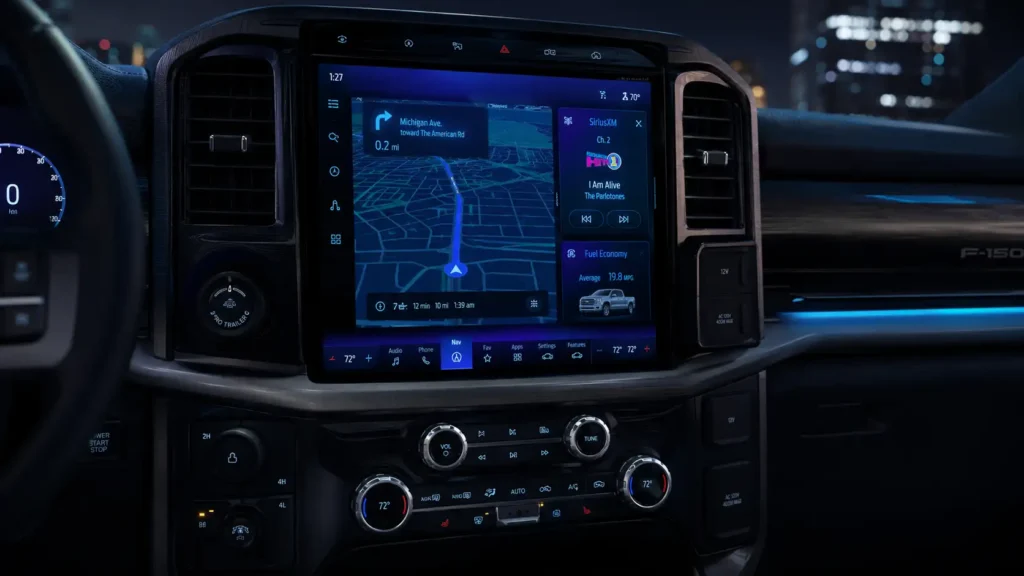
This comprehensive research report outlines the exact methodologies required to calibrate, reset, and diagnose Ford SYNC systems. The analysis spans from basic touchscreen alignment procedures to advanced APIM firmware flashing using specialized diagnostic software.
By synthesizing technical service bulletins, diagnostic menu workflows, and expert diagnostic practices, this guide provides authoritative solutions. Automotive technicians and knowledgeable owners can utilize this data to accurately isolate minor software glitches from catastrophic hardware failures.
Visual and mechanical calibration procedures differ vastly between the various SYNC generations. A procedure designed specifically for the resistive touchscreens of older SYNC 2 systems will not apply to the capacitive displays of SYNC 4.
The detailed report below breaks down these generation-specific workflows to ensure accurate diagnostics. It provides deeply researched, step-by-step solutions to restore factory-level responsiveness to any Ford infotainment system.
Understanding Resets Versus Calibrations
Recommended Best Deal Products


Before disassembling dashboard components or modifying module firmware, technicians must differentiate between a system reset and a hardware calibration.
These terms are frequently conflated in consumer forums, yet they address entirely different failure points within the APIM architecture.
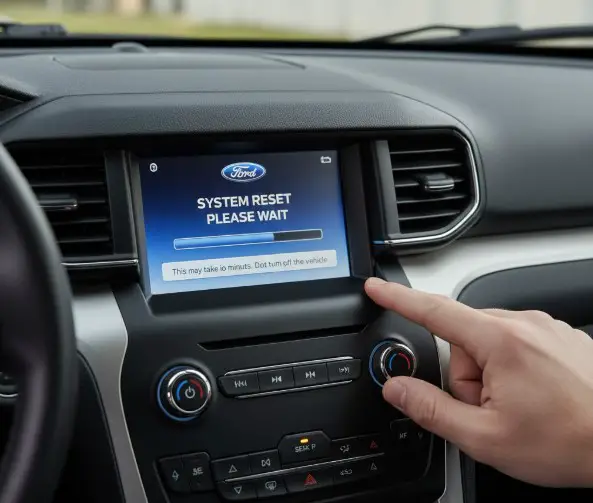
A system reset forces the operating system to undergo a power cycle or wipe user data entirely.
This mechanism clears frozen memory states, resolves stubborn Bluetooth handshaking errors, and stops boot-looping software sequences.

Prime for Young Adults — 6 Months Free
Students and 18–24s get six months of Prime free, then half price.
Start 6 Months Free As an Amazon Associate I earn from qualifying purchases.Calibration, conversely, realigns the hardware’s physical or spatial inputs with the software’s mathematical expectations.
This precise alignment applies to the touchscreen digitizer coordinates, the digital compass magnetometer, and the GPS Dead Reckoning algorithms.
If a screen registers a touch an inch away from the physical finger placement, the system requires a digitizer calibration.
However, if the screen is entirely black but the radio continues to play audio, the module requires a soft reset or a hardware power cycle.
When the navigation map shows the vehicle spinning in circles in an empty field, the GPS gyroscope requires a specific Dead Reckoning calibration.
Understanding these fundamental technical distinctions prevents unnecessary hardware replacements and highly invasive firmware flashes.
The Evolution of SYNC Touch Technology
The physical hardware underlying the touchscreen dictates its specific calibration and maintenance needs.
Ford SYNC with MyFord Touch, which is universally known as SYNC 2, utilizes an older resistive touchscreen layer.
Resistive screens rely on physical pressure connecting two flexible, conductive layers to accurately register a touch.
Because this legacy technology depends on physical tension, temperature fluctuations and continuous mechanical wear cause the touch coordinates to drift significantly over time.
Audible Premium Plus — Annual Membership
12 audiobook credits up front, plus the full Audible catalogue.
See Annual Plans As an Amazon Associate I earn from qualifying purchases.Consequently, SYNC 2 systems frequently require manual touchscreen alignment to remain usable.
In contrast, SYNC 3, SYNC 4, and the modern Ford Digital Experience rely on capacitive touchscreens, functioning much like modern smartphones.
Capacitive screens detect the subtle electrical properties of the human body rather than physical pressure.
They do not suffer from the pressure-based physical drift that plagues older resistive displays.
Therefore, if a SYNC 3 or SYNC 4 screen registers phantom inputs, it typically indicates a physical hardware failure rather than a simple calibration drift.
These hardware failures usually involve moisture intrusion behind the bezel or age-related digitizer delamination.
Visual Plan: Touchscreen Technology Comparison Diagram
Concept: A side-by-side cross-section diagram comparing Resistive vs. Capacitive touchscreens.
Data to Include: Resistive (SYNC 2): Relies on physical pressure, features two flexible layers, prone to coordinate drift, requires physical calibration via diagnostic menus. Capacitive (SYNC 3/4): Relies on human electrical conductivity, features a solid glass surface, highly accurate, immune to calibration drift but vulnerable to heat delamination.
Identifying the Target SYNC Generation
Recommended Best Deal Products


Applying the correct calibration or reset sequence requires positive, accurate identification of the APIM generation.
Ford has deployed multiple distinct iterations of the SYNC system since its initial debut back in 2007.
The visual interface design and the physical dashboard button layouts offer the most reliable identification metrics.
Users can consult the official Ford Support SYNC Visual Reference Guide to visually match their screen layout.
Alternatively, users can input their 17-digit Vehicle Identification Number (VIN) into the official Ford SYNC update portal.
This queries the manufacturer database to reveal the exact factory-installed module.
SYNC Generation Identification Matrix
| SYNC Generation | Key Visual Identifiers | Touchscreen Technology | Common Calibration Requirements |
| SYNC Gen 1 & 1.1 | Small, non-touch monochrome or low-resolution color display. | None (Physical dashboard buttons only) | Bluetooth module resets, master resets. |
| SYNC 2 (MyFord Touch) | 8-inch screen split into four distinct color-coded quadrants (Phone, Nav, Climate, Audio). | Resistive Touch Layer | Touchscreen crosshair alignment, GPS DR calibration. |
| SYNC 3 | Light blue/white interface (or dark mode). Apps arranged in a horizontal bottom dock. | Capacitive Touch Layer | Soft resets, APIM firmware updates, GPS calibration. |
| SYNC 4 & 4A | Massive portrait or landscape screens (8 to 15.5 inches). Card-based dynamic interface. | High-Resolution Capacitive | Over-The-Air (OTA) updates, module reboots. |
| Digital Experience | Latest Android Automotive-based interface found in the newest luxury models. | High-Resolution Capacitive | Deep system power cycles, app-level cache resets. |
Technicians must carefully note that upgrading a vehicle from SYNC 2 to SYNC 3 using aftermarket hardware changes the diagnostic workflows entirely.
The vehicle’s VIN will continue to indicate a SYNC 2 system in Ford’s corporate databases.
However, the newly installed physical APIM will respond exclusively to SYNC 3 calibration commands and resets.
Level 1: The Touchscreen Alignment Procedure
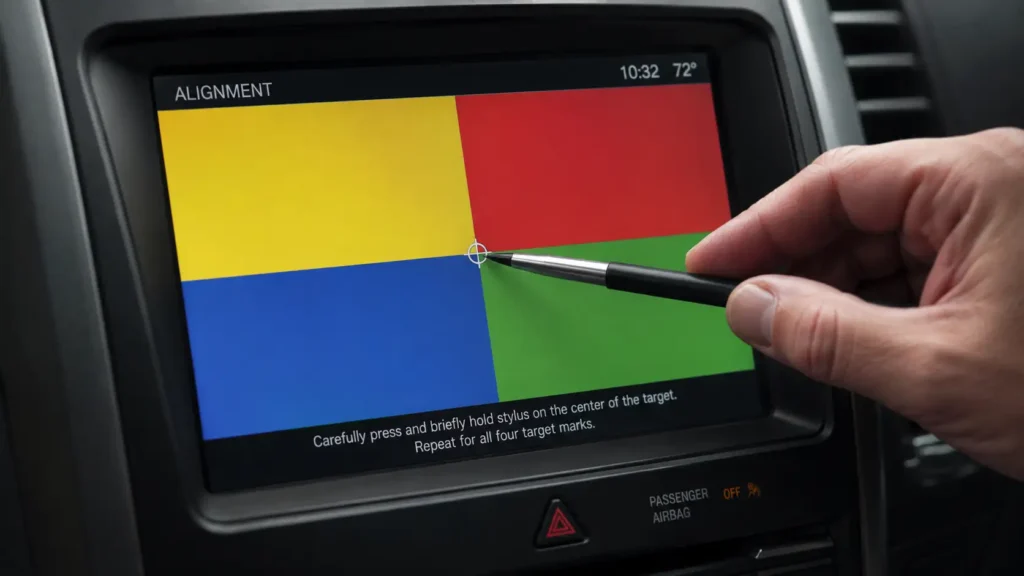
For vehicles equipped with the SYNC 2 MyFord Touch architecture, physical alignment of the digitizer is a standard, expected maintenance procedure.
Over years of use, the pressure-sensitive grid slowly loses spatial synchronization with the LCD matrix situated directly behind it.
Users frequently report the frustrating experience of having to press slightly below or to the side of an intended digital button to activate it.
The system features a hidden alignment menu specifically designed to mathematically correct this spatial discrepancy.
Step-by-Step MyFord Touch Calibration
The vehicle must be parked in a safe, well-ventilated area with the internal combustion engine running.
This ensures the APIM receives a continuous, stable voltage supply from the alternator during the procedure.
The technician must locate the physical Eject button for the CD player on the dashboard.
They must also locate the Seek-Up (or Track Forward) button on the vehicle’s central media console.
First, the technician presses and firmly holds the physical Eject button.
Within exactly one second, they must press and hold the Seek-Up button simultaneously.
Both buttons must be held down until the system initiates a “Speaker Walkaround Test,” which outputs loud diagnostic audio tones to each vehicle speaker in sequence.
Once the diagnostic audio test begins, the technician must release the initial buttons immediately.
They must then instantly press and hold the Seek-Down (Track Backward) button.
If executed correctly, the main SYNC screen will transition cleanly into the Touchscreen Alignment interface.
A target, usually rendered as an “X” or a digital crosshair, will appear in the corner of the display.
The user must carefully and precisely press the exact center of this target using a stylus or a very steady finger.
Once successfully pressed, the target will immediately jump to a new, predefined location on the screen.
The user must faithfully follow the crosshair around the perimeter and eventually to the exact center of the display.
This mathematical process maps the physical pressure points of the digitizer to the extreme corners and center of the underlying digital grid.
After the final crosshair is pressed, the user can tap anywhere on the screen to permanently save the new calibration data and exit the menu.
If the touchscreen is so severely degraded that the initial alignment buttons cannot even be navigated, the hardware is compromised.
In this scenario, the screen’s digitizer layer has likely suffered an irreversible physical failure and must be replaced.
Level 2: Soft Resets and System Reboots
Recommended Best Deal Products


Complex software glitches routinely cause the SYNC system to freeze, drop active Bluetooth connections, or fail to load Apple CarPlay.
Before attempting complex, time-consuming calibrations, a simple soft reset should always be executed first.
A soft reset forcefully power-cycles the APIM, acting as a rapid circuit breaker.
It forcefully interrupts all active background processes and completely clears the volatile memory, known as RAM.
Crucially, it does this without erasing any saved user data, paired smartphones, or internal navigation histories.
This process is entirely safe for the vehicle’s electrical architecture.
It mimics the familiar action of holding down the power button on a frozen desktop computer or smartphone.
It is always the absolute first line of defense against unresponsive automotive touchscreens.
Soft Reset Button Combinations
Ford electrical engineers have standardized the soft reset protocol across most modern vehicle platforms.
However, slight variations do exist based entirely on the specific physical dashboard layout of the trim level.
For SYNC 3, SYNC 4, and SYNC 4A systems equipped with a physical volume dial and power button:
The driver must press and hold the Power Button located directly in the center of the volume dial.
Simultaneously, they must press and hold the Seek-Right (Next Track) button on the dashboard console.
These two buttons must be held down firmly for 10 to 15 continuous seconds.
The main display will eventually go entirely black, visually signifying the successful power interruption.
Shortly after the screen goes black, the familiar Ford or Lincoln corporate startup animation will appear.
For vehicles without a physical power button on the central dashboard, which is common in newer, screen-dominant interiors:
The driver must press and hold the Volume-Down button and the Seek-Right button located directly on the steering wheel controls.
This specific combination must also be held down for 10 to 15 seconds to trigger the APIM reboot sequence.
For the absolute newest Ford Digital Experience systems:
The APIM can be rapidly rebooted by quickly pressing the audio system’s Power button five distinct times in rapid succession.
Alternatively, holding the Power button for 10 seconds will also forcefully force a deep system reboot.
A distinct, audible “pop” sound may be heard from the vehicle’s speakers as the audio amplifier rapidly power cycles.
Visual Plan: Soft Reset Matrix
Concept: A quick-reference lookup table for soft reset commands.
Data to Include: Hardware Type | Button 1 | Button 2 | Duration. (e.g., Physical Dial Dashboard | Power/Vol Knob | Seek-Right | 10 seconds).
The “Door Open” Hard Power Cycle
If a standard soft reset completely fails to resolve an unresponsive screen, a full vehicle power cycle is mandated.
Modern APIMs enter a low-power, suspended sleep mode when the vehicle’s ignition is turned off.
This means a simple key cycle does not actually shut down the processor or clear the active memory cache.
To force a deep software shutdown without physically disconnecting the 12-volt vehicle battery:
The driver must first turn the vehicle’s ignition completely off and remove the key.
Next, the driver must open the driver’s side door and leave it physically ajar.
They must then step completely away from the vehicle with the key fob for at least two to five minutes.
This extended time delay allows the vehicle’s complex CAN bus network to finally enter “sleep” mode.
This completely severs residual electrical power to the APIM, forcing a true cold boot upon the next vehicle startup.
Level 3: Master Factory Resets
When calibration drift and soft resets fail to cure chronic connectivity drops, audio stuttering, or systemic UI lag, a Master Reset is the next logical diagnostic step.
A Master Reset restores the APIM firmware to its original, pristine factory state.
It irreversibly erases all paired Bluetooth devices, saved Wi-Fi networks, stored home addresses, and phonebook downloads.
Dealership service technicians routinely perform a Master Reset prior to delivering a used vehicle to a new owner.
It is also utilized as a mandatory preliminary step before attempting to flash new APIM firmware files.
Executing a Master Reset
The procedure requires a moderately functional touchscreen to navigate the internal menus.
If the screen is entirely dead and unresponsive to touch, a Master Reset cannot be executed via the standard user interface.
For modern SYNC 3 and SYNC 4 digital architectures:
The user must tap the Settings gear icon located prominently on the home screen.
They must then navigate to the General menu tab located on the left-side panel.
From there, they scroll to the absolute bottom of the list and select Reset or Reset Options.
Finally, they select the Master Reset or Factory Reset prompt.
A stark warning prompt will appear on the display detailing the data loss.
The user must physically disconnect all connected USB cables, flash drives, and active Bluetooth devices.
After pressing Continue or Yes, the screen will go completely blank.
A “Resetting to factory defaults” progress bar may appear on some system iterations.
This deep clearing process can take up to five minutes, and the vehicle must remain running in park throughout the entire operation.
For legacy SYNC 2 (MyFord Touch) systems:
The driver must press the Gear Icon to access the Settings menu.
They must then tap the System button on the touchscreen.
Scrolling down the menu, they must locate and press the Master Reset button.
After confirming the prompt, they must wait for the system to automatically reboot.
For the oldest SYNC Gen 1 interfaces, which lack touch capabilities:
Users must exclusively utilize the physical dashboard buttons.
They press the Phone button, scroll using the physical down arrow to System Settings, and press OK.
They then navigate to Advanced, and finally select Master Reset from the text list.
Post-Reset Phonebook Management
A remarkably common cause of APIM memory freezing is heavily corrupted Bluetooth phonebook data.
Modern smartphones contain thousands of contacts, high-resolution contact photos, and massive, endless text message histories.
When a phone initially pairs with the SYNC system, it automatically attempts to download and index this massive data payload.
This sudden influx of data frequently overwhelms the highly limited RAM of older SYNC 2 and early SYNC 3 modules.
After successfully completing a Master Reset, technicians strongly advise owners to permanently disable the “Auto Phonebook Download” feature.
By strictly restricting SYNC from constantly pinging the phone for new contacts and photos, the APIM operates significantly faster and entirely avoids memory-induced freezing.
Level 4: The Bezel Diagnostics Menu
For advanced system calibration and deep hardware testing, Ford engineers built a hidden Bezel Diagnostics Menu directly into the core SYNC software.
This powerful menu is completely hidden from consumers and is not outlined in standard owner’s manuals.
The Bezel Diagnostics interface allows technicians to view raw, unfiltered sensor data in real-time.
It allows them to read Diagnostic Trouble Codes (DTCs) directly from the APIM without requiring an external OBD2 scanner.
Accessing the Hidden Diagnostics Menu
Entering this protected menu requires a highly specific button combination that varies slightly by vehicle model and steering wheel configuration.
For the vast majority of SYNC 3 and SYNC 4 vehicles:
The technician must ensure the radio is turned on and audio is actively playing (FM or AM).
They must press and hold the Seek-Right button on the physical dashboard bezel.
Simultaneously, they must press the Seek-Right button located on the steering wheel controls.
Alternatively, holding the CD Eject button and the Seek-Right dashboard button for 5 to 10 seconds will also reliably trigger the menu.
The system will briefly display a highly annoying “Speaker Walkaround Test” screen and play loud tones.
The user can quickly hit “Cancel” or “End Test” on the screen to bypass the audio check and enter the main Diagnostics Dashboard.
Touchscreen Activation Testing
Within the main Bezel Diagnostics menu, users can access the highly useful APIM Diagnostics sub-menu.
From here, they can select the Touchscreen Activation Test.
This is an absolutely critical diagnostic tool for definitively identifying physical hardware failure.
The screen will suddenly display a dense grid of dozens of small, empty squares.
The user must methodically press every single square on the diagnostic grid.
When a square successfully registers a physical touch, it changes color, typically turning bright blue.
If a specific row, column, or cluster of squares refuses to turn blue despite being firmly pressed, the digitizer layer is physically broken in that specific physical zone.
This definitively proves that software resets will not fix the issue, and the physical screen assembly must be entirely replaced.
Conversely, if the screen routinely registers phantom inputs, squares may turn blue on their own without the user ever touching them.
This confirms a “ghost touch” hardware short, which also mandates a complete screen replacement.
Viewing APIM Part Numbers and DTCs
The diagnostics menu provides incredibly deep system information for troubleshooting.
Under the Part Numbers tab, technicians can view the exact hardware numbers, calibration file levels, and software builds currently flashed to the APIM’s memory.
Under the View Active Faults or Confirm DTCs tabs, the APIM will list hexadecimal error codes.
These codes explicitly indicate communication failures with other vehicle modules, such as the GPS antenna or the Body Control Module.
Level 5: GPS and Compass Calibration
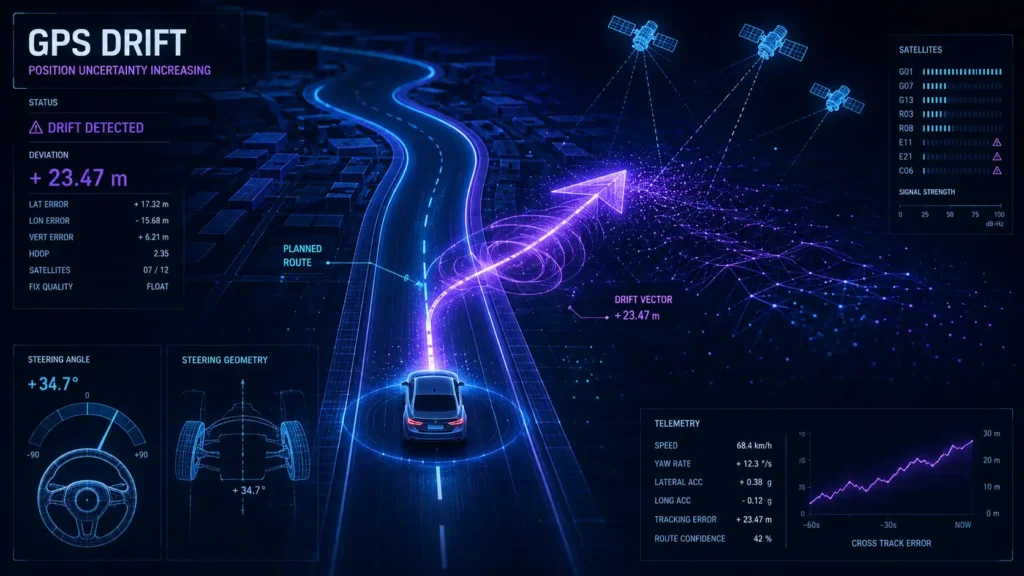
A frequently reported, highly frustrating calibration failure involves the SYNC navigation system.
Vehicles will randomly exhibit a spinning directional arrow, off-road vehicle positioning, or a complete loss of satellite lock.
This lock failure is usually indicated by a red cross or a circle-slash symbol positioned over the GPS icon on the map.
Dead Reckoning (DR) Calibration Drift
When a vehicle enters a long tunnel or a dense urban environment with tall skyscrapers, it loses direct line-of-sight with overhead GPS satellites.
To maintain continuous, accurate navigation tracking without a signal, the APIM relies on a highly complex mathematical process called Dead Reckoning (DR).
Dead Reckoning utilizes raw data from the vehicle’s ABS wheel speed sensors, the steering wheel angle sensor, and internal APIM gyroscopes.
It calculates exactly how far, and in what exact direction, the vehicle has traveled since it last communicated with a satellite.
Over thousands of miles, slight physical variations in tire circumference caused by tread wear or changing tire brands cause these mathematical calculations to slowly drift.
Eventually, the DR algorithm aggressively conflicts with the actual GPS satellite data, causing the digital map to spin wildly or project the car into a river or empty field.
Clearing DR Calibration
To permanently fix a spinning map on a SYNC 3 system, the internal DR calibration data must be entirely wiped and mathematically relearned.
The technician must first enter the Bezel Diagnostics Menu using the Eject + Seek Right combination.
They must quickly skip the audio test and open the Testing Settings menu screen.
Scrolling down, they must locate and firmly press the digital button labeled Clear DR Calib.
Once pressed, they can safely exit the diagnostics menu and return to the home screen.
However, clearing the data is only the first half of the necessary calibration procedure.
The vehicle must now physically relearn its spatial and geometric parameters through movement.
Ford technical service bulletins dictate a highly strict driving procedure to rebuild the DR mathematical tables.
The driver must operate the vehicle for approximately 10 continuous minutes at speeds exceeding 25 MPH.
During this specific drive, the driver must execute at least four complete 90-degree right turns, and four complete 90-degree left turns.
This specific geometric driving pattern allows the APIM to perfectly recalibrate its internal gyroscope against the wheel speed telemetry data.
Magnetic Compass Calibration
For lower-trim vehicles without full map navigation, a simple digital magnetic compass may begin displaying the wrong cardinal direction.
Magnetic calibration is a completely distinct process from GPS DR calibration.
To accurately calibrate the digital compass located in the instrument cluster or the rearview mirror: The driver must navigate to the Setup Menu via the instrument cluster stalks or steering wheel buttons.
They must carefully locate the Compass Zone setting within the sub-menus.
They must ensure the selected digital zone matches the vehicle’s actual geographic location based on regional magnetic variance maps provided by Ford.
Next, they select the Calibrate Compass option from the list.
The dashboard screen will display a message explicitly commanding the driver to “Circle Slowly To Calibrate”.
The driver must drive the vehicle in a tight, complete 360-degree circle at a highly restricted speed of less than 3 to 5 MPH.
They must continue slowly circling up to five consecutive times until the dashboard finally displays “Calibration Completed”.
Technicians must ensure this is performed in a completely open parking lot devoid of heavy steel structures.
High-tension power lines, large metal dumpsters, or underground reinforced concrete generate massive electromagnetic interference that completely disrupts magnetometer calibration.
Level 6: Advanced APIM Diagnostics and Fuse Resets
When the central SYNC screen is completely black, completely unresponsive, or stuck in an infinite corporate boot loop, software menus are entirely inaccessible.
Diagnostics must instantly transition from digital menu navigation to direct electrical intervention.
The APIM Fuse Pull (Hard Hardware Reset)
A deeply frozen microprocessor requires a complete, immediate severing of all electrical power to clear its logic gates.
Disconnecting the vehicle’s negative battery terminal for 15 minutes easily achieves this power cut.
However, it also heavily resets the engine control module’s idle learning curves and the transmission’s shift adaptive tables, which is often highly undesirable.
A much more targeted, professional approach involves manually pulling the dedicated APIM power fuse.
The exact fuse location, amperage, and box placement varies wildly by vehicle model and specific production year.
On a 2009-2014 Ford F-150, the SYNC system is commonly protected by a 20-amp or 25-amp fuse. This is usually located in the passenger-side kick-panel interior fuse box, often designated as Fuse #13, #88, or #2.
On a 2012-2018 Ford Focus, the APIM is strictly powered by Fuse F67, which is a 7.5-amp fuse. This is located directly in the Body Control Module under the passenger dashboard.
On a modern 2015+ F-150, it is typically designated as Fuse #32 or #33 located in the interior footwell panel.
Technicians must painstakingly consult the specific vehicle’s owner’s manual to verify the exact layout.
Extracting the correct fuse with pliers, waiting 60 full seconds, and firmly reinserting it forces the APIM to undergo a true cold hardware boot.
If the screen stubbornly remains black after a fuse reset but the radio audio continues to play normally, the APIM module’s internal circuitry has likely failed permanently and requires physical replacement.
Backup Camera Calibration (LIN Initialization)
A highly common issue indirectly related to the SYNC system is a distorted, black, or heavily lined backup camera feed.
Owners often assume replacing the physical camera hardware in the tailgate immediately fixes the issue.
However, the new physical camera must be properly introduced to the vehicle’s Body Control Module (BCM) and the APIM.
This introduction occurs through a highly specific Local Interconnect Network (LIN) calibration procedure.
If the camera is physically replaced without a digital LIN initialization, the SYNC screen may entirely fail to transition when the vehicle is shifted into reverse.
Alternatively, the dynamic parking guidelines, which curve perfectly as the steering wheel turns, will be completely missing from the video feed.
This crucial calibration cannot be performed anywhere through the standard SYNC touchscreen interface.
It strictly requires the use of specialized, professional diagnostic software like the official Ford IDS (Integrated Diagnostic System) or the enthusiast-grade software FORScan.
Visual Plan: Fuse Location Data Table
Concept: A reference table showing common SYNC fuse locations for popular Ford models to save diagnostic time.
Data to Include: Vehicle Model | Year Range | Fuse Box Location | Typical Fuse Number | Amperage.
Level 7: Modifying APIM Firmware via FORScan
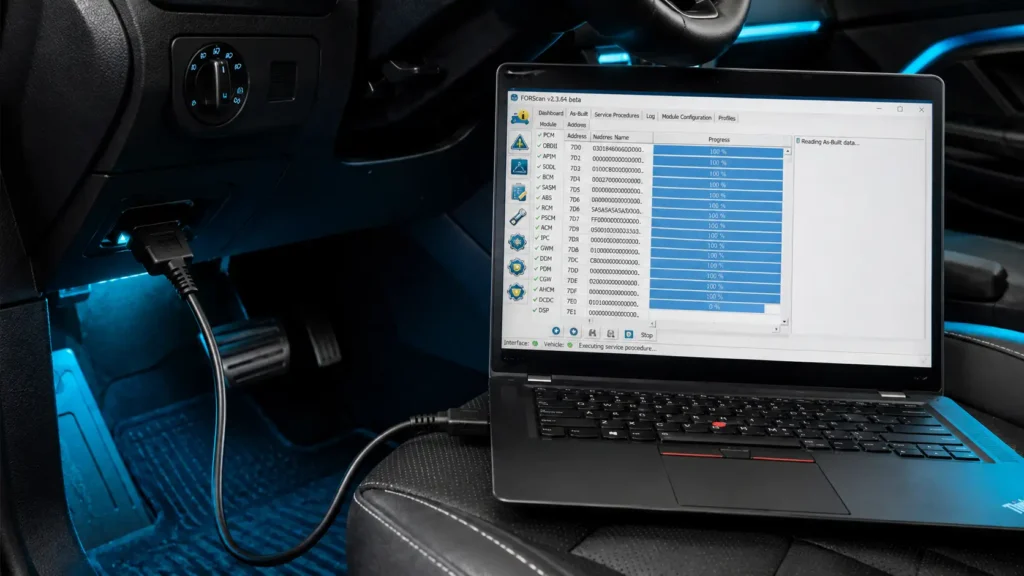
For advanced diagnosticians, auto electricians, and highly ambitious vehicle owners, calibrating the APIM involves flashing raw firmware code.
This configuration process utilizes a highly specialized Windows-based application called FORScan.
FORScan allows users to completely bypass dealership lockouts to update APIM firmware independently.
It allows technicians to change deeply buried As-Built hexadecimal configuration data and force localized module resets.
Disclaimer: Flashing complex firmware is inherently dangerous to the vehicle’s hardware. A sudden voltage drop or a corrupted file transfer can permanently “brick” the APIM, turning it into useless, unresponsive silicon. APIMs beginning with the specific letter “G” (e.g., 2016-era modules) are notoriously fragile and have an incredibly high rate of bricking during updates.
Essential Hardware for FORScan Calibration
Executing a successful firmware flash requires highly specific hardware preparation to prevent catastrophic module failure.
OBDLink EX Adapter: A high-quality, hardwired USB-to-OBD2 adapter is absolutely mandatory for this process. Cheap Bluetooth or weak Wi-Fi dongles routinely drop data packets and will actively destroy the module during a complex firmware write.
Battery Maintainer: The vehicle’s ignition must remain active for extended periods without the engine actually running. A heavy-duty battery charger must be securely connected to the vehicle battery to entirely prevent dangerous voltage dips.
Laptop Stability: The Windows laptop running the FORScan software must be fully charged and plugged into a wall outlet. All sleep, hibernate, and automatic update features must be completely disabled to prevent software interruption.
Understanding Calibration File Types
Flashing an APIM involves downloading and loading several distinct, highly specific files in a rigid sequence.
These highly specialized files possess the unique .vbf file extension.
SBL (Secondary Boot Loader): This is the foundational file that securely opens the module’s gateway. It allows the processor to accept new firmware code. It does not overwrite the operating system itself, but rather facilitates the secure transfer.
Strategy File: This massive file contains the core logic and central operating parameters of the module.
It strictly dictates exactly how the APIM communicates with the broader vehicle CAN bus network.
Calibration File: This crucial file contains the specific tuning data, screen configuration protocols, and overall feature sets.
ECU Configuration Files: These optional, localized files dictate specific regional parameters. They control elements like specific audio DSP sound profiles or localized illumination strategies for different vehicle interiors.
Users can learn more about sourcing these files safely from communities like CyanLabs.
The Firmware Upgrade Procedure
The user must first obtain a paid extended license for FORScan (Version 2.4.x or newer) to officially unlock firmware programming capabilities.
First, they connect the OBDLink EX adapter to the vehicle’s OBD2 port and the laptop’s USB port.
They must then power the vehicle precisely to Accessory mode without starting the engine.
They launch FORScan, successfully connect to the vehicle, and immediately save a full backup profile of the current modules.
Next, they navigate to the Configuration and Programming tab located on the left menu, and select APIM Firmware Update.
The software will clearly display the current, factory-installed part numbers.
The user must manually download the custom .vbf files specifically intended for their exact hardware upgrade.
They load the specific SBL, Strategy, and Calibration files carefully into the software’s programming matrix.
Crucially, they must click Test Run SBL before proceeding further.
This crucial step tests the digital gateway without writing any permanent, potentially destructive data.
The APIM will reboot. If the software log displays success, the hardware is confirmed ready.
The user must meticulously disable “Stop activity on buses” in the software settings, and finally click Program.
They acknowledge the software warnings, and the process begins, taking several long minutes.
Under no circumstances should anyone touch the vehicle, open doors, or disrupt the laptop during this highly sensitive write process.
Once the progress bar successfully completes, the module will restart on its own.
The user must then use FORScan to clear all resulting Diagnostic Trouble Codes (DTCs) generated during the module’s offline period, and subsequently perform a Master Reset via the SYNC screen.
For further guidance on the software interface, users can consult the official FORScan documentation.
APIM As-Built Configuration (Hexadecimal Coding)
After successfully updating the calibration firmware, specific vehicle features may need to be toggled on or off manually.
This is accomplished using As-Built data modifications within FORScan.
As-Built data consists of raw, intimidating hexadecimal code strings organized tightly by module addresses.
For example, the entire APIM module digitally resides at the address 7D0 on the CAN bus.
If a user strongly wishes to enable hidden features like “Calm Screen” or add regional Radio Station Logos, they must alter specific characters within the hexadecimal blocks.
If the main screen is far too dark after an update, modifying the data block 7D0-01-01 to read xBxx-xx can adjust the illumination strategy.
If the SYNC system stubbornly refuses to turn off after the door is opened, adjusting block 7D0-06-01 to x1xx-xx forces the illumination gateway to shut down permanently.
Altering complex As-Built data without a fundamental, deep understanding of hexadecimal checksums will inevitably cause massive feature loss.
Technicians must always save a secure digital backup of the original As-Built .ab file before rewriting any addresses.
Hardware Repair and Replacement
Despite incredibly exhaustive calibration attempts and firmware flashes, some APIM and screen failures are strictly mechanical in nature.
No amount of software modification can repair broken physical components.
Screen Delamination
SYNC 3 8-inch screens are particularly susceptible to severe age and heat-related delamination.
The clear, highly sensitive protective digitizer layer slowly separates from the underlying glass matrix due to failing adhesive.
This degradation presents visually as large, ugly air bubbles or peeling film trapped directly beneath the surface.
It eventually and unavoidably leads to severe ghost touching or complete, total touch failure.
Software resets cannot possibly fix delamination; the entire physical screen assembly requires expensive replacement.
APIM Internal Failure
If the screen remains totally black, USB ports completely fail to charge or recognize devices, and FORScan cannot establish communication with the 7D0 address block, the APIM is effectively dead.
The silicon itself has failed due to heat, voltage spikes, or simple age.
When purchasing a replacement APIM from a dealership or salvage yard, technicians must ensure the module is VIN-programmed prior to installation.
Installing a completely blank or incorrectly programmed APIM into a modern Ford architecture will result in severe missing features.
Users will experience missing climate controls, totally malfunctioning steering wheel buttons, and a constantly active backup camera fault.
Semantic Search & Comprehensive FAQ (Deep Intent)
To provide the most exhaustive context possible, this section addresses the highly critical secondary queries surrounding Ford SYNC calibrations.
How do I fix ghost touch on Ford SYNC?
Ghost touch occurs when the screen actively registers phantom inputs without any human interaction whatsoever. If a soft reset (holding Power + Seek Right) does not temporarily resolve the erratic behavior, the digitizer hardware has permanently failed. Extreme heat exposure and internal moisture intrusion are the primary, proven culprits for this failure. The digitizer layer, or the complete screen assembly itself, must be physically replaced by a technician.
Why is my Ford SYNC map spinning in circles?
A spinning digital map strongly indicates a corrupted Dead Reckoning (DR) mathematical calculation within the APIM. The APIM’s internal gyroscope and the external wheel speed telemetry no longer match the actual GPS satellite data. The user must enter the hidden Bezel Diagnostics menu (Eject + Seek Right) and explicitly select “Clear DR Calib.” Crucially, they must then execute a 10-minute geometric drive cycle featuring multiple sharp left and right turns to properly recalibrate the system.
Can a blown fuse cause Ford SYNC to stop working entirely?
Yes, absolutely. A blown APIM power fuse will immediately result in a completely black screen and a totally dead audio system. Conversely, a digitally locked-up processor can be safely reset by temporarily removing an intact fuse, completely cutting raw voltage to the module. Fuse locations vary heavily by specific model and year (e.g., Fuse 67 in a Focus, Fuse 88 in an F-150).
What does APIM actually stand for in Ford vehicles?
APIM formally stands for Accessory Protocol Interface Module. It serves as the primary, high-speed computer processor for the entire SYNC infotainment ecosystem within the dashboard. It continuously handles complex Bluetooth data, intricate GPS navigation algorithms, and rapid touchscreen inputs while simultaneously communicating with the broader vehicle CAN bus.
How do I safely access the secret SYNC 3 diagnostics menu?
The highly useful Bezel Diagnostics menu is accessed by turning on the radio and simultaneously pressing the specific buttons. Users must press and hold the CD Eject button and the Seek-Right (Forward) button for 5 to 10 consecutive seconds. On newer vehicles completely without CD players, holding Power + Seek-Right triggers a standard soft reset. However, holding the steering-wheel Seek-Right + the dashboard Seek-Right triggers the actual diagnostic menu.
Why is my Ford backup camera fuzzy or missing parking guidelines?
Simply replacing a broken backup camera without executing a Local Interconnect Network (LIN) initialization causes severe communication failures. The vehicle’s Body Control Module (BCM) must be explicitly recalibrated using FORScan or expensive dealership tools to officially recognize the new camera hardware on the network. Only after this digital initialization will the dynamic, curving guidelines finally reappear on the screen.
How long does a full SYNC master reset typically take?
A master reset procedure typically takes between 3 to 5 full minutes to complete. The screen will proudly display a “Resetting to factory defaults” prompt, turn entirely black, and eventually reboot on its own. The vehicle must remain securely parked and running for the entire, uninterrupted duration to absolutely prevent dangerous voltage interruptions.
What is the core difference between a SYNC soft reset and a master reset?
A soft reset simply and safely reboots the processor, instantly clearing active memory glitches without deleting any user data. A master reset, however, wipes the APIM’s memory completely clean of all personal data. It permanently removes all Bluetooth pairings, saved Wi-Fi networks, downloaded phonebooks, and deep navigation history, firmly restoring the software to its original factory state.
Related Ford Guides
- how to enable SYNC Android Auto
- how to disable the Ford speed limiter
- how to reset the Ford Escape oil light
- how to adjust Ford F-150 headlights