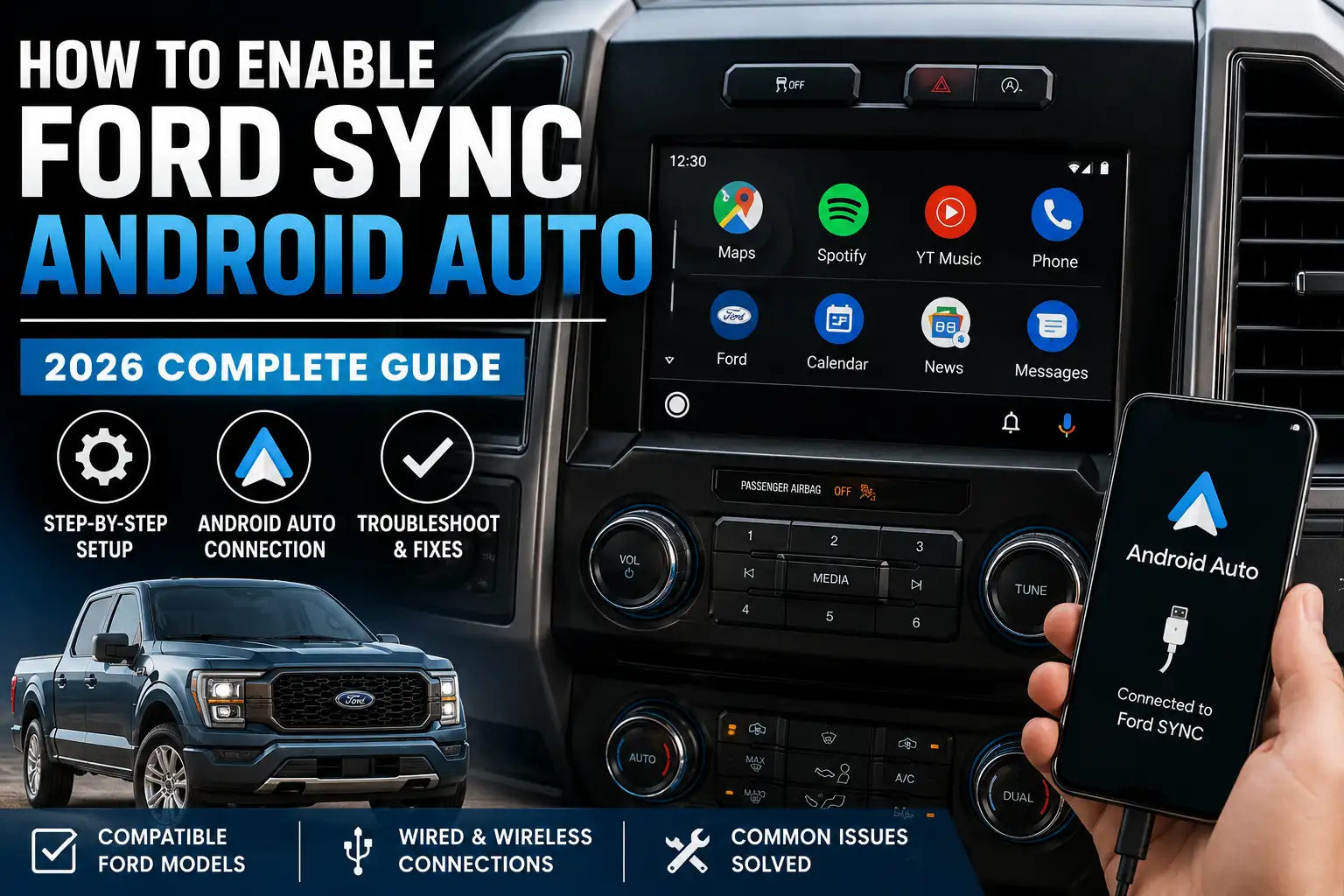
How to Enable Ford SYNC Android Auto: 2026 Complete Guide

Modern Ford infotainment systems have evolved from basic audio receivers into highly complex, connected computing hubs. For smartphone users, integrating the Android operating system directly into the dashboard has become an absolute necessity.
Establishing a stable, high-bandwidth connection between a mobile device and a Ford vehicle requires a precise sequence of technical handshakes. The exact methodology for achieving this integration varies drastically depending on the specific hardware generation installed at the factory.

Prime for Young Adults — 6 Months Free
Students and 18–24s get six months of Prime free, then half price.
Start 6 Months Free As an Amazon Associate I earn from qualifying purchases.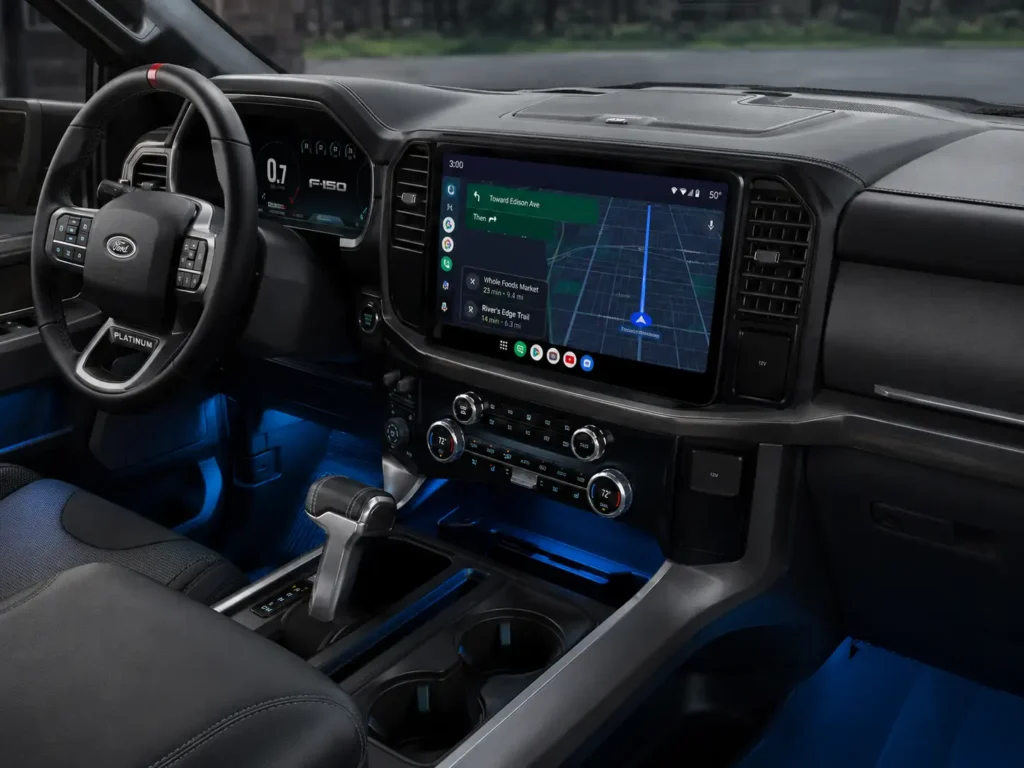
This comprehensive technical report details the exact protocols for enabling Android Auto across every modern Ford platform. It dissects the underlying hardware requirements, software firmware versions, and networking standards required for a seamless digital driving experience.
Furthermore, this analysis provides an exhaustive look into diagnostic troubleshooting for persistent software conflicts and connectivity drops. Readers will also find actionable data regarding legacy system retrofits, unofficial firmware upgrades, and advanced electric vehicle routing integrations.
How to Enable Ford SYNC Android Auto
Recommended Best Deal Products

![CONMDEX Android Auto USB Cable [3ft, 2-Pack] 10Gbps, 3A Fast Charging |…](https://m.media-amazon.com/images/I/41vy0X7qsdL._SS500_.jpg)

A comprehensive guide to integrating your smartphone with the Ford SYNC ecosystem. Optimized for performance, stability, and high-bandwidth data projection.
Android 8.0+
Minimum for Wired USB Projection
Android 11.0+
Required for Wireless Capability
5 GHz Wi-Fi
SYNC 4 Bandwidth Standard
🚀 Baseline Requirements
The modern dashboard is a projection engine.
Android Auto is not a native app but a sophisticated projection protocol.
The smartphone handles all heavy computational processing internally.

Audible — Listen Free for 30 Days
One free credit a month and thousands of titles included.
Listen Free for 30 Days As an Amazon Associate I earn from qualifying purchases.Your vehicle acts as a low-latency touch-sensitive display monitor.
Stability depends on meeting strict hardware and software benchmarks.
OS Version Requirements
Note: Wireless projection mandates high-bandwidth Wi-Fi Direct modules.
🏎️ The SYNC Generation Matrix
Recommended Best Deal Products


| SYNC Generation | Release Window | Connection Mode | Android Auto Support |
|---|---|---|---|
| SYNC 2 (MyFord Touch) | 2011 – 2015 | N/A | Retrofit Only |
| SYNC 3 | 2016 – 2020 | USB Tethered Only | Native |
| SYNC 4 / 4A | 2021 – Present | Wireless + Wired | Native Wireless |
While SYNC 3 pioneered the integration, SYNC 4 represents a massive hardware shift. Modern 5 GHz Wi-Fi Direct allows for seamless video transmission without cables. Older systems require physical USB hub upgrades for optimal performance.
✅ Step-by-Step Activation
For SYNC 3 (Wired Protocol)
For SYNC 4 (Wireless Protocol)
🛠️ Advanced Diagnostics
Recommended Best Deal Products


The “Black Screen” Bug
Commonly affects modern flagships like the Pixel 9 Pro.
Caused by Always-On-Display (AOD) timeout conflicts.
FIX: Disable AOD and Smooth Display (120Hz) while driving.
Connection Resilience
Comparison of technical downtime during reset procedures.
System Reset Cheat Sheet
Soft Reset (Cache Clear)
Does not delete data. Best for lag or app crashes.
Hold Power + Seek Right for 15 Seconds
Audible Premium Plus — Annual Membership
12 audiobook credits up front, plus the full Audible catalogue.
See Annual Plans As an Amazon Associate I earn from qualifying purchases.Master Reset (Factory Wipe)
Permanently deletes all pairings and settings.
Settings > General > Reset > Master Reset
The Core Architecture of Android Auto Integration
Android Auto is not simply an application that runs natively on the vehicle's internal computer processor. Instead, it is a sophisticated projection protocol where the smartphone handles all the heavy computational processing.
The mobile device renders the navigation maps, processes the voice recognition algorithms, and decodes the media streams internally. It then packages this data and transmits it as a low-latency video feed directly to the vehicle's dashboard display.
Simultaneously, the vehicle's touchscreen overlay acts as an input device, sending X and Y coordinate touch data back to the smartphone. This continuous, two-way telemetry exchange requires an incredibly stable data connection to prevent visual artifacting or input lag.
For this complex projection to occur, specific hardware and software benchmarks must be met on both the smartphone and the vehicle. Legacy devices or outdated head units simply lack the bandwidth capacity to facilitate this exchange.
Establishing Baseline Smartphone Requirements
Before attempting to configure the vehicle's infotainment system, users must ensure their mobile device is technologically capable of initiating the projection. The requirements differ significantly depending on whether the user intends to utilize a wired or wireless connection.
For a standard wired connection via a USB cable, the mobile device must be running Android 8.0 (Oreo) or a newer iteration. The device must also possess an active mobile data plan to fetch mapping telemetry, process cloud-based voice commands, and stream media packets.
To verify the software version and ensure the core projection app is current, users should navigate to the Google Play Store and check for pending updates. Devices running the stripped-down "Android Go" edition are fundamentally incompatible with this automotive software.
Wireless Android Auto projection introduces significantly stricter hardware demands due to the massive bandwidth required for video casting. The vehicle's head unit must feature an integrated 5 GHz Wi-Fi radio and a Bluetooth 5.0 module to facilitate the high-speed data transfer.
On the smartphone hardware side, wireless projection officially mandates Android 11.0 or newer across the vast majority of consumer hardware manufacturers. However, certain legacy flagship devices, such as the Google Pixel 3 series and Samsung Galaxy S8 or Note 8 running Android 9.0, maintain specialized wireless compatibility.
For consumers driving within the European Union, utilizing 5 GHz Wi-Fi within a moving vehicle is subject to specific telecommunications regulatory standards. Smartphones must be explicitly certified for this high-frequency transmission to utilize wireless Android Auto legally and safely.
Understanding Bluetooth and Data Permissions
Modern Android iterations, particularly Android 12 and above, enforce a highly compartmentalized permission architecture to protect consumer data privacy. When connecting a smartphone to a Ford vehicle, the system requests multiple distinct Bluetooth access profiles simultaneously.
The Hands-Free Profile (HFP) requires explicit user permission to route cellular voice calls through the vehicle's microphone and speaker array. Without granting this permission, the smartphone will refuse to pass call audio, resulting in silent incoming calls.
Simultaneously, the Phone Book Access Profile (PBAP) demands authorization to synchronize the user's contact lists and call history to the dashboard display. The Message Access Profile (MAP) also requires explicit consent to push incoming SMS texts and emails to the vehicle's notification interface.
Finally, the Advanced Audio Distribution Profile (A2DP) must be authorized to transmit high-quality stereo audio streams for media playback. Denying any of these singular modular permissions during the initial pairing sequence will cause the Android Auto setup handshake to fail silently.
Decoding Ford SYNC Generation Capabilities
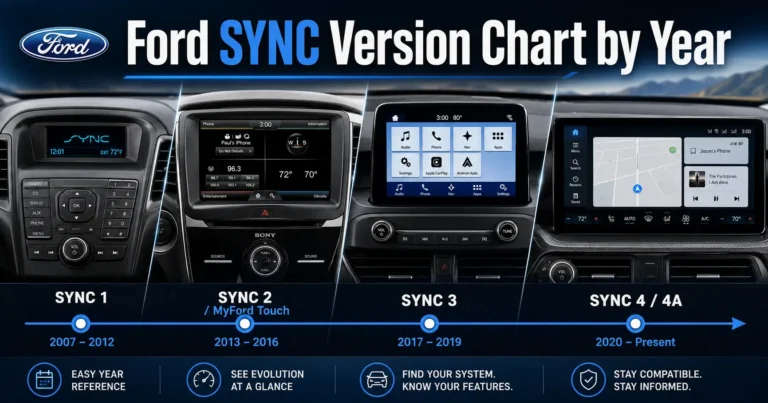
The physical implementation of smartphone projection differs substantially between specific vehicle nameplates and their respective model years. Ford has engineered several distinct generations of the SYNC architecture, each dictating the available connectivity protocols.
Vehicles manufactured between 2011 and 2015 typically feature SYNC 2, also marketed as MyFord Touch. This legacy architecture operates on a proprietary Microsoft backbone and does not natively support Android Auto, requiring physical aftermarket retrofits.
The introduction of the SYNC 3 platform in the 2017 model year marked the official integration of Android Auto across the majority of the Ford fleet. However, standard SYNC 3 hardware lacks the 5 GHz Wi-Fi routing necessary for wireless projection, restricting these systems strictly to tethered USB connections.
Beginning in the 2021 model year, Ford introduced the modernized SYNC 4 and the vertically oriented SYNC 4A systems. These contemporary architectures utilize robust internal network processors capable of managing simultaneous Bluetooth and Wi-Fi Direct links for flawless wireless projection.
By 2024, Ford began rolling out the advanced "Ford Digital Experience" on select premium models. This entirely new ecosystem is fundamentally powered by the Android Automotive operating system, supporting wireless projection natively while also featuring built-in Google integration.
SYNC Hardware Compatibility Matrix
The following table outlines the standard baseline compatibility for prominent Ford models based on their infotainment generation. Consumers should note that mid-year manufacturing refreshes and specific premium trim levels may alter the exact SYNC hardware equipped from the factory.
| Ford Model Line | Android Auto Introduction | Native Wireless Capability | Standard Infotainment Hardware |
| Ford Bronco | 2021 Model Year | Yes (Standard Equipment) | SYNC 4 Architecture |
| Ford Edge | 2017 Model Year | 2021+ Models Only | SYNC 3 / SYNC 4A variants |
| Ford Escape | 2017 Model Year | 2023+ Models Only | SYNC 3 / SYNC 4 variants |
| Ford Expedition | 2017 Model Year | 2022+ Models Only | SYNC 3 / SYNC 4A variants |
| Ford Explorer | 2017 Model Year | 2025+ Models Only | SYNC 3 / Ford Digital Experience |
| Ford F-150 | 2017 Model Year | 2021+ Models Only | SYNC 3 / SYNC 4 variants |
| Ford F-150 Lightning | 2022 Model Year | Yes (Standard Equipment) | SYNC 4A Architecture |
| Ford Mustang | 2017 Model Year | 2024+ Models Only | SYNC 3 / SYNC 4 variants |
| Ford Mustang Mach-E | 2021 Model Year | Yes (Standard Equipment) | SYNC 4A Architecture |
| Ford Ranger | 2019 Model Year | 2024+ Models Only | SYNC 3 / SYNC 4A variants |
Step-by-Step Activation: SYNC 3 Protocol
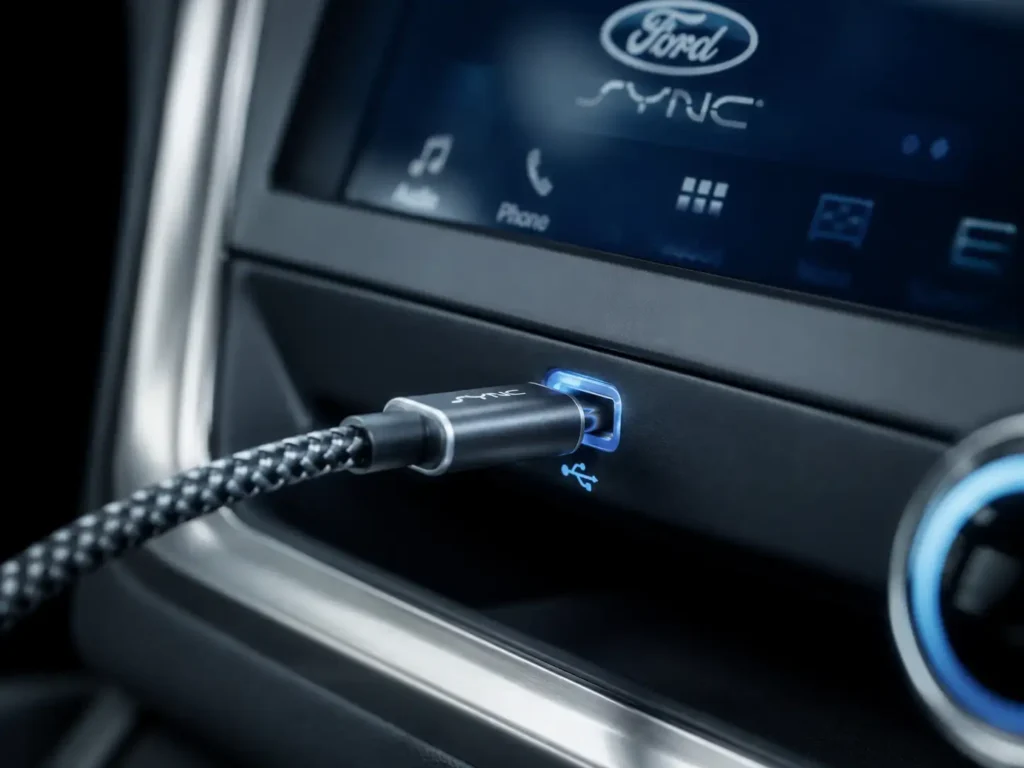
Enabling the Android Auto interface requires navigating the specific software menus of the vehicle's head unit to authorize the initial handshake. This initialization sequence is a one-time security process, after which the vehicle and smartphone will negotiate a connection automatically.
The SYNC 3 interface utilizes a horizontal layout with a persistent feature bar anchored at the bottom of the touchscreen. Because this older system relies entirely on tethered connections, a high-quality, data-transfer-capable USB cable is strictly mandatory.
To begin the initialization, the user must navigate to the primary Settings menu via the dashboard touchscreen interface. From the main settings grid, the user must swipe horizontally to locate and select the specific "Android Auto Preferences" application tile.
Within this submenu, ensure that the master toggle for Android Auto is firmly set to the "Enable" position. Next, physically tether the Android smartphone to the vehicle using the designated USB data port located in the dashboard or center console.
Upon inserting the data cable, a comprehensive pop-up window will aggressively appear on the SYNC 3 display requesting specific data access permissions. The user must press the "Continue" prompt and subsequently hit "Agree" to accept the standard driver safety and telematics data-sharing terms.
Simultaneously, the connected Android smartphone will present a parallel set of safety lockouts and permission prompts that must be accepted. Once both computing devices have confirmed the security handshake protocol, the SYNC 3 interface will seamlessly transition into the Android Auto dashboard.
Step-by-Step Activation: SYNC 4 and SYNC 4A Protocol
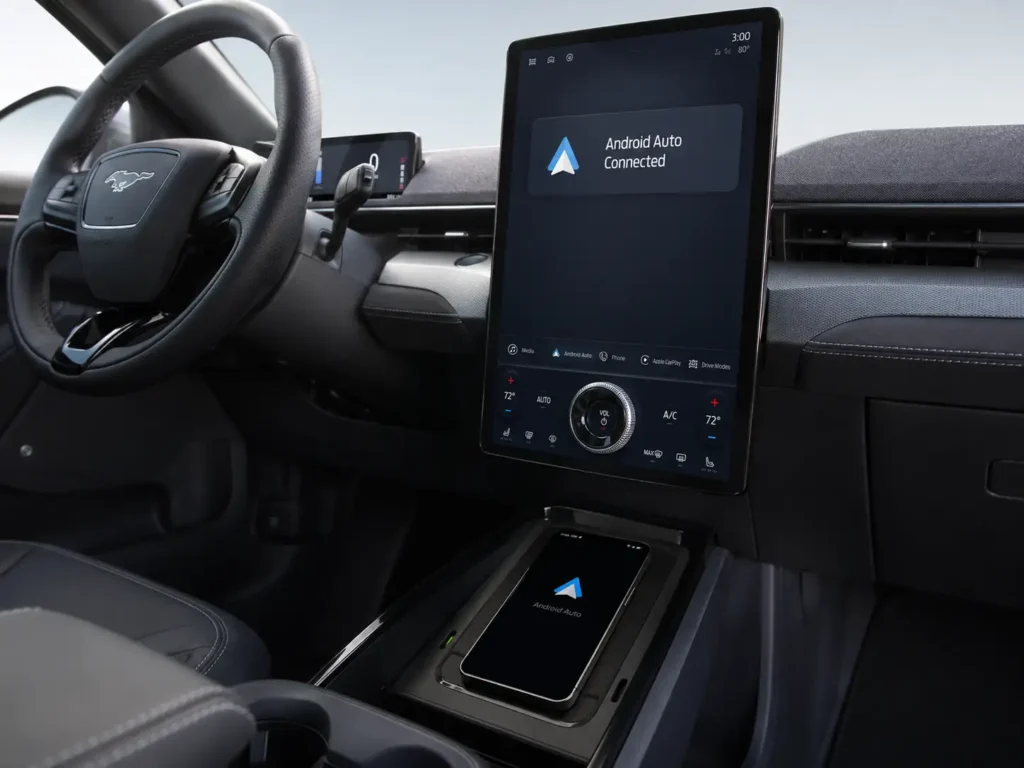
The fourth generation of SYNC software emphasizes a wireless-first approach, eliminating the need for constant cable management. Before attempting to initiate a connection, users should verify their smartphone has both Bluetooth and Wi-Fi antennas toggled to the active state.
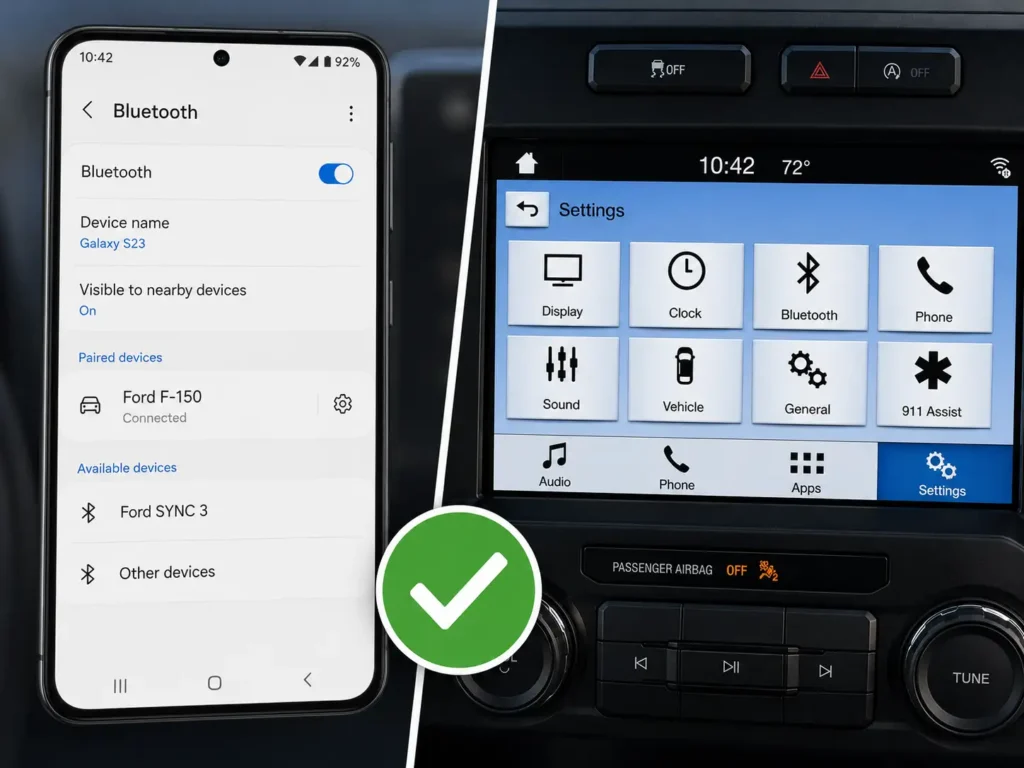
For the horizontally oriented SYNC 4 system, the pairing process begins by pressing the dedicated "Phone" icon on the main navigation menu. The user then selects the "Add a Phone" prompt and follows the on-screen instructions to discover the vehicle via the smartphone's Bluetooth settings.
For SYNC 4A, which features the massive vertical interface commonly found in electric models, the user begins by tapping the home or vehicle settings icon. From that specific menu tree, they select "Phone List," tap the "Add Phone" button, and initiate the Bluetooth pairing protocol.
Once the six-digit Bluetooth PIN codes match on both screens and the basic cellular connection is established, the SYNC screen will automatically generate a prompt. This pop-up will explicitly ask the user to enable Android Auto for the newly paired device.
The user must select "Connect" or "Continue" to authorize the wireless projection sequence. The vehicle will dynamically transition the smartphone's connection from a low-bandwidth Bluetooth audio stream to a high-bandwidth 5 GHz Wi-Fi Direct video link.
If the wireless handshake fails due to localized frequency interference, users can always default back to a traditional high-quality USB cable connection. Plugging the device into the SYNC 4 data port will bypass the wireless negotiation and immediately launch the projection overlay.
Step-by-Step Activation: Ford Digital Experience
The Ford Digital Experience represents a massive paradigm shift in automotive software engineering. The core operating system is fundamentally powered by Google's Android Automotive, offering a completely integrated software suite.
Even with native Google applications built directly into the car's memory, users may still prefer to project their highly personalized smartphone interface. To activate this projection, users press the Apps Drawer icon, which resembles a distinct grid of six dots on the main display.
Navigate through the expansive application menu to locate the central "Settings" icon, and then select the "Bluetooth" connectivity subsection. Add the Android smartphone as a new Bluetooth device and complete the standard PIN verification process across both screens.
Finally, locate the newly paired device within the recognized roster list and manually select the distinct "Android Auto" button adjacent to the device name. This action finalize the setup and allows the vehicle to pull the personalized projection from the mobile hardware.
Deep Diagnostic Troubleshooting for Wired Connections
Despite the convenience of automated smartphone projection, software desynchronization between the Android operating system and Ford's proprietary firmware remains highly common. Troubleshooting these conflicts requires a systematic elimination of hardware, software, and localized connectivity variables.
When a wired connection fails to initialize completely, the primary point of failure is almost exclusively the USB transmission medium. Modern smartphones require incredibly robust data cables; cheap aftermarket charging-only cables will instantly fail the Android Auto data handshake.
Users experiencing connection drops should immediately swap out their existing cable for a thick, manufacturer-approved data variant. Furthermore, the cable must be plugged directly into the designated front SYNC data port, rather than an auxiliary rear-cabin charging port.
To verify if the vehicle's internal USB hardware module has suffered a catastrophic failure, users can set the audio source to "USB" and attempt to play a standard MP3 file from a flash drive. If the SYNC system fails to recognize basic flash memory audio, the internal USB hub requires diagnostic replacement at a certified Ford Support Center.
Resolving Wireless Interference and Dropped Packets
Wireless Android Auto connections, while highly convenient, are notoriously susceptible to 5 GHz frequency interference in dense environments. When driving through urban centers or passing toll booth infrastructure utilizing similar radar bandwidths, the localized Wi-Fi Direct connection can drop data packets.
These dropped packets manifest as extreme audio stuttering, a highly pixelated navigation display, or a complete disconnection from the head unit. To mitigate this, users must ensure their phone is placed close to the dashboard, minimizing physical obstructions between the antennas.
Additionally, if the smartphone's "Adaptive Connectivity" setting is enabled within the Android network settings, the device will constantly scan for optimal cellular towers. This background polling temporarily interrupts the Wi-Fi transmission required for the dashboard display, causing random disconnects.
Another common wireless failure occurs when a user attempts to operate a mobile Wi-Fi hotspot simultaneously with Android Auto. The vehicle's internal antenna encounters a packet collision, typically dropping the projection to prioritize the localized hotspot routing.
Fixing the Pixel 9 "Black Screen" Handshake Bug
A highly specific and deeply frustrating software conflict known as the "Display Handshake Bug" has been widely documented among power users. This specific bug primarily affects individuals running the Android 16 kernel on modern flagship devices like the Google Pixel 9 Pro.
This bug triggers when the smartphone is connected to a SYNC 4 system and begins transitioning into its Always On Display (AOD) state while sitting in the center console. The AOD software conflicts violently with the specific sleep signal emitted by the vehicle's USB port.
This conflict triggers a catastrophic kernel-level display freeze, causing the phone screen to remain entirely black and unresponsive. Despite the black screen, the device continues to output audio and provide haptic vibration feedback when touched.
To resolve this continuous software loop, users must proactively disable the AOD feature while driving or adjust specific background lock screen polling settings. Navigating to Settings > Display > Lock screen and disabling the "Always show time and info" toggle prevents the specific display driver timeout from occurring.
Furthermore, users should immediately disable the "Screen attention" feature, which utilizes the front-facing camera to monitor eye contact. Disabling this prevents the smartphone from actively polling its visual sensors during a SYNC wireless handover, stopping the firmware from hanging.
If a device becomes completely locked in the black screen state, standard power button presses will fail to wake it. A hard force restart of the graphics processing chip is required, executed by holding the Power and Volume Down buttons simultaneously for exactly 15 seconds.
Finally, a known "Sync Lag" glitch at high refresh rates can also trigger this specific black screen of death. Power users have found success by temporarily navigating to Settings > Display > Smooth Display and dropping the refresh rate from 120Hz down to a stable 60Hz.
Addressing Audio Glitches and Silent Phone Calls
A historically persistent and highly aggravating bug within the SYNC 3 environment caused incoming cellular phone calls to connect without any audible voice transmission. The smartphone would visibly ring on the screen, but the head unit failed entirely to route the voice packets through the vehicle's speakers.
Ford and Google software engineers collaborated extensively to isolate this specific routing issue. They successfully traced the dropped packets back to an internal routing conflict buried deep within SYNC software versions 3.1 and 3.2.
To permanently eliminate this vulnerability, Ford officially issued SYNC software version 3.4 Build 21194. Users experiencing dead audio on their incoming calls must connect their vehicle to a stable Wi-Fi network or use a formatted USB flash drive to install this critical firmware patch.
If a software update is temporarily impossible, a recognized workaround involves manipulating the native ringtone settings within the SYNC vehicle interface. Navigating to Settings > Phone > Set Phone Ringtone and explicitly selecting "Use Phone Ringtone" can sometimes force the audio routing architecture to behave correctly during an incoming call.
Banishing the "USB Hubs Are Not Supported" Error
Owners of older Ford vehicles, particularly 2016 model year F-150s upgraded to newer SYNC firmware, frequently encounter an incredibly persistent pop-up warning. This aggressive message states "USB Hubs Are Not Supported. Please Remove" every time the vehicle is started.
This specific error code is intrinsically tied to the physical hardware module installed in the dashboard. Early SYNC 3 vehicles shipped from the factory with a basic USB 2.0 hub module that lacked the specialized Apple authentication chip required for Apple CarPlay integration.
While Android Auto technically functions perfectly fine on this older, unauthenticated hub, the newer SYNC 3.4 firmware detects the legacy hardware during boot. The modernized firmware flags the old hub as an unsupported generic device, triggering the persistent false-positive error message.
To permanently banish this annoying error prompt, the physical USB hub must be extracted from the dashboard molding and replaced. Owners must purchase and install a modern, CarPlay-compatible OEM module, which acts as a direct plug-and-play retrofit that resolves the firmware mismatch instantly.
Executing System Resets for Glitch Mitigation
When standard diagnostic troubleshooting protocols fail to restore Android Auto functionality, resetting the internal infotainment modules becomes an absolute necessity. Ford automotive engineers have designed two distinct, highly useful reset tiers: the non-destructive soft reset and the total-wipe master reset.
Initiating a Soft Reset (Module Reboot)
A soft reset forcefully reboots the SYNC infotainment module without deleting paired devices, historical navigation data, or personalized audio settings. It acts as the automotive equivalent of restarting a frozen desktop computer, proving highly effective at clearing temporary cache conflicts.
The specific button combination required to trigger this soft reset depends entirely on the physical hardware layout of the dashboard. For the vast majority of SYNC 3 and SYNC 4 systems equipped with traditional physical media buttons, the user must press and hold the Power button and the Seek-Right button simultaneously.
These specific buttons must be held down firmly for approximately 10 to 15 seconds without interruption. The infotainment screen will suddenly turn completely black, at which point the buttons can be released, and the Ford boot animation will eventually regenerate.
For modern vehicles that lack a physical dashboard power knob, the combination relies entirely on the steering wheel media controls. The user must press and hold the Volume Down button alongside the Seek-Right button on the steering wheel for a full 10 seconds to trigger the reboot.
For the absolute newest Ford Digital Experience systems, the reboot procedure involves manipulating the center volume knob uniquely. The user must either quickly press the audio system Power button five consecutive times, or press and hold it for a full 10 seconds until an audible popping sound is heard from the cabin speakers.
Initiating a Master Reset (Factory Wipe)
A master reset should strictly be considered a last-resort diagnostic tool, as it completely reformats the SYNC operating system back to its original factory state. All Bluetooth pairings, stored contacts, saved Wi-Fi networks, and custom audio presets are permanently obliterated from the memory banks during this process.
To purposefully initiate a master reset on SYNC 3 and SYNC 4 systems, navigate to the primary "Settings" menu and select the "General" configuration tab. Scroll down to locate the highly specific "Reset" option, then carefully tap "Master Reset" or "Factory Reset" depending on the software version.
The system will aggressively generate a final warning prompt confirming that all personal data will be erased permanently. Upon pressing "Continue" or "Yes," the screen will go blank, and the internal processor will immediately begin reformatting the active memory blocks.
The entire master reset process can take several minutes to complete, during which the vehicle should absolutely remain running in a well-ventilated area. Once the standard home screen regenerates, the user must completely pair their smartphone from scratch to reinitialize the Android Auto handshake.
If Android Auto remains completely missing from the SYNC 3 screen after a master reset, users must perform a secondary key cycle. This involves turning the vehicle off, opening the driver's door to kill residual accessory power, waiting two minutes, and then restarting the ignition.
| Feature Comparison | Soft Reset Protocol | Master Reset Protocol |
| Data Loss Incurred | None (Cache clear only) | Complete Factory Wipe |
| Execution Method | Physical Button Combination | Touchscreen Menu Navigation |
| Primary Use Case | Frozen displays or crashed apps | Persistent pairing or networking failures |
| Time to Complete | 15 to 30 Seconds | 3 to 5 Minutes |
Retrofitting Legacy Systems: The SYNC 2 Dilemma
For owners of legacy Ford vehicles manufactured between the 2011 and 2015 model years, the factory-installed SYNC 2 system poses a significant integration barrier. SYNC 2 operates on a highly outdated Microsoft Auto architecture, which fundamentally lacks the programming required to process the Android Auto projection protocol.
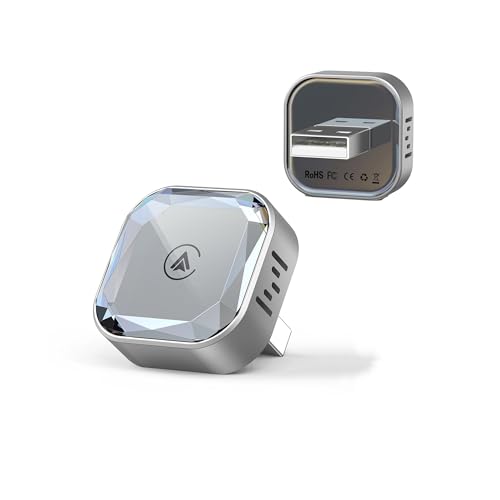
To forcibly modernize these aging vehicles, automotive technicians and technology enthusiasts rely heavily on specialized third-party hardware retrofits. The most cost-effective and popular method involves installing a hidden, aftermarket decoder module directly behind the existing 8-inch LCD dashboard screen.
These specific decoder boxes intercept the raw video signal traveling between the factory motherboard and the display panel. They actively inject a custom wireless Android Auto interface while cleverly preserving the original backup camera feed and native climate control overlays.
The physical installation process is generally considered non-destructive, utilizing complex plug-and-play wiring harnesses. This brilliant engineering requires no wire cutting or physical splicing, allowing the original steering wheel controls and dashboard buttons to navigate the newly injected Android Auto interface seamlessly.
Installing these decoders requires precise configuration of internal CANBUS dip switches to ensure proper vehicle communication. For instance, setting the specific H/L (High/Low) switch positions on the module determines whether the system utilizes the OEM vehicle microphone or an aftermarket auxiliary microphone for voice commands.
Alternatively, dedicated owners can pursue a complete, authentic OEM hardware swap, physically tearing out the dashboard to replace the SYNC 2 components. This involves swapping the Access Protocol Interface Module (APIM), the capacitive touchscreen digitizer, and the internal USB hub with genuine, salvaged SYNC 3 hardware.
While this authentic hardware swap is significantly more expensive, it provides a flawless, factory-original user experience. This method guarantees native Apple CarPlay and Android Auto support without relying on intercepted video signals or third-party operating systems.
Firmware Liberation via CyanLabs Syn3 Updater
Ford's official software update protocol aggressively dictates that certain vehicle model years are permanently locked out of newer firmware revisions. For example, a 2016 Ford Mustang originally equipped with SYNC 3 version 1.0 cannot officially upgrade to the highly modernized SYNC 3.4 interface through standard dealership channels.
To successfully circumvent these arbitrary corporate software restrictions, the global automotive enthusiast community relies on a robust utility known as CyanLabs. They utilize a specialized Windows application titled the CyanLabs Syn3 Updater to bypass the official update blocks.
The Syn3 Updater tool acts as an incredibly advanced, automated firmware flashing utility. It automatically detects the appropriate installation mode, generates custom formatting scripts, and compiles the necessary system software packages onto a standard USB flash drive.
It allows owners of older, technically obsolete SYNC 3 hardware to forcibly format their APIM memory blocks. This aggressive procedure injects the sleek, highly responsive, blue-themed SYNC 3.4 interface directly into the older vehicle's computer.
Upgrading via the CyanLabs methodology yields substantial operational benefits, including a dramatically faster graphical user interface and updated regional navigation maps. Most importantly, it unlocks the potential for Android Auto turn-by-turn directions to project directly into the driver's digital instrument cluster.
However, forcing an unauthorized firmware upgrade is a highly technical procedure that carries substantial risk. The tool intentionally pushes the internal hardware into a vulnerable "reformat mode," which completely wipes the existing operating system before installing the new files.
If the USB drive suffers from corrupted data, or if the vehicle loses power during the critical installation phase, the infotainment screen may remain permanently locked in a black state. This scenario, known as "bricking," requires expert technical intervention to recover the motherboard.
Because the CyanLabs tool manipulates the autoinstall.lst files to bypass Ford's checksum validation, the process explicitly operates outside of authorized warranty parameters. Utilizing this method on a newer vehicle will immediately void the manufacturer's warranty on the specific APIM module.
Expanding the Ecosystem: EV Routing Integration
As the connected vehicle ecosystem rapidly matures, Android Auto acts as a vital bridge for increasingly sophisticated vehicle-to-infrastructure data sharing. Understanding the distinction between basic screen projection and advanced, deep-level data integration is crucial for maximizing functionality.
For modern electric vehicle owners, combating range anxiety and managing charging logistics are paramount operational concerns. Ford recently collaborated heavily with Google software engineers to introduce advanced EV Routing capabilities directly into the Android Auto ecosystem.
This specific integration was initially rolled out for the highly popular Ford Mustang Mach-E SUV and the Ford F-150 Lightning truck platforms. When an EV owner maps a destination using Google Maps via Android Auto, the smartphone now actively communicates with the vehicle's internal telemetry bus.
Google Maps continuously reads the electric vehicle's real-time State of Charge (SoC) metrics directly from the battery management system. Utilizing this precise data, Android Auto dynamically calculates exact energy usage parameters along the projected route.
The application will automatically inject necessary DC fast-charging stops into the itinerary if the current battery level cannot reach the destination. It accurately predicts the exact battery percentage the vehicle will have upon arrival and highly estimates the required charging wait times.
Furthermore, navigating to a recognized charging station via Android Auto now automatically triggers the vehicle's internal thermal management system. This sophisticated action preconditions the high-voltage battery, ensuring it reaches the optimal acceptance temperature upon arrival, maximizing charging speed and overall efficiency.
To successfully utilize this feature, the smartphone must have the latest version of the Google Maps application installed. Additionally, the Ford electric vehicle must have successfully downloaded and installed the specific Over-The-Air (OTA) software update containing the EV routing handshake protocols.
Bridging the Legacy Gap with SYNC AppLink
Prior to the widespread global adoption of Android Auto, Ford utilized a highly proprietary software bridge known as SYNC AppLink. AppLink allowed the vehicle to extract specific data from compatible mobile applications and display basic text-based controls directly on the dashboard.
While Android Auto largely supersedes AppLink for high-fidelity visual navigation and complex media streaming, AppLink remains highly functional for certain legacy applications. Users simply press the steering wheel voice command button and clearly state "Mobile Apps" to initiate a background scan.
The SYNC system will interrogate the connected Android device, searching for any compatible AppLink software currently running in the background memory. Once located, the driver can control these specific applications using basic voice commands or steering wheel directional pads.
It is incredibly vital to note that AppLink and Android Auto cannot run the same application simultaneously due to bandwidth constraints. If a user connects to Android Auto, many underlying SYNC AppLink features are automatically disabled to prevent severe data routing conflicts over the shared USB protocol.
Configuring Dual Phone Mode Capabilities
In real-world scenarios involving multiple frequent drivers or a necessary mix of personal and corporate devices, modern SYNC systems excel. They feature the ability to manage overlapping Bluetooth profiles efficiently through a feature known as Dual Phone Mode.
Dual Phone Mode allows two distinct smartphones to remain actively connected and communicating with the vehicle simultaneously. This configuration ensures that a passenger can stream high-fidelity music while the driver's phone remains the primary hub for projecting Android Auto.
To configure this advanced arrangement, both mobile phones must first be individually paired to the vehicle via the standard Bluetooth discovery menu. Once both devices successfully populate in the recognized device roster, the user must navigate to Settings > Connectivity > Bluetooth.
By tapping the settings gear icon located next to the secondary device, the user accesses the advanced profile configuration. Here, they can toggle the "Dual Phone" or "Secondary Phone Support" slider to the active position, enabling concurrent background connections.
Once fully enabled, both paired smartphones will display a "Connected" status simultaneously on the SYNC interface. The internal routing software handles the packet prioritization, ensuring neither device drops connection during standard operation.
Deep Dive Analysis: Critical User Inquiries
The complex integration of mobile operating systems into proprietary automotive architecture naturally generates a vast array of highly technical inquiries. This final section deeply analyzes the most complex and frequently searched questions regarding the Ford Android Auto operational experience.
Why does Android Auto fail immediately after a SYNC 3 software update?
Updating the core SYNC 3 firmware overwrites essential system partition files, often corrupting the temporary Bluetooth and USB cache data. When the system restarts, it attempts to read the old handshake protocols, causing the new Android Auto connection sequence to crash immediately. To resolve this post-update corruption, users must execute a complete Master Reset from the General Settings menu to rebuild the cache from scratch. Following the reset, a hard key cycle is required to force the internal USB hub to reinitialize its power state before attempting to connect the phone.
Is it technically possible to stream video applications like Netflix on Ford SYNC?
Natively, it is absolutely impossible to stream video content through official Android Auto channels. The software architecture strictly adheres to global driver distraction regulations, which forcefully mandate the complete blacklisting of all video playback applications while the vehicle transmission is engaged. While certain aftermarket hardware decoder boxes or complex software jailbreaks offer screen mirroring that bypasses these safety lockouts, doing so is highly unadvised. Modifying the system to play video severely compromises the primary safety architecture of the vehicle and violates standard software agreements.
Why does the SYNC screen occasionally report "No Sound" during USB playback?
If a user plugs in their Android device and the screen displays "No Sound," or if playing basic music from a USB flash drive yields dead silence, the hardware has likely failed. This symptom indicates a critical failure within the physical USB hub module located in the dashboard or console. The data transmission lines within the hub can degrade over time due to heat or physical stress from repeated cable insertions. When this specific hardware failure occurs, software resets will not fix the issue, and the hub must be physically replaced by a certified technician.
Can Android Auto display navigation instructions directly on the driver's instrument cluster?
Yes, but only under highly specific hardware and software conditions. Ford enabled this advanced Dual-Display functionality on later versions of SYNC 3.4 and natively within the SYNC 4 architecture. When utilizing Google Maps via Android Auto on these updated systems, basic turn-by-turn directional arrows and distance metrics will project directly onto the digital instrument cluster behind the steering wheel. Owners stuck on older SYNC 3.0 firmware must utilize the CyanLabs upgrade method to unlock this specific IPC (Instrument Panel Cluster) routing capability.
Why does the phone battery drain even when connected via USB for Android Auto?
This phenomenon occurs when the power draw required by the smartphone to render the Android Auto projection exceeds the electrical output of the vehicle's USB port. Older SYNC 3 USB hubs were primarily designed for basic data transfer, outputting a highly limited amperage. Because the smartphone's CPU and GPU are working at maximum capacity to compress and transmit the video feed, the battery drains faster than the low-amperage port can replenish it. To mitigate this, users can attempt to use a higher quality cable to reduce electrical resistance, or switch to a wireless connection while using a dedicated high-speed 12V charging adapter.
By systematically verifying strict hardware requirements, executing precise activation protocols, and leveraging highly advanced diagnostic resets, users can ensure a flawless projection experience. Whether utilizing the factory-standard SYNC 4 wireless arrays or breathing new life into a legacy platform via complex hardware retrofits, mastering these deeply technical techniques guarantees optimal operational harmony between mobile device and machine.
Related Ford Guides
- how to disable the Ford speed limiter
- how to reset the Ford Escape oil light
- how to adjust Ford F-150 headlights
- how to change the F-150 cabin air filter
- how to remove a Ford tonneau cover