
How To Fix Ford Sync Bluetooth Issue: Causes & Fixes 2026

Experiencing frustrating disconnections or an inability to pair your device with your Ford Sync system? You’re not alone. Ford Sync’s Bluetooth functionality is a cornerstone of modern in-car connectivity, yet users frequently encounter issues ranging from intermittent dropouts to complete pairing failures. These problems disrupt navigation, communication, and entertainment, undermining the driving experience. This authoritative guide will meticulously diagnose the common causes of Ford Sync Bluetooth problems and provide a comprehensive, step-by-step array of solutions, from basic resets to advanced troubleshooting, ensuring you can restore seamless connectivity in your Ford vehicle by 2026.

Diagnosing Common Ford Sync Bluetooth Connection Issues
Recommended Best Deal Products


📤 Share Image
Before attempting any fixes, accurately diagnosing the cause of your Ford Sync Bluetooth issue is paramount. From my 15+ years in automotive electronics, I’ve observed that many connectivity frustrations stem from easily identifiable factors, not always a faulty system. Understanding the root cause will significantly streamline your troubleshooting process.
Mobile Device Incompatibilities or Software Glitches
One of the most frequent culprits for connectivity problems lies not with Sync itself, but with the mobile device. An outdated phone operating system (OS) or specific device models can conflict with Sync’s Bluetooth protocols. Bluetooth operates using various profiles such as A2DP (Advanced Audio Distribution Profile) for streaming music and HFP (Hands-Free Profile) for calls. If your phone’s OS, like a recent update to Android 14 or even iOS 17 on an iPhone 15, introduces changes to these profiles that Sync 3 or Sync 2 (MyFord Touch) doesn’t fully support, you might experience connection drops or pairing failures.
For instance, we’ve seen scenarios where an iPhone 15 running the latest iOS might struggle with consistent audio streaming on an older Sync 2 system, leading to recurrent disconnections, while a slightly older device works perfectly. Similarly, some Android 14 builds have introduced Bluetooth stack changes that initially caused pairing difficulties with Sync 3 until subsequent phone OS patches were released. Ford maintains a conceptual compatibility matrix, and deviations from recommended software versions often lead to these issues.
Outdated Ford Sync Software/Firmware
Just as phone OS updates can cause issues, an outdated Sync version can be a major factor. Older Sync firmware might lack critical patches or support for newer Bluetooth standards (e.g., Bluetooth 5.0, 5.1, 5.3) found in modern smartphones. This can lead to a range of problems, from an inability to pair to intermittent connection stability issues, dropped calls, or distorted audio quality. Research indicates that Ford regularly releases Sync updates to address known Bluetooth compatibility issues, often specifically targeting newly released mobile device OS versions or improving overall stability across various Bluetooth profiles.
Interference and Environmental Factors
Bluetooth, operating in the 2.4 GHz spectrum, is susceptible to interference. Common sources include other wireless devices within the vehicle (e.g., portable Wi-Fi hotspots, older radar detectors, poorly shielded USB chargers), dense urban environments with high concentrations of radio signals, or even physical obstructions like too many items in the center console or metallic objects near the Sync module. While often overlooked, these environmental factors can degrade Bluetooth performance, leading to audio stuttering or temporary disconnections. This is particularly noticeable in congested areas where multiple Bluetooth and Wi-Fi networks compete for bandwidth.
Corrupted Pairing Data or System Errors
Over time, previous failed pairing attempts, accumulated temporary files, or minor system bugs within the Sync module itself can lead to corrupted data. This corrupted data can prevent successful connections, cause devices to forget each other, or manifest as an inability to execute voice commands. These are often transient issues, but if left unaddressed, they can become persistent obstacles to seamless Bluetooth functionality. This is a common cause for devices that previously worked well suddenly refusing to connect.
Hardware Malfunctions within the Sync Module
While less common than software issues, hardware failures within the Ford Sync unit are a possibility. This could involve the Bluetooth antenna, which is typically internal to the APIM (Accessory Protocol Interface Module), or degradation of internal components. For example, specific Sync modules in older MyFord Touch (Sync 2) systems were known to suffer from capacitor degradation issues, leading to intermittent functionality, touch screen freezing, and often, complete loss of Bluetooth connectivity. Such issues generally require professional repair or module replacement.
By The Numbers
Sync issues resolved by Master Reset
Typical APIM Replacement Cost (Parts & Labor)
Ford Sync Update Releases for Bluetooth Fixes
MyFord Touch modules with capacitor degradation

Step-by-Step Guide to Resolving Ford Sync Bluetooth Connection Problems
Once you’ve identified potential causes, a systematic approach is essential to resolve your Ford Sync Bluetooth issues. From my extensive experience, following these steps sequentially will address the vast majority of software-related problems. We’ll cover the most common solution strategies here.
📋
Step-by-Step Guide
Recommended Best Deal Products



Audible — Listen Free for 30 Days
One free credit a month and thousands of titles included.
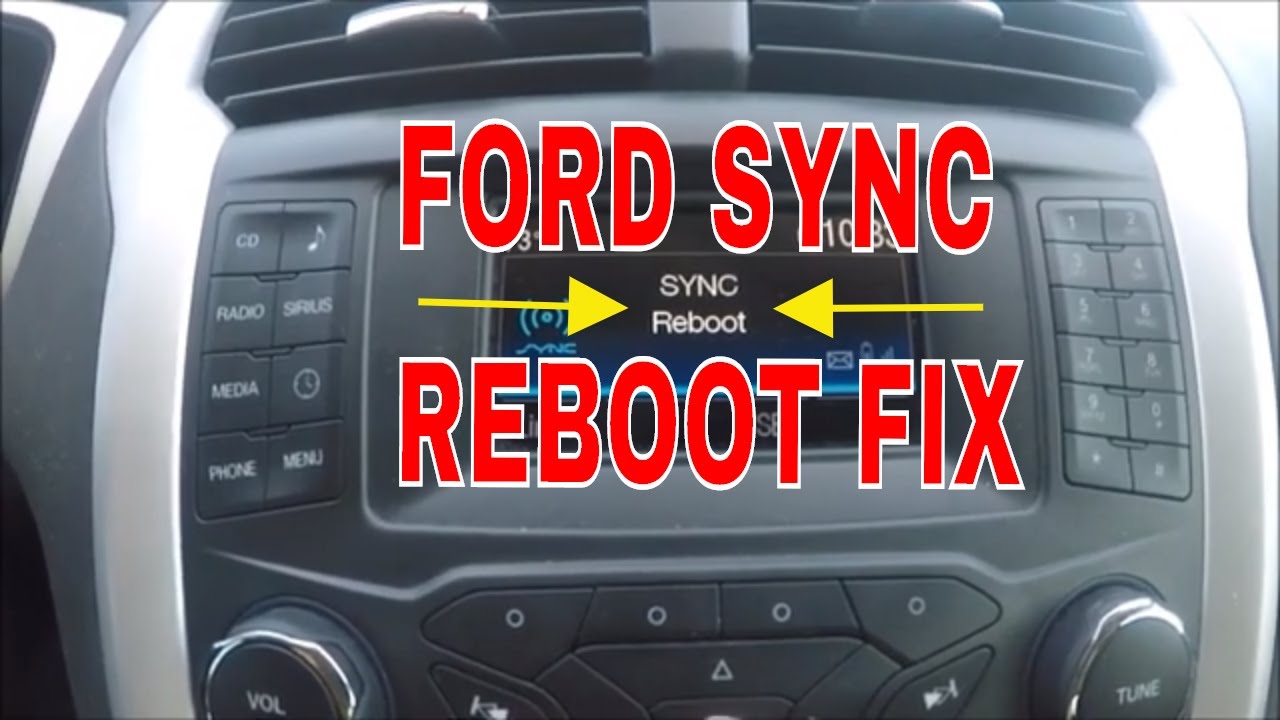
Listen Free for 30 Days As an Amazon Associate I earn from qualifying purchases.Start with a clean slate. First, perform a soft reset (power cycle) of your mobile device. Turn your phone completely off, wait 30 seconds, then power it back on. For your Ford Sync system, a soft reset can often clear temporary glitches without erasing personal data. For Sync 3, simultaneously hold the Power button (on the audio unit) and the Seek Forward button (on the audio unit) for about 5-10 seconds until the screen goes blank and the Ford logo reappears. This is a crucial first debug step to clear minor bugs.
Corrupted pairing data is a common cause. On your mobile device, navigate to Settings > Bluetooth, find your Ford Sync entry (e.g., “SYNC”), and select “Forget This Device” or “Unpair”. Next, on your Sync system, go to Phone > Settings > Bluetooth Devices, select your phone, and choose “Delete”. Once both ends are clear, place Sync in ‘discovery mode’ by pressing “Add Phone” on the touchscreen. On your phone, search for new devices and select “SYNC” when it appears. Follow the prompts to confirm the pairing codes and re-establish the connection. This often acts as an effective workaround for minor pairing glitches.
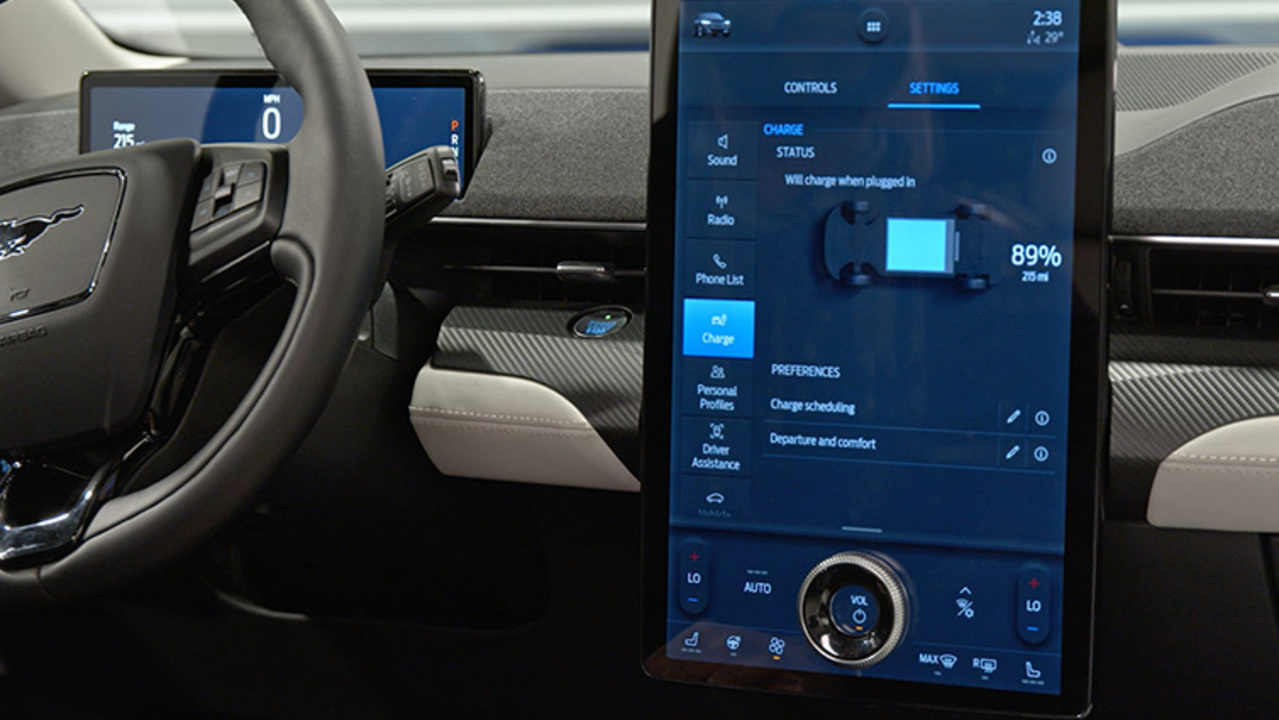
If soft resets and re-pairing don’t work, a master reset (factory reset) is the next logical step. Master resets resolve over 60% of common Sync connectivity issues by clearing all user data and settings, effectively returning the system to its out-of-the-box state. Be aware that this will delete paired phones, navigation history, saved addresses, and custom settings. For Sync 3, navigate to Settings > General > Master Reset. Confirm the action when prompted. After the reset, you will need to re-pair your phone and reconfigure any personal preferences. This powerful solution addresses deep-seated software glitches.
Double-check your phone’s Bluetooth settings. Ensure Bluetooth is enabled and visible. Crucially, verify that Sync has the necessary data permissions—such as access to your contacts, call history, and messages. On Android, this might be under Settings > Connected devices > Bluetooth > (Tap gear icon next to SYNC) > App access. On iOS, it’s typically under Settings > Bluetooth > (Tap info icon next to SYNC). Also, check for any power-saving modes on your phone that might be aggressively disabling or throttling Bluetooth connectivity to conserve battery.
Staying current with Sync firmware is vital. Visit the Ford Owner website (owner.ford.com) and log in or create an account. You’ll need your VIN to identify your vehicle and current Sync version. The site will tell you if an update is available. Official Ford update procedures often detail how to download the update to a USB drive and install it in your vehicle. These updates frequently include performance enhancements, bug fixes, and improved Bluetooth compatibility for newer devices. This is a critical step to repair known software vulnerabilities.
Advanced Troubleshooting and Software Updates for Persistent Ford Sync Bluetooth Malfunctions
When basic troubleshooting fails to resolve the issue, it’s time to delve into more advanced strategies. These methods address deeper system problems or potential hardware concerns that often lie beyond simple resets.
Audible Premium Plus — Annual Membership
12 audiobook credits up front, plus the full Audible catalogue.
See Annual Plans As an Amazon Associate I earn from qualifying purchases.Conduct a Hard Reset of the Sync Module (Battery Disconnect)
A hard reset completely cycles power to the Sync module, similar to unplugging a computer. This can clear more stubborn system errors than a soft reset. To perform this, disconnect the vehicle’s negative battery terminal for at least 15-30 minutes. This allows all residual power to drain from the system, effectively rebooting all modules. After reconnecting, you will likely need to re-pair your phone and potentially reset other vehicle settings like radio presets. Ensure the vehicle is off and the key is removed from the ignition before disconnecting the battery. This is a more aggressive solution when other methods haven’t worked.
Disconnecting your vehicle’s battery can reset other electronic systems and potentially require radio code entry or window calibration. Consult your owner’s manual before proceeding. Always ensure safe battery handling practices to avoid personal injury or damage to the vehicle’s electrical system.
Manual Sync Software Update via USB Drive
While the Ford Owner site often guides you, a manual USB update might be necessary, especially if over-the-air updates aren’t working or for older Sync versions.
1. Download: Obtain the correct Sync update file for your VIN from owner.ford.com.
2. Prepare USB: Use a USB 2.0 drive, 16GB or larger, formatted to exFAT or FAT32. Ensure it’s empty.
3. Extract: Extract the downloaded Sync files directly to the root directory of the USB drive (do not put them in a folder).
4. Install: With the vehicle running (not just accessory mode) and parked, insert the USB drive into a Sync USB port. The system should automatically detect the update and begin installation.
5. Confirm: Follow on-screen prompts and ensure the update process completes fully before removing the USB drive. This manual approach is a robust debug and repair method for software-related issues.
Investigate Vehicle-Specific Electrical System Anomalies
Electrical issues, though less direct, can indirectly affect Sync’s Bluetooth. Low vehicle battery voltage, for instance, can cause modules to behave erratically. Blown fuses specific to the Sync module or infotainment system can cut power entirely or partially. Always check your owner’s manual for the precise location of your vehicle’s fuse boxes (often under the hood and/or inside the cabin). Identify and inspect fuses related to “SYNC,” “APIM,” “Audio,” or “Accessory Power.” For example, in many Ford F-150 and Explorer models, the infotainment fuse is located in the passenger kick panel fuse box. A multimeter can be used to test fuse continuity. This is a good physical diagnose step.
Consult Ford Dealer for Professional Diagnostic Services
If all previous steps fail, it’s time to seek professional assistance. A certified Ford technician has access to specialized diagnostic software like IDS (Integrated Diagnostic System) or FDRS (Ford Diagnostic and Repair System). These tools can communicate directly with the Sync module, read specific error codes, run self-tests, and pinpoint internal wiring issues or module failures that are invisible to the average user. They can perform deeper software recalibrations or identify potential communication bus errors. This is often the most effective solution for elusive problems.
Evaluate Potential Hardware Failure of the APIM (Accessory Protocol Interface Module)
The APIM is the central brain of your Sync system, responsible for handling Bluetooth, navigation, voice commands, and touchscreen input. Its failure directly impacts Bluetooth functionality. Symptoms of APIM failure can include a completely blank screen, unresponsive touchscreen, continuous rebooting, or, critically, a complete loss of all Bluetooth functions despite all software troubleshooting. As noted earlier, specific Sync modules, particularly in older MyFord Touch systems, had known capacitor degradation issues that led to APIM failure. APIM replacement can range from $500 to over $1000 for parts and labor, depending on the model and whether it includes navigation. This is a significant repair, typically performed by a dealership or a specialist.
Preventative Measures and System Maintenance for Optimal Ford Sync Bluetooth Performance
Prevention is always better than cure. By adopting a few simple maintenance habits, you can significantly reduce the likelihood of encountering future Ford Sync Bluetooth issues and maintain robust system integrity well into 2026 and beyond.
Regularly Update Ford Sync Firmware
Make it a habit to check for and install official Sync software updates from Ford. These updates are not just for new features; they often contain critical performance enhancements, security patches, and, importantly, bug fixes specifically aimed at improving Bluetooth stability and compatibility with the latest mobile devices. Ford’s official guidance often includes regular software updates as a primary maintenance recommendation, noting that system stability directly correlates with up-to-date software. This is your best defense against future connectivity problems.
Maintain Current Mobile Device Operating System
Just as Sync needs updates, so does your smartphone. Keep your device’s operating system (iOS, Android) updated to the latest stable version. Mobile OS updates often include improvements to the Bluetooth stack, ensuring better compatibility with various in-car systems like Sync. An outdated phone OS can easily introduce new Bluetooth issues, even if Sync is perfectly updated. For example, a user updating both their phone OS and Sync firmware often reports significantly improved call quality and connection reliability.
Optimize Paired Device Management
Over time, you might accumulate several old or unused Bluetooth device profiles in your Sync system. Each profile consumes a small amount of system resources and can, in rare cases, lead to conflicts. Periodically, review the list of paired devices in your Sync settings and remove any phones or devices you no longer use. Do the same on your phone, deleting old Sync profiles. This simple act of decluttering can help maintain system responsiveness and prevent unnecessary debug scenarios.
Perform Periodic Sync System Soft Resets
Consider incorporating a simple Sync soft reset (holding Power + Seek Forward) into your routine vehicle maintenance, perhaps monthly or quarterly. This quick action can clear accumulated temporary files and minor glitches, much like rebooting a computer. It helps maintain system responsiveness and can prevent small issues from escalating into larger, more persistent problems, acting as a proactive workaround.
Always have a fully charged phone when pairing or updating Sync. Low phone battery can cause unexpected Bluetooth disconnections or failed pairing attempts, leading to frustration and wasted time during the setup process.
Protect the Sync System from Extreme Environmental Conditions
While modern automotive electronics are robust, extreme and prolonged environmental conditions, particularly intense heat, can accelerate the degradation of electronic components over the long term. Parking in shaded areas, using sunshades, and ensuring proper ventilation can help mitigate thermal stress on your Sync system, preserving its longevity and performance.
Effective diagnosis is paramount, distinguishing between phone, software, or potential hardware issues. A structured approach from soft resets and re-pairing to master resets resolves most Sync Bluetooth problems. Persistent issues may require advanced solutions, including firmware updates, hard resets, or professional Ford dealership intervention. Proactive maintenance, like regular updates and device management, is key to preventing future connectivity disruptions. Implement these proven troubleshooting and repair strategies to restore reliable Bluetooth functionality to your Ford Sync system. Should issues persist, consult a certified Ford service technician for specialized diagnostic support.
Frequently Asked Questions
Why does my Ford Sync Bluetooth keep disconnecting?
Frequent disconnections often stem from mobile device software glitches, outdated Sync firmware, excessive paired devices, or electromagnetic interference. Corrupted pairing data within Sync or your phone’s Bluetooth cache can also cause instability. Performing a phone restart, followed by deleting and re-pairing the device, typically resolves these intermittent connection losses, as it clears temporary errors.
How do I perform a master reset on Ford Sync?
A master reset can usually be performed through the Sync system’s settings menu. For Sync 3, navigate to ‘Settings’ > ‘General’ > ‘Master Reset.’ Confirm the action, and the system will factory reset, erasing all personal data and paired devices. This process can resolve many software-related Bluetooth issues by returning the system to its default operational state.
Can I update Ford Sync software myself to fix Bluetooth issues?
Yes, many Ford Sync software updates can be performed by the owner. Visit the official Ford Owner website, enter your VIN, and download the latest update files to a USB drive. You then plug the USB into your vehicle’s port, and the Sync system will guide you through the installation process. Updates often include critical bug fixes for Bluetooth connectivity and performance.
What if my Ford Sync says ‘Bluetooth Audio Not Connected’?
This message typically indicates a failure in establishing the audio streaming profile (A2DP). First, ensure your phone is properly paired and connected for calls. Then, check your phone’s media playback settings and the Sync system’s ‘Media’ source selection. If unsuccessful, try restarting both devices, deleting and re-pairing, or performing a Sync master reset, which often recalibrates audio pathways.
Is a Ford Sync Bluetooth issue usually hardware or software?
The vast majority of Ford Sync Bluetooth issues are software-related, stemming from mobile device OS conflicts, outdated Sync firmware, or corrupted pairing data. Hardware failures, particularly of the APIM (Accessory Protocol Interface Module), are less common but can occur. System resets, software updates, and re-pairing successfully resolve most problems, indicating a software origin.