
How to Reset Ford Explorer Screen: The Complete Guide (2011-2026)

A black, frozen, or unresponsive infotainment screen on a Ford Explorer is a frustratingly common problem. It’s more than just an annoyance; a malfunctioning SYNC screen can disable navigation, media, climate controls, and vital vehicle settings. If your screen is non-responsive, stuck on the Ford logo, or just plain black, you are not alone.
The good news is that most of these issues are caused by temporary software glitches, not hardware failure. In nearly all cases, a simple reset procedure, which can be performed at home in minutes, will restore full functionality.

Prime for Young Adults — 6 Months Free
Students and 18–24s get six months of Prime free, then half price.
Start 6 Months Free As an Amazon Associate I earn from qualifying purchases.This comprehensive guide provides step-by-step instructions to diagnose the problem and perform the correct reset for your specific Ford Explorer model year. We will cover every method, from the simple “soft reset” (a quick reboot) to the more comprehensive “master reset” (a factory wipe) and the “hard reset” (a physical power cycle) for completely dead screens.
First: Why Is My Ford Explorer Screen Not Working?
Recommended Best Deal Products


Before attempting a fix, it’s helpful to identify the precise symptom, as this will point to the most likely cause and the correct solution.
Identifying Your Symptoms
Most Ford Explorer screen problems fall into one of these categories:
- Black or Blank Screen: This is the most common complaint. The screen is completely dark, but the backlight may be on, and you can often still hear audio from the radio or a connected device.
- Frozen or Unresponsive Screen: The display is “stuck” on a single image, such as the Ford logo, or it is on but will not respond to any touch commands.
- Constant Rebooting: The system is stuck in a boot loop. The screen shows the Ford logo, goes dark, and then repeats the cycle endlessly, never fully loading.
- Secondary System Failures: The screen itself might seem to work, but critical functions fail. This includes Apple CarPlay or Android Auto not connecting, Bluetooth disconnecting, or the navigation system freezing. These are often symptoms of the same underlying SYNC software glitch.
Common Causes
These symptoms are almost always traced back to one of three issues:
- Software Glitch: This is the most likely culprit. Just like a smartphone or computer, the Ford SYNC system can encounter a memory conflict or a temporary bug that causes it to hang, freeze, or crash.
- Failed Update: An over-the-air or USB software update that was incomplete, interrupted, or corrupted can “brick” the system, often resulting in a blank screen.
- Hardware Failure: This is the least common but most serious cause. The APIM (Accessory Protocol Interface Module), which is the dedicated “brain” computer that runs the entire SYNC system, may be failing. A simple reset will not fix a failing APIM.
Based on these symptoms, you can choose the correct path forward.
- If your screen is laggy, frozen, or glitchy (but still ON): A software conflict is the likely cause. Start with Method 1: The Soft Reset (Reboot).
- If your screen is completely black, dead, or unresponsive: You cannot access software menus. You must force a power cycle. Skip to Method 3: The Hard Reset (Power Cycle).
- If your problem is persistent connectivity (Bluetooth/CarPlay) and a soft reset didn’t work: Your saved settings may be corrupted. Use Method 2: The Master Reset (Factory Wipe).
Ford Explorer Screen Problems?
A Visual Guide to Resetting Your SYNC System
Common SYNC System Symptoms
Recommended Best Deal Products


If your Ford Explorer’s screen is acting up, you’re not alone. These systems can sometimes freeze or glitch. Before heading to the dealer, a simple reset often solves the problem. Here are the most common issues drivers report.
This chart shows a typical breakdown of issues. A frozen or completely black screen accounts for the majority of complaints. Unresponsive touch controls and persistent Bluetooth connectivity failures are also significant issues that a reset can address.
The first step is always a Soft Reset, as it’s quick, easy, and doesn’t erase any of your personal data.

Audible — Listen Free for 30 Days
One free credit a month and thousands of titles included.
Listen Free for 30 Days As an Amazon Associate I earn from qualifying purchases.Method 1: The Soft Reset (Two-Button)
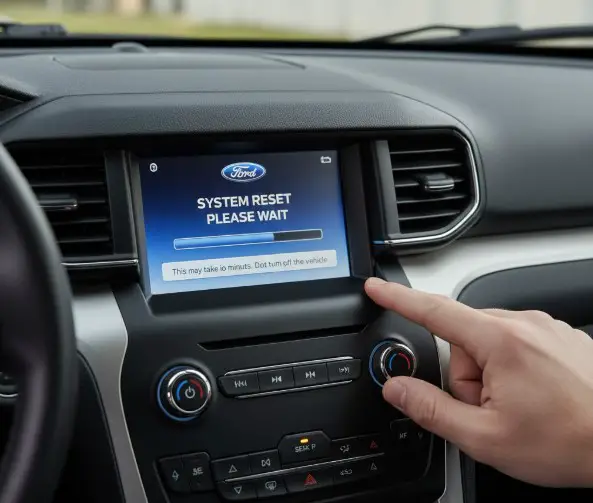
This is the safest and fastest method. It’s just like restarting your computer. It works on most SYNC 3 and SYNC 4 systems (approx. 2016+ Explorers) and won’t delete your paired phones or navigation history.
How to Perform a Soft Reset:
Press and HOLD both buttons for 10-15 seconds.
The screen will turn black and then restart, showing the Ford logo. You can then release the buttons.
Method 2: System & Master Resets
Recommended Best Deal Products


If the soft reset doesn’t work, you can use the built-in reset options. These are found in the ‘Settings’ menu on your touchscreen. This flow chart shows the process.
Keeps settings, but reboots. Good for minor glitches.
Wipes ALL data. Factory default. Use as a last resort.
Which Reset Method Should You Choose?
Choosing the right reset can save you time and hassle. Use this table to decide the best approach for your problem. Start with the least invasive method first.
| Reset Method | Speed | Data Loss | Common Use Case |
|---|---|---|---|
| Soft Reset (Two-Button) | ~ 30 Seconds | None | Frozen screen, lag, minor Bluetooth bug. |
| System Reset (in Settings) | ~ 1-2 Minutes | None | Persistent lag, settings not saving. |
| Master Reset (in Settings) | ~ 5-10 Minutes | Total Loss | Selling car, constant crashes, won’t pair phones. |
| Battery Disconnect | ~ 15 Minutes | Partial | Last resort if screen is black and won’t respond to anything. May indicate a draining battery. |
What Data Will I Lose?
The biggest concern with a reset is losing your personal settings. This chart clearly shows what to expect. A “Master Reset” truly means “master” – it erases everything, returning the SYNC system to its original factory state.
When a Reset Fails
If none of the reset procedures fix your screen, the problem may be deeper than a simple software glitch. Here are the next steps to consider before scheduling a service appointment.
Audible Premium Plus — Annual Membership
12 audiobook credits up front, plus the full Audible catalogue.
See Annual Plans As an Amazon Associate I earn from qualifying purchases.- Check for SYNC Software Updates: Your system may have a known bug that a software update can fix. You can check for updates on the official Ford SYNC update website using your VIN.
- Check Fuses: A blown fuse related to the audio or display module (APIM) can cause a black screen. Consult your owner’s manual for the correct fuse diagram.
- Look for Recalls: Occasionally, screens or modules are part of a recall. You can check your VIN for free on the NHTSA website.
- Consider Hardware Failure: The screen or the underlying APIM module may have failed. This is common with other electronic issues, like a key fob not working or seeing other warning lights. This unfortunately requires professional diagnosis and replacement.
The 3 Reset Methods: Soft vs. Master vs. Hard Reset
The terms “soft reset” and “hard reset” are often used inconsistently online. To ensure you use the right one, here is a clear definition of the three distinct methods available.
Reset Method Comparison Table
| Method | What It Is | Erases Your Data? | When to Use It |
| Soft Reset (System Reboot) | A simple button combination that forces the SYNC system to restart. | No. | The first step for any glitch: frozen screen, lag, CarPlay/Bluetooth errors. |
| Master Reset (Factory Reset) | A software menu option that wipes the system and restores it to factory defaults. | Yes. | When a soft reset fails, to fix deep software bugs, or before selling the vehicle. |
| Hard Reset (Power Cycle) | A physical reset that cuts all power to the SYNC module by pulling a fuse or disconnecting the battery. | No. | When the screen is completely black or unresponsive and a soft reset is impossible. |
Method 1: How to Soft Reset (Reboot) Your Explorer’s Screen
This is the fastest, safest, and most common fix. It is the equivalent of holding the power button on a smartphone and does not erase any of your saved settings, presets, or paired phones. For this procedure, your vehicle should be running or in accessory mode.
For SYNC 4 & 4A (2020, 2021, 2022, 2023, 2024, 2025 Explorers)
The button combination for the newest SYNC systems depends on whether your Explorer has a physical volume knob.
If your Explorer HAS a physical Power/Volume knob:
- Press and hold the Power button (the center of the volume knob) AND the Seek Right (>>) button at the same time.
- Hold both buttons for approximately 10-15 seconds.
- The screen will go black. Release the buttons. The system will reboot and the Ford logo will appear.
If your Explorer DOES NOT have a physical Power knob:
- Locate the controls on your steering wheel.
- Press and hold the Volume Down button AND the Seek Right (>>) button (on the steering wheel) simultaneously.
- Hold for 10-15 seconds until the screen goes black, then release.
For SYNC 3 (2016, 2017, 2018, 2019 Explorers)
The button combination for SYNC 3 has two common variations. Try Method A first, as it is the most widely reported fix.
Method A (Most Common):
- Press and hold the Power button (the center of the volume knob) AND the Seek Right (>>) button.
- Hold for 10 seconds. The screen will go blank and the system will reboot.
Method B (Official Ford Method):
- If Method A does not work, try this combination.
- Press and hold the Power button (the center of the volume knob) AND the Seek Up (<<) button.
- Hold for 10 seconds until the system reboots.
For MyFord Touch & SYNC 2 (2011 – 2015 Explorers)
The procedure for older Explorers is similar to the newer models.
- Press and hold the Power button (the center of the volume knob) AND the Seek Right (>>) button.
- Hold both for 10-15 seconds until the screen goes black.
- Release the buttons, and the system will restart.
Method 2: How to Perform a Master Reset (Factory Wipe)
WARNING: This is your software “nuclear option.” A Master Reset will erase all your personal data from the SYNC system.
This includes:
- All paired Bluetooth phones
- Saved navigation favorites and home addresses
- All call history and text messages
- All system settings and audio presets
For this procedure, your vehicle must be parked and running.
Master Reset for SYNC 4 / 4A (2020-Present)
- On the touchscreen, tap “Settings”.
- Tap “Reset” (on some models, you may need to tap “General” first).
- Tap “Factory Reset”.
- A confirmation message will appear warning you about the data loss and potential service interruption.
- Follow the prompts to confirm the reset.9 The system will reboot, which may take several minutes.
Master Reset for SYNC 3 (2016-2019)
- On the touchscreen, tap “Settings”.
- Select the “General” tab.
- Scroll down and press “Master Reset”.
- A confirmation message will appear. Press “Continue”.
- The screen will display “Resetting to factory defaults” and then reboot.
Master Reset for MyFord Touch / SYNC 2 (2011-2015)
- On the touchscreen, tap the Gears icon (Settings) in the corner of the screen.
- Tap “System” from the menu.
- Scroll down and tap “Master Reset”.
- A confirmation message will appear. Press “Yes” to confirm.
Method 3: How to Hard Reset a Black or Unresponsive Screen
Step 1: Perform a Vehicle “Key Cycle”
- Turn the vehicle completely off (engine not running, not in accessory mode).
- Open the driver’s door.
- Lock the driver’s door using the physical lock button on the door panel.
- Close the driver’s door.
- Wait for at least 2 to 5 minutes. You must wait until the instrument cluster and any other interior lights (like the radio display) go completely dark. This signals the modules have fully powered down.
- Restart the vehicle. For many owners, this simple power-down procedure is enough to resolve the black screen.
Step 2: The Fuse Pull Reset (Recommended Hard Reset)
The fuse number for the SYNC system varies by generation.
Ford Explorer SYNC Fuse Location
| Model Year Range | SYNC Version | Fuse Box Location | Fuse to Pull (SYNC/Display) |
| 2016 – 2019 | SYNC 3 | Passenger Compartment (Under/left of steering wheel) | Fuse #32 (10A) |
| 2011 – 2015 | MyFord Touch | Passenger Compartment (Under/left of steering wheel) | Fuse #29 (20A) |
- Turn off the vehicle.
- Locate the interior fuse panel, which is typically under the steering wheel to the left. You may need to remove a plastic trim cover to access it.
- Consult your owner’s manual or the diagram on the back of the fuse box cover to confirm the fuse number from the table above.
- Using a fuse puller (often found in the fuse box), remove the specified fuse.
- Visually inspect the fuse to ensure the metal filament inside isn’t broken (which would indicate a blown fuse).
- Wait for 30 seconds to 1 minute to allow all residual power in the module to discharge.
- Re-insert the fuse into its original slot.
- Start the vehicle. The SYNC system will be forced to reboot from a cold start.
Step 3: The Battery Disconnect Reset (Last Resort)
- Turn off the vehicle completely.
- Open the hood and locate the 12V battery.
- Using a wrench, loosen the nut on the Negative (-) terminal (this is the black cable).
- Slide the terminal clamp off the battery post.
- Wait for at least 15-30 seconds. Some technicians recommend waiting 15-30 minutes to ensure all capacitors are fully discharged.
- Reconnect the negative terminal and tighten the nut.
- Start the vehicle. The SYNC screen and all other systems will reboot.
Is Your Screen Still Black? When Resets Don’t Work
Cause 1: A Failed Software Update
Cause 2: A Failed APIM Module
This is the most likely culprit for a permanently dead screen.
- What is the APIM? The Accessory Protocol Interface Module is the computer, or “brain,” that runs the entire SYNC system. It’s the “box” that sits behind the “screen”. The screen is just a display; the APIM does all the work.
- Symptoms of a Failed APIM:
- What is the cost to replace an APIM? A dealership replacement can be very expensive. However, several third-party companies sell pre-programmed, direct-replacement APIMs for $350 – $800, depending on your vehicle’s model and features.
Help! I’m Trying to Reset My Other Ford Explorer Screen!
How to Reset the Ford Explorer Digital Instrument Cluster (Gauge Cluster)
If your gauge cluster is black, frozen, or has non-working gauges, try this:
- Sit in the driver’s seat and close the door.
- Put the ignition in the “On” position, but do not start the engine.
- Locate the “OK” button on your steering wheel controls. On some older models, you may use the trip reset button/stalk on the cluster itself.
- Press and hold this button for 10-20 seconds.
- You will either see the cluster go black and reboot, or you will see all the gauges “sweep” (the needles will go all the way up and then back down). This indicates the cluster has reset.
- Release the button and start the vehicle normally.
Advanced Troubleshooting: Fixing CarPlay & Bluetooth Issues
Fixing Apple CarPlay & Android Auto
- Check Your Cable: This is the cause of 90% of CarPlay/Android Auto issues. Use a high-quality, official Apple or Google-branded cable, or a cable that is “MFi-certified.” Many cheap, old, or “power-only” cables will not work for data transfer.
- Check Your Phone Settings (iPhone): An iOS update can sometimes disable CarPlay. Go to
Settings > General > CarPlay, tap your vehicle, and ensure it is not disabled. Also, ensure Siri is enabled, as CarPlay will not run without it. - Re-Pair Your Device:
- On your SYNC screen, go to
Settings > Phone List, select your phone, and tap “Delete”. - On your iPhone, go to
Settings > General > CarPlay, select your Explorer, and tap “Forget This Car”. - Restart your phone and your vehicle.
- Plug the phone back in to re-initiate the CarPlay setup.
- For more tips, review Apple’s official CarPlay troubleshooting guide.
- On your SYNC screen, go to
Fixing Bluetooth Connection Problems
- Toggle Everything: Turn Bluetooth off and on on your phone.
- Re-Pair Your Phone: This clears any corrupted connection data.
- On your phone’s Bluetooth menu, find “SYNC” and tap “Unpair” or “Forget Device”.
- On the SYNC screen, go to
Settings > Bluetooth, find your phone, and select “Remove Device”. - Restart your phone.
- On the SYNC screen, select “Add Phone” and follow the pairing instructions again.
- Use a Master Reset: If re-pairing fails, the connection data on the car’s side is likely the problem. A Master Reset (Method 2) is the most effective way to clear this corrupted data and start fresh.
When to Call Your Ford Dealer
A dealer technician has specialized tools that can connect to the vehicle’s diagnostic port and communicate directly with the APIM and BCM (Body Control Module). They can run diagnostics to check for specific error codes and definitively confirm if the APIM has failed and needs to be replaced.
Frequently Asked Questions (FAQs)
Q: What is the difference between a soft reset and a master reset on a Ford Explorer?
Q: Will a master reset delete my paired phones?
Q: What is the button combination to reset a SYNC 3 screen?
Q: My Ford Explorer screen is black but the radio still works. What’s wrong?
A: This is a key symptom. It means the audio module is working, but the display module (APIM) is not. This points to a software glitch, a failed update, or a failing APIM. Try a soft reset first. If that fails, try a hard reset (fuse pull).8 If it’s still black, the APIM module likely needs service or replacement.
Q: How do I reset my Ford Explorer’s instrument cluster (gauge cluster)?
A: This is a different procedure. Turn the ignition on (but don’t start the engine), then press and hold the “OK” button on the steering wheel or the trip reset button on the dash for 10-20 seconds until the gauges sweep or the cluster reboots.
Q: How much does it cost to replace a Ford APIM module?
A: If all resets fail, the APIM module (the SYNC “brain”) may be the problem. While dealer prices can be high, replacement units from third-party specialists typically range from $350 to $800.