
How to Connect Bluetooth in a 2014 Ford Fusion

To connect Bluetooth in a 2014 Ford Fusion, park the car and turn on the ignition and radio. On a radio with physical controls, press Phone, choose the pairing option, and select SYNC on your phone. On the MyFord Touch touchscreen, tap Add Phone, choose SYNC on the phone, and confirm that the six-digit code matches or enter the code if prompted. After pairing, select Bluetooth audio separately if you want to play music.
Start by identifying your dashboard. The 2014 Fusion owner’s manual gives different procedures for the button-controlled radio and for the MyFord Touch system on U.S.-market cars. It also distinguishes phone pairing from audio playback. That distinction helps if the display says your phone is connected but the speakers still play the radio.


Which SYNC System Does Your Fusion Have?


| What You See | Start Phone Pairing Here | Select Music Here |
|---|---|---|
| Physical Phone and OK controls with a small text display | Press Phone and use the display prompts or Bluetooth Devices menu | Choose Bluetooth Audio from the media inputs or use the corresponding voice command |
| MyFord Touch display divided into four corners | Open the upper-left phone area and tap Add Phone | Open the lower-left entertainment area and choose BT Stereo |
| An aftermarket radio or a dashboard that differs from both examples | Identify the stereo and use its own pairing instructions | Select the stereo’s Bluetooth media source |
Identify the system by the installed controls and menus. A used Fusion may have a different head unit from the one it left the factory with, and two Fusions from the same year can have different equipment. The FordMasterX SYNC version chart can help put the available system names in context. For the actual pairing sequence, use the guidance for the controls in front of you.
Find a place where you can finish the setup while parked. The Ford manual calls for the ignition and radio to be on. With the automatic transmission, select Park. For a manual-transmission car using the button-controlled SYNC procedure, the manual specifies Neutral with the parking brake applied. Have the phone in reach, unlock its screen, and open its Bluetooth settings before you start. Plan to confirm the code while you can see both displays.
.fmx-2014-ford-fusion-bluetooth { –fmx-blue:#073b78; background:#f2f7ff; border:1px solid #b6cce6; border-top:5px solid var(–fmx-blue); border-radius:14px; color:#102845; margin-block:1.5em; padding:clamp(.8rem, 2.5vw, 1.4rem); } .fmx-2014-ford-fusion-bluetooth h3 { color:var(–fmx-blue); font-size:clamp(1.2rem, 3vw, 1.65rem); margin:0 0 .45rem; } .fmx-2014-ford-fusion-bluetooth ul { display:grid; grid-template-columns:repeat(auto-fit,minmax(min(100%, 13rem),1fr)); gap:.75rem; list-style:none; margin:1rem 0; padding:0; } .fmx-2014-ford-fusion-bluetooth li { background:#fff; border-left:4px solid #ecba05; border-radius:7px; padding:.8rem; } .fmx-2014-ford-fusion-bluetooth li strong { display:block; margin-bottom:.25rem; } .fmx-2014-ford-fusion-bluetooth figcaption { color:#344b68; font-size:.9em; }Match the Pairing Steps to Your Dashboard
While parked, turn on the ignition and radio. Open Bluetooth settings on your phone.
- Button RadioPress Phone and follow the pairing prompts. Use the PIN displayed on the radio.
- MyFord TouchTap Add Phone. Select SYNC on your phone and confirm matching codes or enter the PIN as prompted.
- Phone CallsAfter pairing, make a short call while parked and check both sides can hear each other.
- MusicSelect Bluetooth Audio on the button radio or BT Stereo on MyFord Touch.
Pair Through the Button-Controlled SYNC Radio
Add Your First Phone
- Press the radio’s Phone button. If the display indicates there is no paired phone, press OK.
- When the radio shows Find SYNC, press OK to continue.
- With Bluetooth enabled on the phone, look for SYNC in the phone’s available-device list. Remain on the Bluetooth settings screen so you can see the device and any prompt.
- When the phone prompts for the pairing code, use the six-digit number shown on the Fusion’s radio display. Follow the on-screen prompt through to the success message.
- Read the remaining prompts. The radio may ask whether to make this the primary phone or download the phonebook. Choose the settings you want for this vehicle.
On the smaller screen, the visible prompt may change as you move through a menu. If the radio shows an option such as adding a device or opening system settings, use the arrow controls to highlight the option and then press OK. Look at the radio after each confirmation. This prevents you from assuming there is a Bluetooth failure when the vehicle is waiting for the next input.
Add a Phone to an Existing List


If another phone is already saved, the radio may skip the first-time prompt. Press Phone, then navigate to System Settings, Bluetooth Devices, and Add Bluetooth Device. Confirm the Find SYNC prompt, return to the phone’s Bluetooth list, and complete the code prompt. The saved-device menu is also where the manual describes connecting, deleting, and setting a primary phone on the button-controlled system.
If two regular drivers share the car, ask which phone should be primary before changing the setting. Ford describes the primary phone as the one the system tries to connect to first at startup. For your test, have the other driver temporarily turn off Bluetooth on their phone or move it out of range. That isolates your phone and makes the first reconnection easier to interpret.
Pair Through the MyFord Touch Screen
With the ignition and radio on and the transmission in Park, open the phone area in the upper-left corner. If the screen is ready for first-time pairing, touch Add Phone. The screen displays Find SYNC and directs you to begin on your phone. In the phone’s Bluetooth settings, select SYNC when it appears.
The Fusion manual describes two pairing prompts. If the phone asks you to type a PIN, enter the six digits displayed on the touchscreen. If both screens show a code for confirmation, make sure the codes are identical before accepting. When pairing succeeds, the car can offer extra choices such as a favorite phone or a phonebook download. Read those choices individually and pick the ones you want.
For an additional phone on MyFord Touch, use the touchscreen’s phone menu, then Settings, BT Devices, and Add Device. If the phone is already listed, select it from BT Devices and try connecting it again. If the menus differ, check the radio type and the applicable manual section for your system.
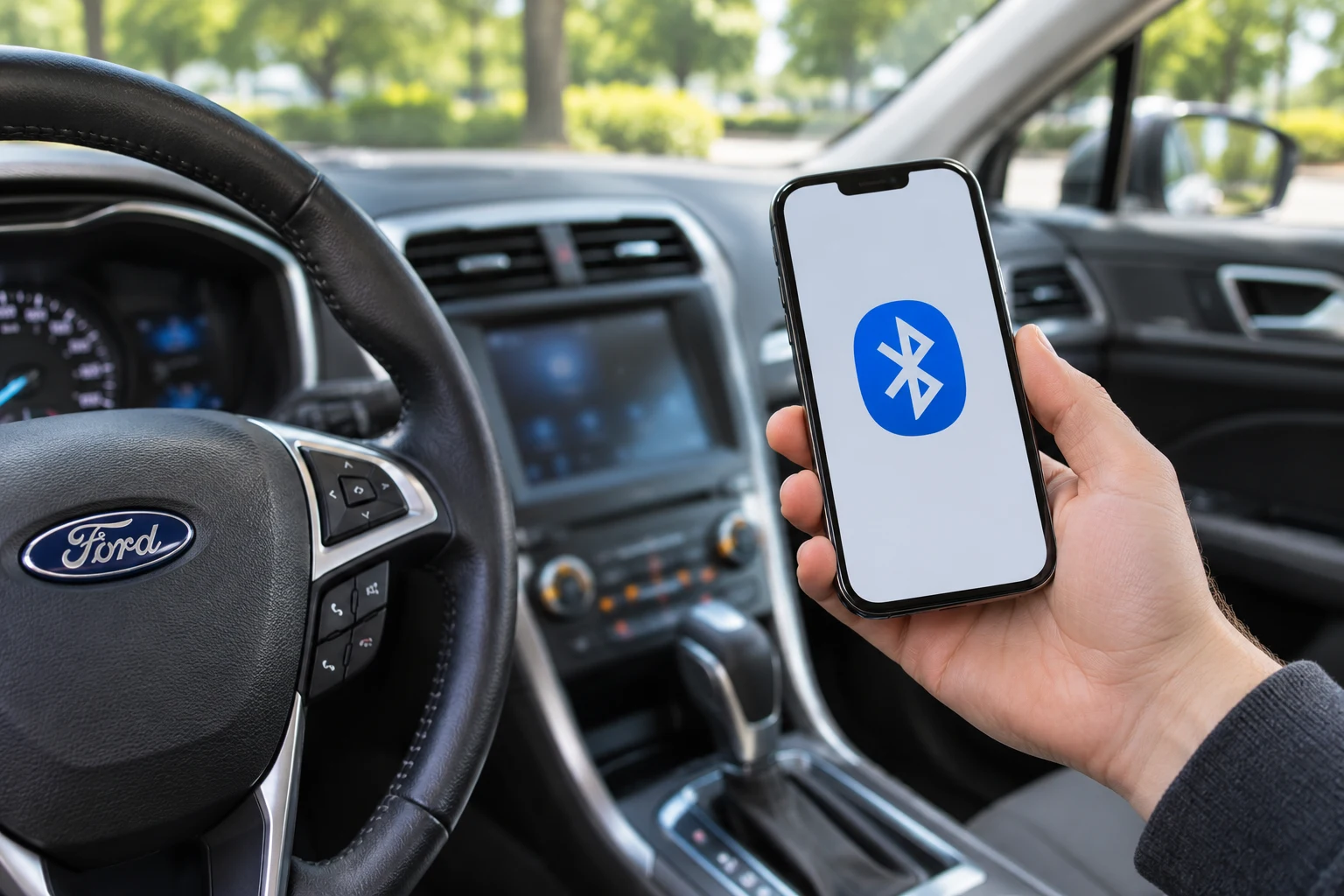
Conceptual illustration. See Ford’s owner’s manual for the factory controls.
Test Calls and Music Separately
Check a Hands-Free Call
With the car still parked, use the phone screen or the vehicle controls to call someone who has agreed to help you test. Confirm you hear their voice through the vehicle speakers and that they can hear you. End the call and try a second call after the phone reconnects. This checks whether the pairing works beyond the first success message.
A missing contact list does not by itself explain a call audio problem. First try a known number without relying on the imported contact list. Then check whether contact sharing is enabled if you actually want that feature. If the call stays on the handset, check the phone’s call audio output and see whether SYNC is offered. A call routed to earbuds or the handset speaker can sound like the car is failing even though the pairing is intact.
Switch the Stereo to Bluetooth Audio
For a button-controlled SYNC radio, select Bluetooth Audio as the media source. The manual also documents the Bluetooth audio voice command. On MyFord Touch, touch the entertainment area in the lower-left corner and select BT Stereo. Start a track on the phone and begin with the vehicle volume low. Test with one familiar track so you can tell when it transfers to the vehicle.


If your phone makes calls through the car but music keeps coming from the phone, check the car’s media source and the phone’s current audio output. If the radio source still shows FM or USB, change it before deleting any devices. A phone can have a connection that handles hands-free calling while the stereo remains on a different source. Ford describes media streaming as a phone-dependent feature, so available controls and behavior can vary.
Check the volume on the phone and stereo before drawing a conclusion from a silent track. Try an app you know can play audio, confirm the track is playing, and pause any other device that might be sending sound to the car. If the car still shows no media connection, check the Bluetooth device settings on your phone for a separate audio setting if one is available.
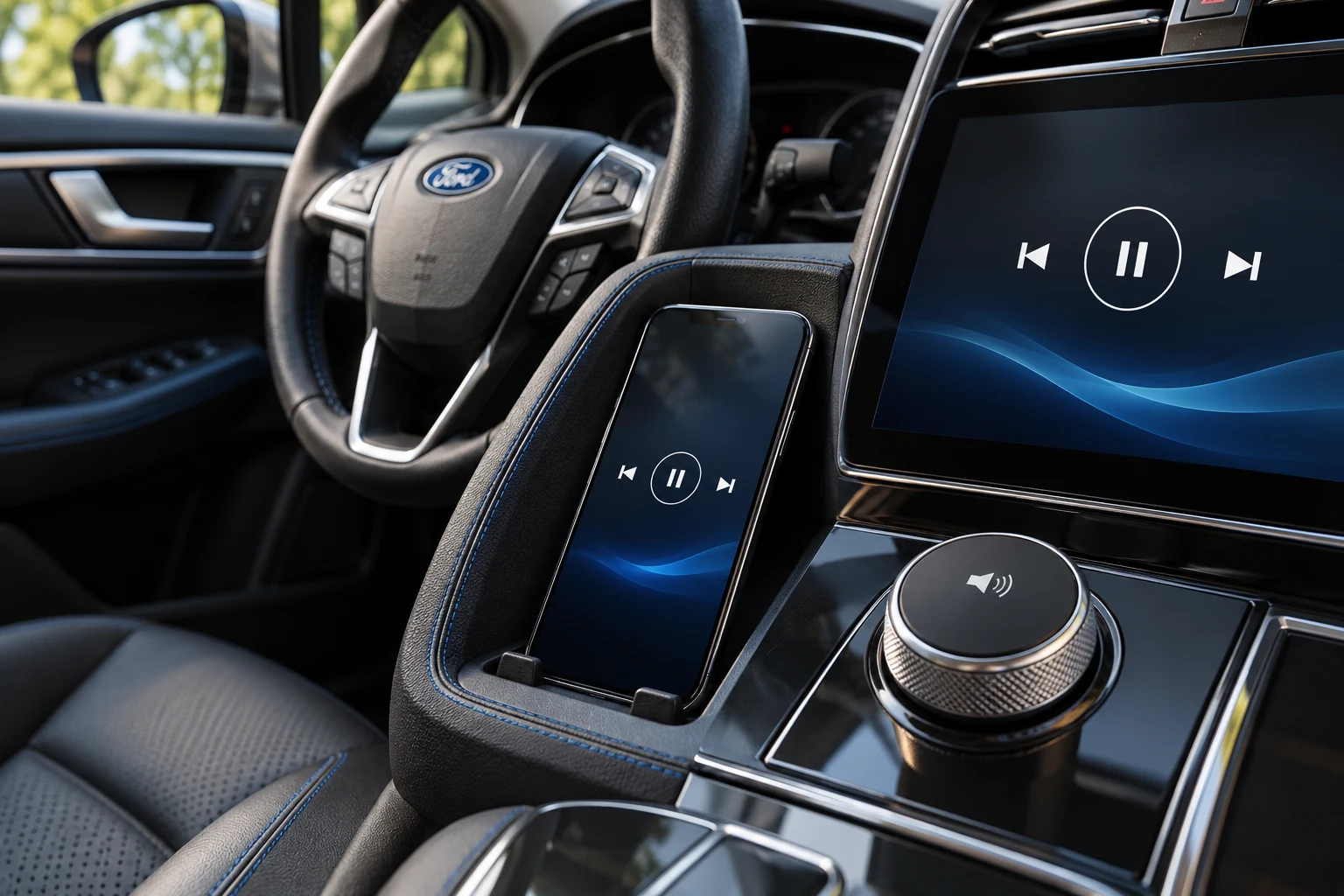
Conceptual illustration. See Ford’s owner’s manual for the factory controls.
Fix the Problem You Can Observe
| Symptom | Check First | If It Persists |
|---|---|---|
| SYNC never appears in the phone’s available devices | Keep the car on its active pairing screen and the phone on Bluetooth settings | Restart both systems normally while parked, then try pairing again |
| The PIN prompt closes before you can respond | Start one fresh pairing attempt and watch both screens | Remove a stale SYNC pairing on the phone and the corresponding saved device on the car |
| Calls work but music is silent | Select Bluetooth Audio or BT Stereo, then play a known track | Check the phone’s media output and try another compatible Bluetooth phone |
| A different phone connects every time | Check which phone is primary or favorite | Temporarily disconnect the other phone and retest |
| Menus freeze or two phones fail in the same way | Note which SYNC unit is installed and when the failure starts | Consult the vehicle manual and escalate through normal service diagnosis |
Start a New Pairing Cleanly
If an older SYNC entry appears on the phone but the car cannot use it, remove that one entry from the phone’s Bluetooth list. On the vehicle, remove the corresponding phone from the saved-device list when it still appears there. Family or work phones can remain saved. Then return each device to pairing mode and start again with the current code. A fresh code belongs to the active session, so do not try a number from an earlier attempt.
Take a moment to note whether the failure occurs before or after the code. If two phones can see SYNC but neither can complete the connection, record the message shown on the vehicle. If a second phone pairs and streams normally, make a note of what differs about the first phone or its settings. A simple comparison gives you a clearer service description than saying Bluetooth does not work.
Keep a Master Reset for Last
The manual distinguishes deleting a device from performing a master reset. A master reset removes stored personal information and returns the system to its default settings. First test the individual pairing and source choices above. If you still need to reset the system, check the reset steps for your specific unit and decide whether you are ready to lose saved data and pair your devices again. The FordMasterX SYNC reset guide discusses the different controls by system.
If you recently bought the Fusion, there may be old phones listed. Remove entries you can identify as unwanted. If you are selling or transferring the car, review Ford’s guidance about clearing stored data before it changes hands. Save any personal preferences you want to set up again, and consult the manual for the exact system’s procedure.
Five Questions About Fusion Bluetooth Pairing
Can I Pair an iPhone or Android?
You can try a compatible Bluetooth-enabled phone from either platform using the same Ford pairing sequence. Available features such as music controls, contact imports, and messaging depend on the phone and system. Test the features you need while parked.
What Is the Bluetooth PIN?
Use the six-digit code shown for the current pairing attempt. If the car and phone ask for confirmation, accept it after the codes match. If the phone asks for manual entry, copy the code displayed by the car.
Why Is Add Phone Missing?
Your car may have the button-controlled radio, where pairing starts with Phone and OK, or the touchscreen may already have a phone saved. Use the path that matches your system and its saved-device status.
Do I Need a USB Cable?
The Bluetooth pairing process described here uses the phone’s Bluetooth settings. A USB cable may charge the phone or give you another media input depending on your setup. Select the Bluetooth media source if you want to test wireless audio.
Can I Keep Two Phones Saved?
Both factory procedures cover adding subsequent phones. Save the devices you need and check your primary or favorite setting if the car keeps choosing a different handset. For testing, keep only one active phone nearby.
Confirm the Connection Before You Leave
To connect Bluetooth in a 2014 Ford Fusion, match your pairing steps to the installed dash, use the current six-digit code, and wait for the vehicle to confirm success. Then test a call and a short music track separately while parked. If the next startup connects the wrong phone, review your primary or favorite setting. If audio is silent, return to the stereo source and phone output before clearing saved devices. Write down where the connection stops if the problem persists. That one detail can make it much easier to tell whether to troubleshoot the phone, the saved pairing, or the Ford system.