
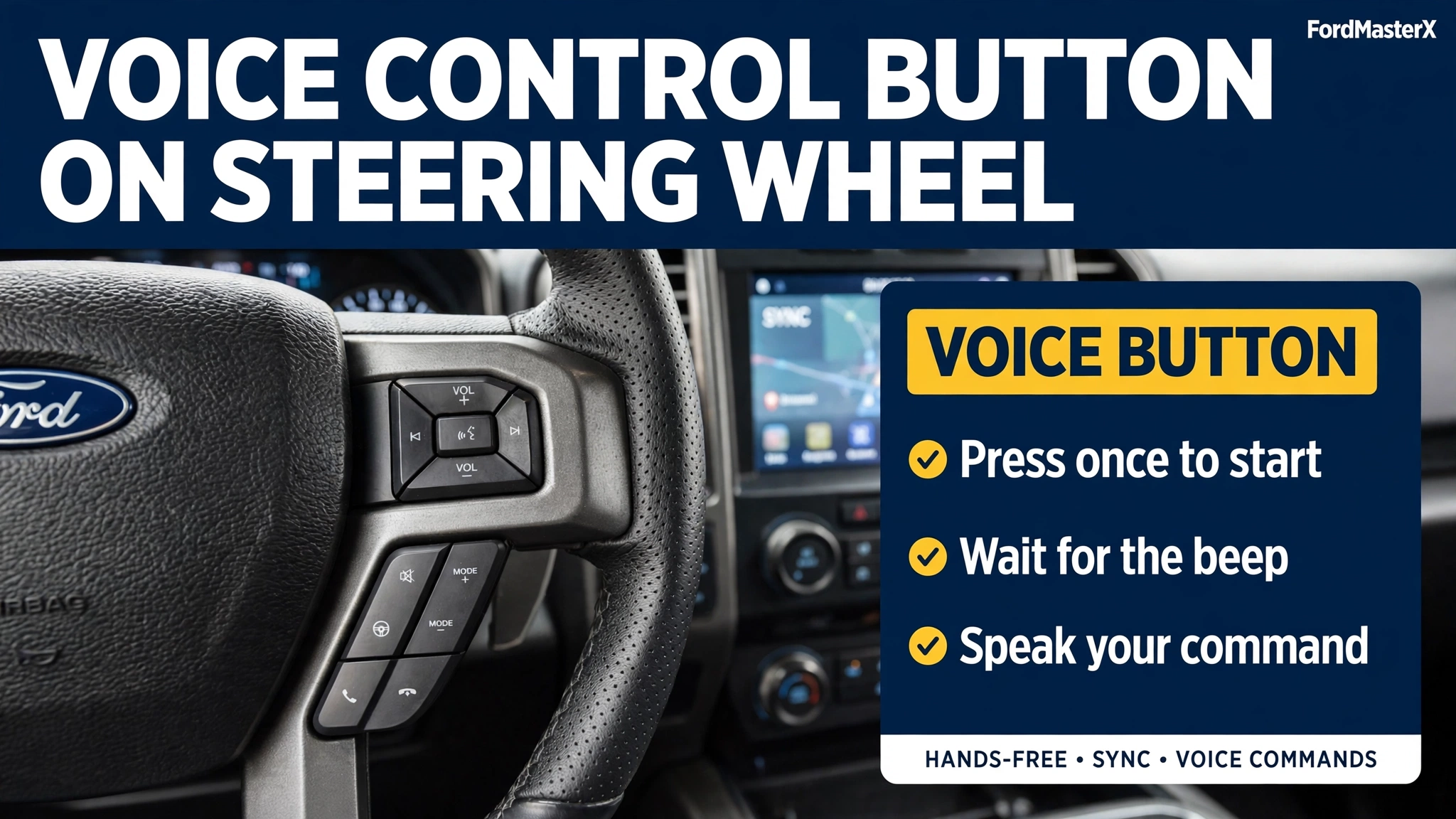
Voice Control Button on Steering Wheel 2026 Complete Guide

The voice control button on the steering wheel is the SYNC voice recognition switch in your Ford. Press it once, wait for the beep, then speak one clear command, and SYNC handles the call, the music, the route, or the temperature for you.
The button keeps your hands on the wheel and your eyes on the road. It is the fastest way to use SYNC, because you never have to reach for the touchscreen.
Most Ford drivers press it once and talk too soon, or they press the wrong button and change the radio station instead. Both mistakes are easy to fix once you know the icon, the place, and the timing.
This guide shows you what the voice control button is, where it sits on a Ford steering wheel, how to use it step by step, the commands that work, how it changes across SYNC 1, 2, 3, and 4, and what to do when it stops working.
The Short Answer in 3 Steps
Three steps cover almost every use of the button. The table below holds them, and the infographic after it gives you the same facts to save or share.
| Step | What to do | What SYNC does |
|---|---|---|
| 1. Press once | Tap the voice button on the right spoke | SYNC opens a voice session and shows the voice screen |
| 2. Wait | Let the prompt finish and listen for the beep | SYNC is now listening for your command |
| 3. Speak | Say one clear command in a normal voice | SYNC confirms it and runs the command |
One press is the whole skill. The rest of this guide is about finding the button, choosing the right words, and fixing it when it stays silent.
If you press and hold the button instead of tapping it, you get a different result. A long press hands the session to Siri or Google Assistant on your phone, and that is covered later in this guide.
What the Voice Control Button Does
The voice control button is a push to talk switch. It tells SYNC to listen, and SYNC then turns your words into an action on the phone, the radio, the navigation, or the climate system.
The button itself has no microphone and no speaker. The microphone sits in the cabin, usually near the overhead console, and the speakers play the prompts and confirmations back to you.
SYNC listens only while a voice session is open. Press the button, say your command, and the session ends when SYNC finishes the job or when you say cancel.
What It Can Control
On most Fords with SYNC 3 or SYNC 4, the button controls phone calls, text messages, music and radio, navigation, and climate. The exact list depends on your SYNC version and your equipment, so a base truck without navigation cannot take a spoken destination.
The button also opens the help list. Say help at any time during a session, and SYNC reads out the commands that work on the screen you are on.
What It Cannot Do
The button cannot change drive modes, adjust the mirrors, open the windows, or control safety systems. Those jobs stay with their own switches, and SYNC will tell you it cannot help if you ask.
It also cannot hear you well over loud wind or music. SYNC may even lower the fan speed during a voice session so it can hear you better, and that is normal behavior.
Our guide to what SYNC is in a car explains the whole system behind the button. Read it if you want the full picture of Bluetooth, AppLink, and the SYNC screen.
Where to Find It on Your Ford Steering Wheel
On most Ford trucks and SUVs, the voice control button sits on the right-hand spoke of the steering wheel, within easy reach of your right thumb. Ford’s own quick reference guide for the Super Duty puts it the same way: touch the button on the right-hand side of your steering wheel.
The icon is a small face in profile with sound waves coming from the mouth, like a person speaking. On some wheels the icon looks like a face with lines beside it, and on others it looks like a head with a speech mark.
The exact layout changes with model, year, and trim, so check your owner manual if your wheel looks different. The icon is the reliable clue, not the exact position, because Ford has moved the button cluster between generations.
| Button | Icon | Where it sits | What it does |
|---|---|---|---|
| Voice | Speaking face | Right spoke, often the bottom row | Starts a voice session |
| Phone | Phone handset | Right spoke, near the voice button | Answers or ends a call |
| Volume | Speaker with plus and minus | Right spoke, often the top row | Raises or lowers audio volume |
| Seek | Arrows or double triangles | Right spoke, beside volume | Moves to the next station or track |
| OK | OK text | Right spoke, center | Confirms a menu choice |
| Cruise | Speedometer or SET | Left spoke on most Fords | Sets and adjusts cruise control |
Cruise control lives on the opposite side of the wheel on most Fords. That split is the easiest way to tell the two groups apart: the left spoke handles speed, and the right spoke handles sound and voice.
If your wheel has no speaking-face icon at all, your truck may not have SYNC voice control, or the button may sit in a different cluster. Check the SYNC version for your year and trim before you assume the button is broken.
A quick test settles the question. Press the button once with the ignition on and see if the SYNC screen changes to a voice screen. If it does, you found it.
How to Use the Voice Control Button
Using the button takes about five seconds once you know the rhythm. The rhythm matters more than the words, because SYNC only accepts a command after the prompt finishes.
- Start the truck and let SYNC finish loading. A voice session will not open while the system is still booting, so wait for the home screen first.
- Press the voice button once with a short tap. Do not hold it, and do not double tap it, because a hold opens your phone assistant instead.
- Wait for the prompt to finish and listen for the single beep. Ford’s own manual gives the same rule in the Ford SYNC 3 Using Voice Recognition guide: wait for the system announcement to finish followed by a single beep, because any command spoken before this does not register.
- Speak one clear command in a normal voice. Say the whole command in one breath, with no long pause in the middle, and SYNC will repeat it back or act on it.
- Answer any follow up question SYNC asks. If SYNC finds two contacts with the same name, it will ask which one you mean, so answer with the choice it offers.
- End the session by saying cancel or by pressing and holding the voice button. The session also ends on its own when SYNC finishes the job.
Press the button again while SYNC is talking to interrupt the prompt and speak at once. That is called barging in, and it saves time once you know the command you want.
Turn the volume knob while a prompt plays if the voice is too loud or too quiet. The volume you set during a prompt applies to SYNC voice prompts, not to the music volume.
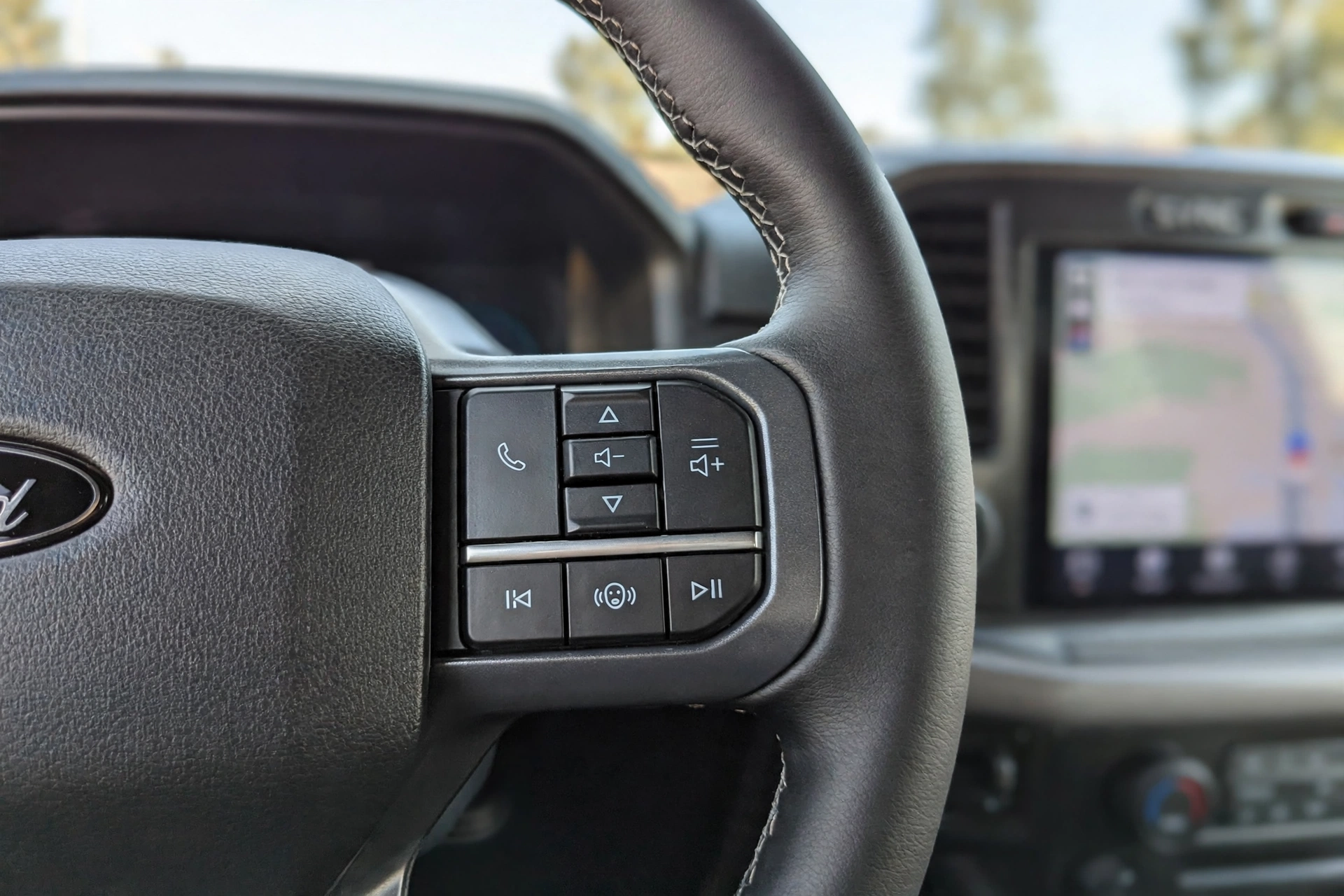
AI-generated illustration: the right-hand spoke of a Ford F-150 steering wheel, with the voice control button and its speaking-face icon in the bottom row.
Voice Commands That Work on Ford SYNC
SYNC understands a fixed set of command patterns, and each pattern takes a name, a number, or a place you fill in. The tables below list the patterns Ford documents for SYNC 3, and most of them also work on SYNC 4.
Phone Voice Commands
| Command | What it does |
|---|---|
| Call, then a contact name | Calls that contact from your phonebook |
| Call, then a name, then mobile or home | Calls the right number when a contact has more than one |
| Dial, then a number | Dials the number you speak, digit by digit |
| Redial | Calls the last number you dialed |
| Pair my phone | Starts Bluetooth pairing from the voice screen |
| Listen to text messages | Reads your messages aloud through the speakers |
Pairing matters before any phone command can work. If your phone is not paired, SYNC has no contacts to call, so follow our guide on how to connect to Ford SYNC first and then try the button again.
Music and Radio Commands
| Command | What it does |
|---|---|
| Play, then an artist, song, album, or genre | Plays that music from USB, Bluetooth audio, or SiriusXM |
| FM, then a frequency | Tunes the radio to that station, for example FM 99.5 |
| SiriusXM, then a channel name | Tunes to that satellite channel |
| Bluetooth Audio | Switches the source to music from your phone |
| USB | Switches the source to music from a USB stick |
| Pause or Resume | Stops and restarts the music that is playing |
Say the name the way it appears in your library. SYNC matches the words you speak against the names in your phone or USB stick, so a nickname will not match a full contact name.
Navigation Voice Commands
| Command | What it does |
|---|---|
| Navigate to, then a full address | Sets a route to that street address |
| Find a gas station or Find a coffee shop | Searches for that place near your current position |
| Destination home | Routes you to your saved home address |
| Cancel route or Stop navigation | Clears the current route |
Navigation commands need a truck with built in navigation or a phone route through CarPlay or Android Auto. A SYNC system without navigation will tell you the feature is not available, and that is a limit of the equipment, not a fault.
Climate Voice Commands
| Command | What it does |
|---|---|
| Set temperature to, then a number | Sets the cabin to that temperature, between 60 and 85 F |
| Turn AC on or Turn AC off | Switches the air conditioning on or off |
| Fan speed low, medium, or high | Sets the blower to that speed |
| Defrost or Defog | Turns on the windshield defroster |
Ford documents the climate range as 60 to 85 F, which is 15.5 to 29.5 C. Say the number in the scale your truck uses, and SYNC will set the temperature you asked for.
The WheelsGreed Ford voice commands list gives a longer command list by task, with the same press and wait flow and the SYNC 3 and SYNC 4 notes. Use it as a cheat sheet once the button feels natural.
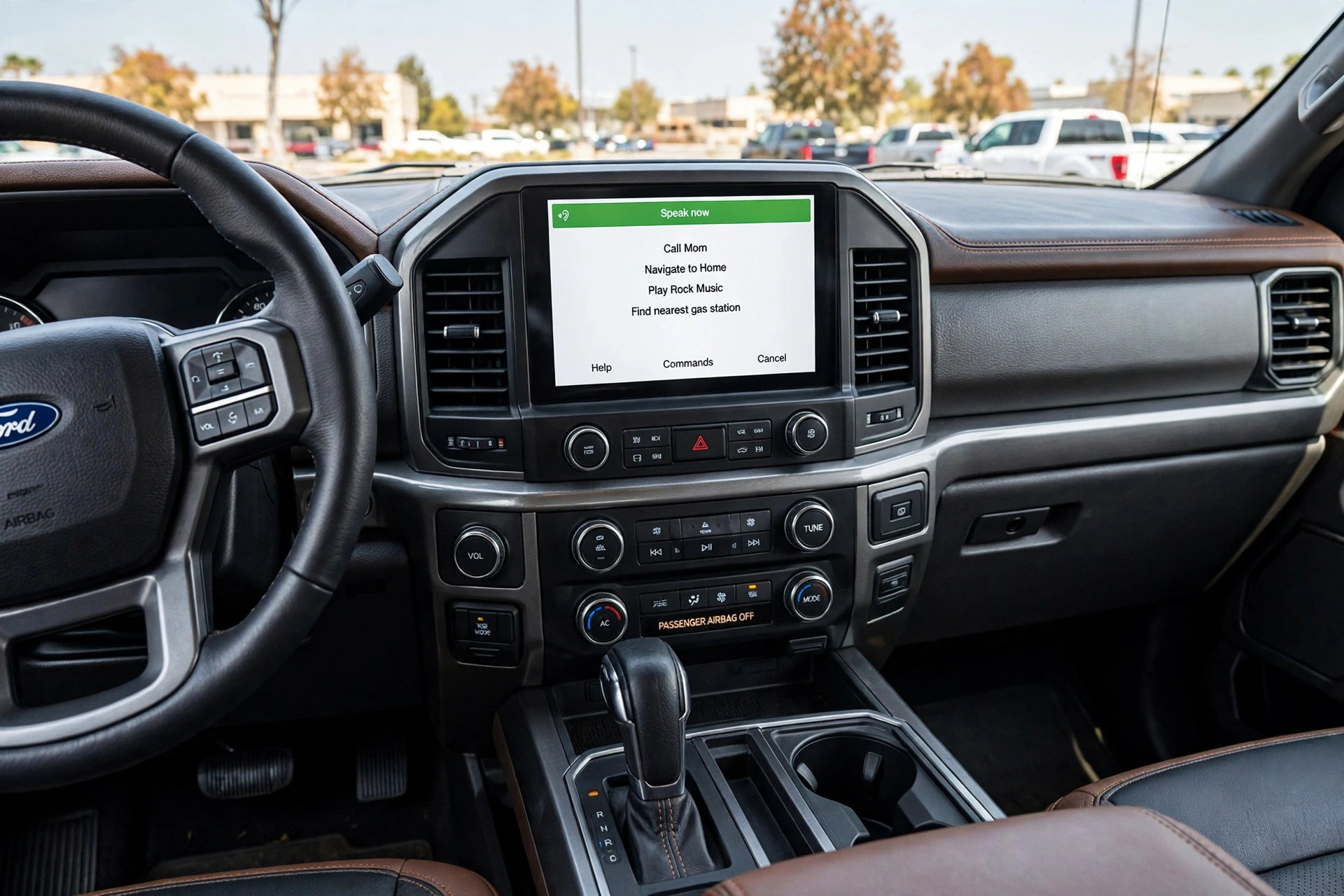
AI-generated illustration: a Ford SYNC touchscreen showing a Speak now voice screen with example commands for calls, navigation, and music.
How the Button Changes Across SYNC
The button has been on Ford steering wheels since the first SYNC, but what it can do has grown with each generation. The table below maps the four main generations, and the year ranges are approximate because trim and model change the version.
| Generation | Years | Screen | Voice control | Notes |
|---|---|---|---|---|
| SYNC 1 | 2008 to 2012 models | No touchscreen, small display | Basic phone and media commands | First SYNC, launched September 2007 |
| SYNC 2, MyFord Touch | 2011 to 2015 models | 8 inch touchscreen | Voice for phone, media, navigation, climate | No CarPlay or Android Auto |
| SYNC 3 | 2016 to 2023 models | 6.5 or 8 inch touchscreen | Faster voice, CarPlay and Android Auto | Final build is version 3.4 |
| SYNC 4 and 4A | 2021 models onward | 8, 12, or 15.5 inch screens | Natural voice, wake words, cloud help | Wireless CarPlay and Android Auto, over the air updates |
SYNC 1 is the simplest of the four. It takes short fixed commands for calls and music, and it has no screen to show a command list, so you have to know the words in advance.
SYNC 2 added a touchscreen and a wider command set, but its voice recognition is slower and stricter than the later systems. Say the command exactly as Ford lists it, and give the system a beat longer to answer.
SYNC 3 is the sweet spot for most used Ford buyers. It is fast, it understands natural phrasing, and it supports CarPlay and Android Auto, so the button can hand off to Siri or Google Assistant when you hold it.
SYNC 4 adds wake words and cloud connected voice help, so you can talk to the truck without touching the button at all. The button still works the same way, and it stays the fastest way to start a command while you drive.
Our Ford SYNC version chart by year maps every generation to the exact trucks and years that received it, with the trim caveat that changes the version inside one model year.
A newer SYNC 5 system now runs on some Lincoln models, and the Ford Digital Experience runs on the newest Explorer and Expedition. Those systems keep a voice button on the wheel, but their menus and wake words differ, so check your owner manual for the exact steps.
Voice Button vs Other Steering Wheel Buttons
Most voice button confusion is a wrong button, not a broken system. The wheel holds six or seven switches in a small space, and two of them look alike at a glance.
| You pressed | What it does instead | Why it feels wrong |
|---|---|---|
| Phone button | Answers or ends a call | Nothing happens unless a call is coming in |
| Cruise SET | Sets your speed | The truck holds speed and no voice screen appears |
| Volume up | Raises the audio | The music gets louder and SYNC never listens |
| Seek next | Changes station or track | The song changes and the voice screen stays closed |
| OK | Confirms a menu choice | The menu moves and no voice session starts |
| Mode or Media | Changes the audio source | The source changes and the voice screen stays closed |
The cruise buttons sit on the left spoke on most Fords, while the voice button sits on the right. If you pressed a button on the left and nothing voice related happened, you pressed a cruise button.
The phone button is the closest neighbour and the easiest to confuse with the voice button. The phone button has a handset icon, and the voice button has a speaking face, so check the icon before you press.
If you keep hitting the wrong button, learn the wheel by touch while parked. Press each button once, watch the screen, and note what changes, so your thumb finds the voice button without looking while you drive.
When the Voice Control Button Does Not Work
A silent voice button is usually a setup problem, not a broken button. Work through the checks below in order, from the fastest to the slowest, and test the button after each one.
- Wait for the beep. Press the button once, let the prompt finish, and then speak, because words spoken before the beep never register with SYNC.
- Check that your phone is paired and connected. Voice calls and messages need a paired phone, so open the phone menu and confirm your phone shows as connected.
- Close the windows and turn the fan down. Wind noise and a loud fan can stop SYNC from hearing you, and SYNC may lower the fan itself during a session.
- Check the language setting. SYNC listens in the language set on the system, so commands spoken in another language will not match, and the fix is to set the language you speak.
- Reboot SYNC with a module reset. On SYNC 3 and SYNC 4, hold the Power button and the Seek Right button together for up to 10 seconds until the screen goes black and restarts. Ford’s own How do I reset the SYNC system page gives the same steps, and it notes the reset keeps your paired phones, presets, and saved destinations.
- Try a master reset only as a last step. A master reset erases paired phones and saved settings, so write down your presets first and pair your phone again after it.
- Check the button itself. If the button feels loose, sticks, or never lights the voice screen even after a reboot, the switch or the clockspring wiring may be at fault, and a dealer or a shop should test it.
A reboot fixes most frozen SYNC problems, and it takes about a minute including the restart. If the screen stays black for more than a couple of minutes, switch the truck off, wait a minute, and start it again.
If the voice prompts play but you hear nothing, the fault is in the audio path, not the button. Our guide to Ford SYNC connected but no sound walks through the audio checks, from volume and source to the SYNC reboot.
If the whole radio is frozen or the screen will not respond at all, our guide on how to reset a Ford Explorer radio covers the reset steps for the Explorer, and the same Power plus Seek method works on most SYNC 3 trucks.
A SYNC 4 screen that mirrors your phone adds one more variable. If the button works with the radio but not with CarPlay, the fault is on the phone side, and our guide to Ford SYNC 4 screen mirroring covers the phone and cable checks.
Voice Button, Siri, and Google Assistant
A short press talks to SYNC, and a long press talks to your phone. Press and hold the voice button, and SYNC hands the microphone to Siri on an iPhone or Google Assistant on an Android phone.
The handoff is useful when SYNC cannot do the job. Ask Siri to send a message through an app SYNC does not know, or ask Google Assistant to read a reminder, and the answer plays through the truck speakers.
Your phone must be connected by Bluetooth or USB for the handoff to work. If the long press does nothing, check the pairing first, because SYNC cannot reach an assistant on a phone it cannot see.
Wake Words on SYNC 4
SYNC 4 adds wake words, so you can start a session without touching the wheel. Say Okay Ford and the system listens, and you can change the phrase in the Ford Assistant settings.
Ford Assistant is the conversational helper on SYNC 4 and SYNC 4A. Ford’s Ford Assistant with SYNC page explains how to turn it on, how to use the Push-to-Talk button, and which wake words you can choose.
Wake words need a quiet cabin to work well. Road noise, an open window, or a passenger talking over the phrase can all stop the system from waking, and the button is the reliable backup.
Keep the button as your main habit and the wake word as a convenience. The button works even when the cabin is noisy, and it never mishears a song lyric as a command.
Tips That Make Voice Commands Work Better
Voice control works best when you treat SYNC like a person who hears you once, clearly, and then acts. The tips below come from Ford’s own manual and from daily use.
- Speak after the beep, not during the prompt. SYNC drops words spoken before the beep, so the one second wait is the single biggest fix.
- Say the command in one breath. A long pause in the middle makes SYNC think you finished, and it will act on half a command.
- Use the full name from your contacts. SYNC matches the name in your phonebook, so a nickname or a short form will not match.
- Keep the cabin quiet for the first try. Close the windows, turn the music down, and ask passengers to pause for a few seconds.
- Say help when you are stuck. SYNC reads the commands that work on the current screen, and that list is faster than guessing.
- Switch to the advanced interaction mode if the prompts feel slow. SYNC lets you change the interaction level in the voice settings, and the advanced mode gives shorter prompts and more beeps.
Practice the five commands you use most while parked. Calls, navigation home, a favorite station, a temperature, and cancel will cover most drives, and the practice makes the button feel natural.
Questions Ford Owners Ask About the Voice Button
What Does the Voice Button Do
It starts a SYNC voice session from the steering wheel. Press it once, wait for the beep, then speak a command for a call, music, navigation, or climate.
Where Is the Voice Button
On most Fords it sits on the right-hand spoke of the steering wheel, marked with a speaking-face icon. The exact cluster changes by model and trim, so check your owner manual if your wheel looks different.
Why Does My Voice Button Do Nothing
The most common causes are speaking before the beep, a phone that is not paired, or a frozen SYNC system. Wait for the beep, check the pairing, then reboot SYNC with Power plus Seek Right for 10 seconds.
Can I Use the Button for Siri
Yes, press and hold the voice button to hand the session to Siri on an iPhone or Google Assistant on an Android phone. A short press stays with SYNC, and a long press goes to your phone.
Does the Button Work Without a Phone
Yes, for radio, USB music, and climate, because those jobs live in the truck. Calls, messages, and phone navigation need a paired phone, so those commands will fail without one.
Voice Button vs Phone Button
The voice button starts a SYNC voice session, while the phone button answers or ends a call. The voice button has a speaking-face icon, and the phone button has a handset icon.
Do All Fords Have a Voice Button
Almost every Ford with SYNC has one, from SYNC 1 onward, but the icon and the position change by model and trim. A truck without SYNC has no voice button, because there is no system for it to talk to.
Your 5 Step Check Before You Drive
The voice control button on your steering wheel is a small switch with a big job. It keeps your hands on the wheel while SYNC handles the call, the music, the route, and the temperature.
Run the five step check before you drive. Find the speaking-face icon on the right spoke, press it once and wait for the beep, speak one clear command, learn the five commands you use most, and reboot SYNC with Power plus Seek Right if the button ever stays silent.
That check takes a minute in the driveway. It turns a button you ignore into the control you reach for first, and it keeps your eyes on the road on every trip after that.