
How to Watch Movies on Ford SYNC 4 While Parked

You can watch video on the center screen of some Ford vehicles with SYNC 4 or SYNC 4A. On a supported vehicle, put it in Park, open the Apps drawer on the Ford display, and select YouTube or Video Streaming, whichever appears on your vehicle. Ford restricts native video playback to parked use.
Having SYNC 4 is only one part of the eligibility check. The installed software, vehicle configuration, and access to Ford’s connected services can determine whether the app appears or plays anything. If you are looking for a particular movie, search for it in the app the car actually offers. A film available in Netflix or Prime Video on your phone may be unavailable through your Ford screen.
Check whether your Ford supports parked video
Start with the vehicle you have, especially if you are following a video filmed in a different Ford truck. Two trucks with similar dashboards can have different app catalogs. Note the model year, the exact model name, and the infotainment system. An F-150 and an F-150 Lightning are separate models for software purposes, even if a menu or display looks familiar.
- Identify the infotainment system. Check the vehicle’s on-screen system information, owner’s manual, or the version checker on Ford’s SYNC Technology page. If you’re comparing several generations or a used truck, the Ford SYNC version chart can narrow the options before you check the exact vehicle.
- Check the Ford account for that vehicle. In the Ford app or owner dashboard, select the correct vehicle and open Connected Services. Look for the service Ford offers for that vehicle and check its status and feature details. On a shared account, double-check that you are looking at the same vehicle that is parked in front of you. On a used vehicle, you may need to complete account and vehicle setup first.
- Inspect the Ford Apps drawer while parked. Return to the native Ford screen if you are in a smartphone projection interface. Look for a tile labeled Video Streaming or YouTube. The available tile is better evidence for your vehicle than a photo of somebody else’s dash.
- Check software and activation if the tile is missing. Review the update history or available software in Ford’s support tools and compare it with the services listed for your vehicle. If the account suggests video is supported but the app is missing, ask Ford to check availability against your VIN and installed software.
Can your SYNC 4 play video?
Use these four checks on your own Ford. Video is available only while parked on select equipped vehicles.
- 1. Identify the system.
Confirm SYNC 4 or 4A in your vehicle information. - 2. Check the service.
Select your vehicle in the Ford app and look under Connected Services. - 3. Find the app.
While parked, open the Ford Apps drawer and look for YouTube or Video Streaming. - 4. Test a clip and troubleshoot.
If the tile is missing, check vehicle eligibility and software. If playback fails, check activation and connection.
Treat each of these as a separate result. Identifying your system tells you which family of instructions to use. An available service description tells you what Ford offers for the vehicle. An app icon tells you that the software exposes an app. Successful playback is the final check. The checks get more specific as you go, which is why a screen-size chart alone is a poor basis for buying a subscription.
If you are inspecting a used truck, ask the seller to demonstrate the native Ford Apps drawer while the truck is parked. You can confirm the screen and visible menu on the spot, then check how connected-service access will work after purchase. Avoid relying on a demonstration made through a separate display, a phone, or a subscription associated with the previous owner’s account.
Play a video from the Ford center screen
1. Park somewhere you can remain stopped
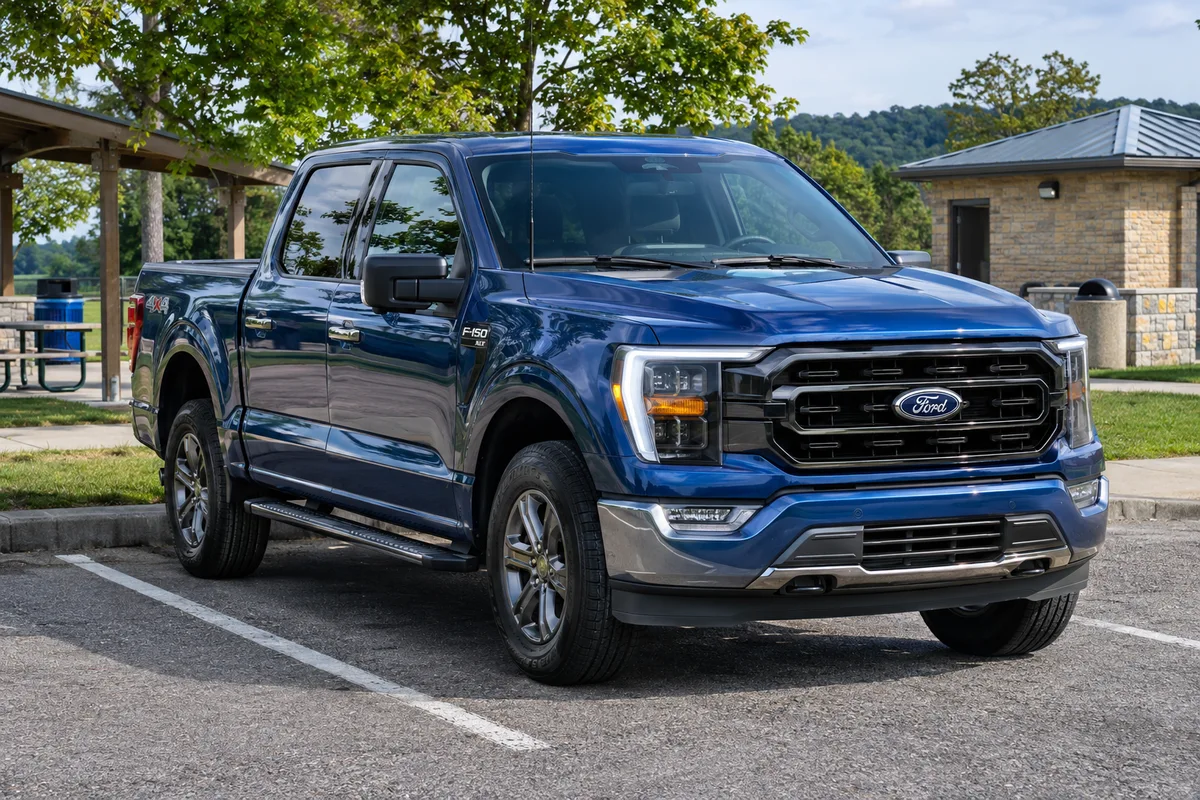
Pull into a legal parking space and put the transmission in Park. A red light, a queue that may start moving, or a temporary traffic stop is a poor place to begin playback. If the system displays a parked-use message, follow it. A charging stop or a rest area is a suitable time to see how the feature behaves without rushing the setup.
If the screen needs accessory power, follow the instructions in your owner’s manual. Avoid idling a gasoline vehicle in a garage or other enclosed space. The parked-use requirement concerns where and when you can watch. It does not tell you which power mode is appropriate for your particular vehicle.
2. Switch to Ford’s own Apps drawer
If Apple CarPlay or Android Auto is up, return to the Ford interface. Open the area where Ford lists its native apps. Depending on the software and display layout, the control may be shown as an Apps label or an app-grid icon. Look for the Ford tile listed in your software notes, then open it. Exact labels and placements can vary after an update.
The difference between the two screens matters. The phone’s projection interface shows compatible phone apps. The Ford Apps drawer shows software available on your vehicle. Searching one screen for an icon that only exists in the other can make a supported feature appear to be missing. Our SYNC 4 phone projection guide explains how the projection interface differs from the native display.
3. Verify playback with a short clip
Choose a short video you are comfortable playing through the cabin speakers. This separates app launch, network access, and audio output from problems with a particular movie. If it plays, you can use the app’s search to find the film, show, trailer, or other content you want. If a selection asks for an account or a purchase, follow the app’s prompts and confirm the terms before paying. The vehicle’s data plan and a provider’s content access are separate considerations.
Watch for where the process fails. A tile that never appears points to a different problem than an app that opens and asks for service activation. If a short clip plays but one film will not, the issue may be with that title or your access to it. Note the exact message if you need to contact support. It gives Ford or the streaming provider a more useful starting point than a general report that the screen will not play movies.
4. Close the video before you move
Exit playback before pulling away. If you want audio for the drive, select an appropriate audio source while still parked, then return your attention to driving. During a stop, keep enough time to finish and put the vehicle back in a normal driving state. For a family trip, setting up a separate passenger device before departure can be more practical if passengers want to keep watching after the stop.
Which apps can you watch on SYNC 4?
Ford’s US Premium Connectivity documentation distinguishes two systems. It describes available parked YouTube on select equipped SYNC 4 and SYNC 4A vehicles. For Ford Digital Experience, it lists an app catalog that can include YouTube, Prime Video, and other Google Play apps. That distinction helps explain why two Ford pages can describe different streaming choices without referring to the same dashboard system.
| What you are trying to use | Where to check | What the check tells you |
|---|---|---|
| Native video on SYNC 4 or 4A | Ford Apps drawer and the vehicle’s Connected Services | Whether Ford exposes a supported app for your vehicle |
| Prime Video or other in-vehicle apps | The Ford Digital Experience app catalog, where equipped | Which apps your system offers |
| A movie app installed on your phone | Your phone’s app and content library | What you can watch on the phone itself |
| Bluetooth media or a phone projection interface | Ford audio source or compatible projected apps | How media is routed, which does not establish center-screen video support |
A title can be available through one app and absent from another. If your vehicle offers YouTube, look for the title there before making plans around it. If a result is a trailer or a clip, check the runtime and listing before assuming you found the full movie. These checks matter more for a planned viewing than the simple fact that the display can stream video.
What two Ford software notices show about compatibility
One Ford update notice for the 2025 F-150 lists separate variants for the same software release. One variant describes karaoke. The variant that also lists video directs owners to the Apps drawer and specifies modem activation and available Premium Connectivity. If a forum post names the software number but omits the feature variant, it doesn’t answer whether a specific truck received video.
In a separate notice for the 2022 F-150 Lightning, Ford identifies a release that adds video streaming and karaoke to the 12-inch SYNC 4 screen covered by that notice. It again calls out modem activation and available Premium Connectivity. This is an example of a feature arriving through an update on a specific display. Check the service and software for your own truck before applying the example to a different model, year, or screen.
What to check when SYNC 4 will not play a movie
The video tile is missing
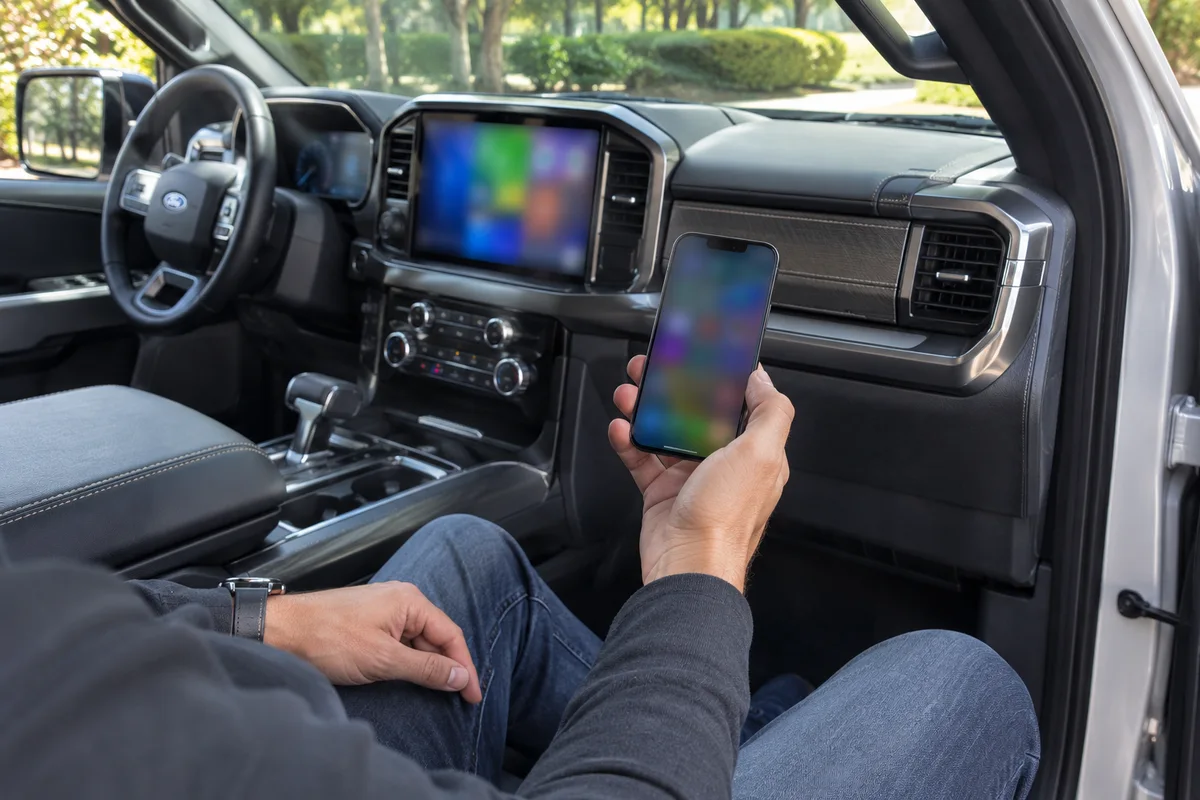
Confirm that you are fully parked and looking at the Ford interface. Then check the system version and the vehicle’s available connected services. If Ford lists parked streaming for your vehicle, review its software history for a relevant update. If recent changes are still pending according to the vehicle, let the official update process finish and follow any on-screen directions before testing the app again.
If the Ford account shows the service and your software is current for the vehicle but you still see no app, collect the vehicle information, software version, and a description of the Apps drawer. The VIN is useful when contacting Ford directly. You do not need to post the VIN publicly to ask whether other owners recognize the menu.
The app opens but asks for a plan or activation
The screen recognizes the app. Switch your attention to the selected vehicle in your Ford account. Check whether the vehicle is linked and the service is active, whether a trial ended, and whether the modem has been authorized. A phone that successfully pairs with Bluetooth does not tell you whether the vehicle modem has been activated. If you see several similarly named plans, read the list of features for the one that applies to the VIN.
If you take over a used vehicle, complete the standard account transfer and setup using Ford’s process. Ask Ford support for help if the owner dashboard does not show the expected vehicle or services after setup. Buying or renewing a plan before confirming that parked video is included may leave the original issue unresolved.
Playback spins, pauses, or drops
Try a second short video while still parked. If multiple videos hang, check whether the vehicle can access its connected services at that location. Good reception on the phone is useful for checking the phone itself. It does not prove the Ford modem has a good connection. If it is safe and practical, compare behavior at a different parking location after your next drive.
Record whether the issue affects every video, one title, or the entire app. If the same clip plays in one location and fails in another, coverage becomes a more plausible factor. If every title fails across different locations, account activation or an app problem deserves a closer look. If just one title fails while other videos run normally, checking its availability in the app is a better first step than changing vehicle settings.
Picture works but the cabin is silent
While the video is playing and the truck is parked, check the display’s mute state and adjust the volume at a comfortable level. Try a second clip with a known audio track. If radio and other sources also have no sound, you may have a broader audio issue that won’t be resolved within the video app. If the issue is confined to the one streaming app, note the app and content before looking for support.
Can you watch without an eligible built-in app?
The useful fallback is a separate phone or tablet, used when safely parked or by passengers in an appropriate seating position. If your content provider allows downloads on your device, download the program before traveling. Check playback once with the device offline, so you know whether the download works under your account before reaching an area with limited coverage.
For a vehicle with no native video tile, pairing your phone again or plugging in a USB cable doesn’t establish factory support. Check the owner’s manual and Ford’s vehicle-specific information before spending money on data, hardware, or accessories. Any passenger-device setup should keep equipment secure and outside the driver’s view during the trip.
Frequently Asked Questions
Can I install Netflix or Prime Video directly on Ford SYNC 4?
Ford’s US documentation does not list Netflix or Prime Video for SYNC 4 or 4A. It lists YouTube for select SYNC 4 and 4A vehicles and Prime Video for equipped vehicles using Ford Digital Experience. Check the actual app catalog for your vehicle before subscribing to anything for use on the car screen. If you want a service that the screen does not offer, plan to use that service on a separate device while parked.
Can an update add the video app after I buy the truck?
Some updates do add video for applicable configurations, as shown in the Ford notices above. Check the update history and current Connected Services for the exact vehicle. If a release is documented for a model year, that still leaves the question of whether it applies to your individual vehicle and has been installed. Ford support can help distinguish an update rollout from a vehicle that is ineligible.
If I can stream music, does the same plan cover movies?
Check the feature list for your vehicle’s connected service. Music can come from the phone over Bluetooth, a projected phone app, or an app in the Ford system. Any of those can work while native video is unavailable. The reliable confirmation is parked video playback from the vehicle’s Apps drawer with the applicable service active.
Next time you are parked, use the Ford Apps drawer as your first check. If a video tile is present, test a short clip. If it is missing, read the feature list and update record for that vehicle before buying anything. This will tell you whether to finish activation, ask Ford about software and eligibility, or plan to watch on a separate device.