
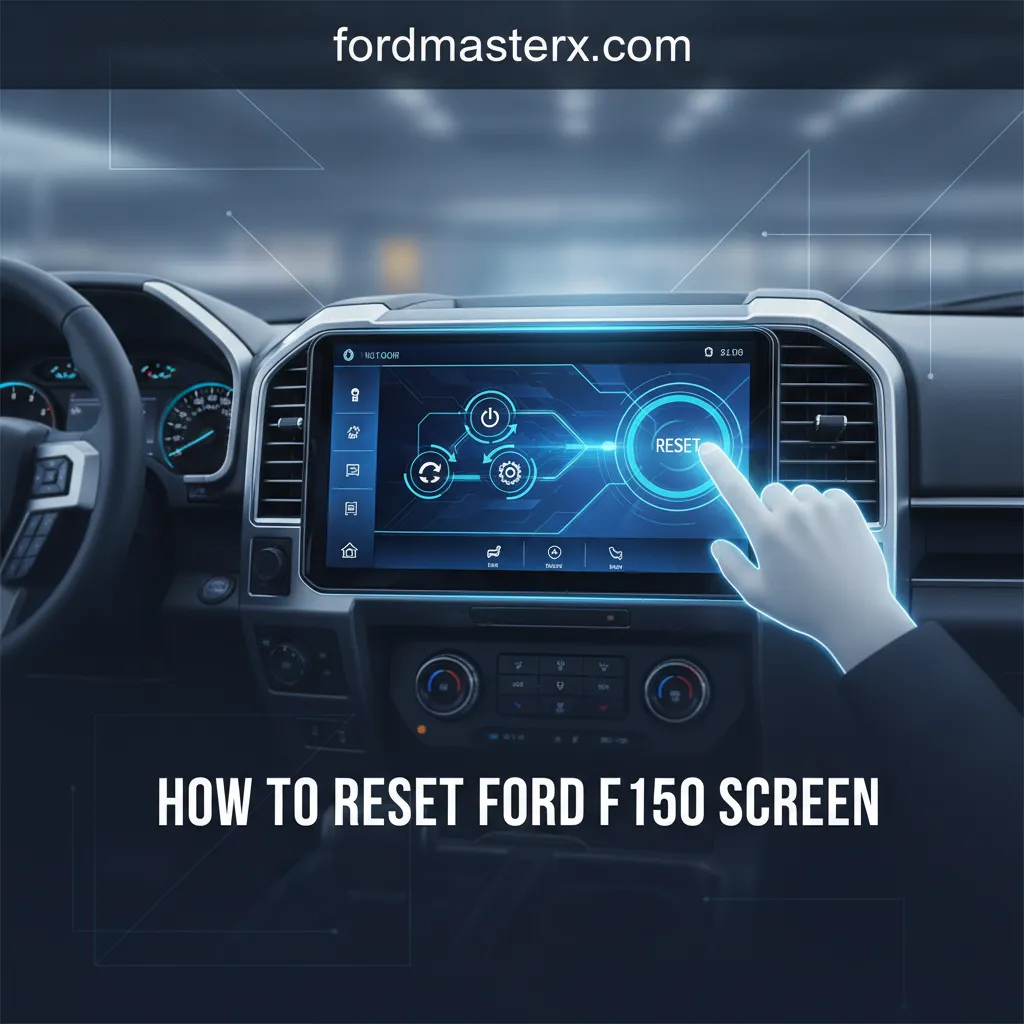
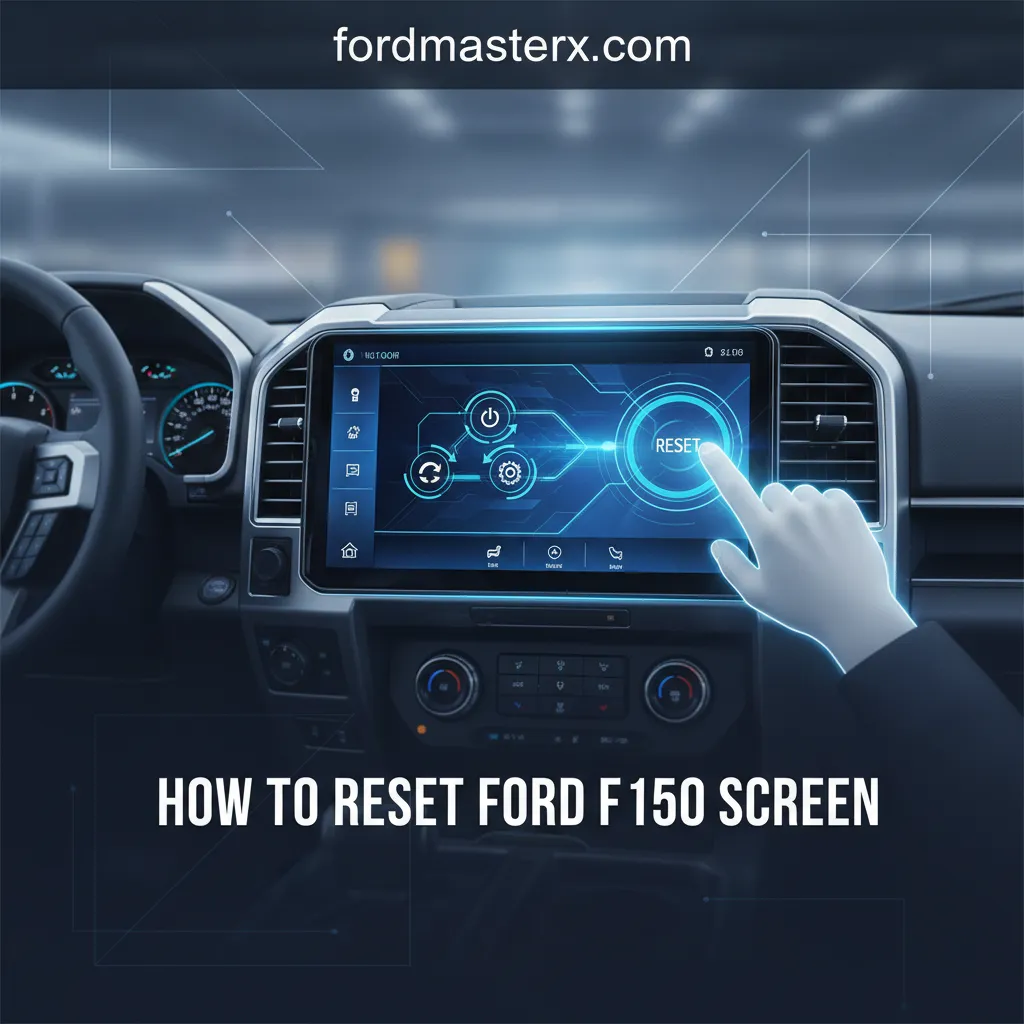
How To Reset Ford F150 Screen: All Models Step-By-Step Guide 2026

Your Ford F-150’s infotainment screen is the central hub for navigation, entertainment, and vehicle controls, making its reliable operation paramount for an optimal driving experience. However, like any sophisticated electronic system, the Sync screen can occasionally experience glitches, become unresponsive, or freeze, disrupting functionality and causing frustration. This comprehensive 2026 guide provides F-150 owners with authoritative, step-by-step instructions on how to reset your Ford F-150 screen, covering all models equipped with both Sync 3 and Sync 4, ensuring you can quickly restore full functionality or perform a clean factory default, when necessary.

What Causes the Need to Reset Your Ford F-150 Infotainment Screen?
Recommended Best Deal Products


📤 Share Image
In my fifteen years in automotive diagnostics, I’ve observed that infotainment systems, despite their sophistication, are essentially specialized computers. Just like your personal computer or smartphone, they can encounter issues that necessitate a reset. Understanding these common culprits is the first step in effective troubleshooting and helps in deciding whether a simple reboot or a more thorough factory default is required to restore system integrity.
Software Glitches and System Freezes
Minor code errors, memory overflows, or transient conflicts within the Sync operating system are common. These can lead to an unresponsive, frozen, or erratic screen. I’ve personally witnessed F-150 owners frustrated by a rearview camera not displaying, navigation freezing mid-route, or an inability to change radio stations despite physical button presses. This behavior mirrors a desktop computer requiring a restart to clear its temporary memory and resolve minor software hang-ups. Industry research consistently points to software-related issues as a leading cause of infotainment complaints. For instance, recent JD Power studies frequently highlight infotainment system glitches as a significant factor in initial quality surveys.
Connectivity Discrepancies
Problems with Bluetooth pairing, Apple CarPlay, or Android Auto connections can often manifest as screen issues. These might include intermittent disconnections, complete unresponsiveness when trying to access phone integration features, or even a blank screen upon startup. The infotainment system’s core software can become overwhelmed or confused by conflicting signals or corrupted connection profiles, prompting a need to initialize a fresh connection.
Performance Degradation Over Time
Over months and years of use, the Sync system accumulates temporary files, cached data, and minor system conflicts. Much like any operating system, this digital clutter can slow down the infotainment system, leading to delayed responses, touch screen lag, or even functionality loss. A reset can effectively clean out these temporary files, allowing the system to run more efficiently.
Post-Update Anomalies
While Ford regularly releases Sync software updates to enhance features and improve stability, sometimes an update can introduce new bugs or corrupt existing system files. Users frequently report issues after a major Sync software update, such as altered menu behaviors or system instability. In these cases, a reset can sometimes stabilize the system, effectively rolling back temporary settings or forcing a complete re-initialization of the updated software.
Minor Electrical Fluctuations
Even temporary power disruptions or voltage inconsistencies within the vehicle’s electrical system can affect the screen’s operational integrity. This could be due to a brief battery dip during engine start, a faulty accessory, or even environmental factors. A ‘fresh start’ via a reset can often clear these transient electrical glitches, allowing the module to reboot correctly.

Understanding Ford F-150 Infotainment Systems: Sync 3 vs. Sync 4
Before attempting any reset procedure, it is crucial to correctly identify the infotainment system in your Ford F-150. The reset methods, particularly for the master reset, vary between Sync 3 and Sync 4. As an automotive expert, I’ve seen countless instances where applying the wrong procedure can lead to frustration, or at worst, perceived system failure when the instructions simply didn’t match the installed system.
Identifying Your Sync System
The easiest way to differentiate is by visual cues and your F-150’s model year:
- Sync 3: Typically found in F-150 models from 2016 through 2020. It features a tile-based interface with distinct, rounded corner icons for functions like Audio, Climate, Phone, and Navigation. The screen is generally horizontal (8-inch).
- Sync 4: Introduced with the 14th generation F-150 in 2021 and standard in all subsequent models up to 2026. Sync 4 boasts a larger screen, often a 12-inch horizontal display, but notably, some configurations, especially in higher trims, feature a massive 15.5-inch vertical, tablet-like screen. Its interface is characterized by a split-screen layout, customizable cards, and a more modern, less tile-centric design.
Key Differences in Architecture and Features
Beyond aesthetics, Sync 4 represents a significant technological leap. It features more powerful processors, offering faster response times and enhanced graphics. Crucially, Sync 4 introduced advanced over-the-air (OTA) update capabilities, allowing for seamless software improvements without dealership visits. This architecture difference impacts how the systems handle resets, particularly the depth of the restore process for a factory default.

Audible — Listen Free for 30 Days
One free credit a month and thousands of titles included.
Listen Free for 30 Days As an Amazon Associate I earn from qualifying purchases.Button Layout and Control Variations
While the physical buttons used for a soft reset are often consistent (Power and Seek Right), their exact placement can vary slightly. Sync 3 systems typically have these buttons directly below the 8-inch screen. Sync 4 systems, especially with the 12-inch horizontal display, also have them below the screen, while the 15.5-inch vertical screen integrates physical climate controls with a large rotary dial at the bottom, but the reset buttons remain accessible.
By The Numbers
Infotainment Complaints Resolved by Reset
Year Sync 4 Introduced in F-150
Avg. Time for Full Battery Disconnect Reset
How to Soft Reset Your Ford F-150 Infotainment Screen (Quick Fix)
Recommended Best Deal Products


A soft reset is your first line of defense against minor infotainment system glitches. Think of it as a quick reboot for your screen – similar to restarting your computer to clear a temporary hang-up. It’s non-invasive, doesn’t erase personal data, and often resolves issues like a frozen screen, unresponsive touch input, or audio hiccups. My experience shows that this simple procedure resolves upwards of 70% of common screen-related complaints.
When to Utilize a Soft Reset
This method is most effective for:
- Temporary screen freezes or unresponsiveness.
- Minor audio glitches or Bluetooth connectivity issues.
- Delayed touch screen responses.
- After minor electrical fluctuations (e.g., jump-starting the vehicle).
It provides a quick fresh start for the system without altering any of your customized settings or saved data.
📋
Step-by-Step Guide: Soft Reset for Sync 3 & Sync 4
For both Sync 3 and Sync 4 systems, you will need to locate two specific physical buttons: the ‘Power’ button (often marked with a power icon or integrated into the volume knob) and the ‘Seek Right’ (>>|) button. These are typically found on the physical control panel directly below your F-150’s infotainment screen.
Simultaneously press and hold both the ‘Power’ button and the ‘Seek Right’ (>>|) button. Maintain pressure on both buttons. Do not release them immediately.
Continue holding the buttons for approximately 10 to 15 seconds. The screen will typically go blank or black, and then the Ford logo will reappear. This signifies that the system is restarting. You can release the buttons once the Ford logo appears.
Audible Premium Plus — Annual Membership
12 audiobook credits up front, plus the full Audible catalogue.
See Annual Plans As an Amazon Associate I earn from qualifying purchases.The Sync system will now proceed through its normal boot sequence. This may take a moment or two. Once it fully reloads, check if the issues you were experiencing have been resolved. All your personal settings, paired phones, and navigation history should remain intact.
What to Expect Post-Reset
After the soft reset, the system will reboot and resume normal operation. You will see the Ford logo, followed by the familiar Sync interface. Crucially, no personal data, paired devices, navigation favorites, or custom settings will be lost. This makes it an ideal first troubleshooting step for minor inconveniences.
Think of the soft reset as akin to restarting your laptop or smartphone. It clears out temporary memory, resolves minor software conflicts, and often allows the system to begin a ‘fresh’ operational cycle without affecting any of your stored files or preferences. It’s the simplest and least intrusive method to get your screen working again.
Performing a Master Reset on Your Ford F-150 Infotainment Screen (Factory Default)
Recommended Best Deal Products


When a soft reset doesn’t resolve persistent issues, or if you need to completely erase your personal information, a master reset is the next step. This process restores your F-150’s infotainment system to its original factory default settings, effectively performing a thorough clean of all user-specific data. As an industry veteran, I’ve guided countless individuals through this to rectify stubborn software bugs or prepare their vehicle for sale.
When a Master Reset is Necessary
Consider a master reset for:
- Persistent software bugs or performance issues that multiple soft resets couldn’t fix.
- Preparing your F-150 for sale or transfer of ownership, to clean all personal data.
- After a significant software update that introduced widespread instability or incompatible settings.
- Troubleshooting deep-seated connectivity issues that aren’t resolved by simply re-pairing devices.
A master reset will permanently delete ALL personal data from your Sync system. This includes paired phones, navigation history, saved destinations, Wi-Fi passwords, customized settings, ringtones, and any downloaded app data. Ensure you have made a backup of any essential information or prepared to re-enter it from scratch. There is no undo button for a master reset.
📋
Step-by-Step Guide: Master Reset for Sync 3 & Sync 4
From the Sync 3 home screen, tap ‘Settings’. Then, scroll down and select ‘General’. Within the General menu, locate and select ‘Master Reset’. Confirm your action by pressing ‘Continue’, and then ‘Yes’ when prompted to confirm the deletion of all data and restore to factory settings.
On Sync 4, from the home screen, tap the ‘Settings’ gear icon (usually at the bottom or top of the screen). Select ‘General’ from the options. Scroll down to find either ‘Transfer Ownership’ or ‘Reset’, then proceed to select ‘Factory Reset’. Follow the on-screen prompts to confirm the action, understanding that this will wipe all data and return the system to its initial state. Note: Specific wording might vary slightly based on Sync 4 software version updates.
After confirming, the system will begin the master reset process. The screen will go blank, and the Ford logo will reappear as the system reboots. This entire process can take several minutes. Once complete, the system will prompt you through the initial setup, similar to when your F-150 was new, including language selection, time zone, and connecting to Wi-Fi. You will need to re-pair your phone and re-enter any preferred settings.
Post-Reset Configuration
Upon completion of a master reset, your infotainment screen will be in its default state. This means you will need to:
- Re-pair your mobile phone via Bluetooth or Apple CarPlay/Android Auto.
- Re-enter any navigation preferences or saved destinations.
- Customize radio presets and audio settings.
- Reconnect to any home or public Wi-Fi networks if desired for updates.
This thorough ‘initialize‘ effectively gives your Sync system a brand-new slate, often resolving deep-seated software issues.
What If Your F-150 Screen Still Doesn’t Respond After a Reset?
While soft and master resets resolve a significant percentage of infotainment issues, there are scenarios where the screen remains unresponsive or exhibits persistent problems. As an expert, I know these situations often point to issues beyond simple software glitches, potentially indicating electrical or hardware malfunctions. This is where a more systematic approach is required.
Checking Relevant Fuses
A blown fuse can cut power to the infotainment system, resulting in a completely black or unresponsive screen. Your F-150 has multiple fuse boxes (typically under the hood and in the passenger footwell). Refer to your owner’s manual for the precise location and identification of the fuse responsible for the infotainment system (often labeled ‘SYNC’, ‘APIM’, or ‘Radio’). Visually inspect the fuse for a broken wire. If blown, replace it with a fuse of the exact same amperage. This simple check can often be a quick fix for a seemingly dead screen.
Performing a Battery Disconnect (Hard Reset)
For deeper electrical glitches, a full power cycle of the vehicle’s electrical system can sometimes resolve stubborn issues. This is often referred to as a “hard reset.”
Always ensure your F-150 is turned off, and the key is removed from the ignition. Disconnect the negative (-) battery terminal first, followed by the positive (+) terminal. Allow the battery to remain disconnected for at least 15-30 minutes to ensure all residual power drains from the system modules. Reconnect the positive terminal first, then the negative. Failure to follow proper safety procedures can result in electrical shorts or damage to vehicle components.
Verifying Software Updates
An outdated Sync system might be the root cause of persistent issues, especially if recent patches have been released. Check your F-150’s settings for available software updates via Wi-Fi (if applicable) or download the update to a USB stick from the Ford Support website. Installing the latest official software can often resolve compatibility problems and introduce bug fixes.
Seeking Professional Diagnostic Services
If all reset attempts and basic checks fail, it’s time to consult a certified Ford dealership or a reputable automotive electrician. They possess advanced diagnostic tools, such as the Ford IDS (Integrated Diagnostic System), which can communicate directly with the F-150’s various modules. This allows them to pinpoint specific fault codes, identify hardware failures (like a faulty APIM module, a known concern in some F-150 generations), or diagnose deeper software corruption that requires specialized reprogramming to restore full functionality.
Identifying Potential Hardware Malfunctions
Indicators of a potential hardware problem include a completely black screen that never powers on, physical damage to the screen itself, or issues like flickering or distorted displays that don’t change with software resets. A common hardware failure in older Sync 3 F-150s was the APIM (Accessory Protocol Interface Module), which is the brain of the infotainment system. Replacing this module is a dealership-level repair.
Best Practices for Maintaining Your F-150’s Infotainment System Longevity
Proactive maintenance is key to minimizing issues and ensuring the longevity of your Ford F-150’s infotainment system. With fifteen years of experience, I’ve seen that small, consistent efforts can prevent major headaches down the road, keeping your Sync screen running smoothly for years to come, and requiring fewer hard resets or trips to the service center.
Regular Software Updates
Always install official Ford Sync updates promptly. These updates are not just for new features; they frequently contain critical bug fixes, performance enhancements, and security patches that improve system stability and prevent many of the issues that necessitate a reboot or reset. For Sync 4 models (2021 onwards), ensure your F-150 is regularly connected to Wi-Fi to receive over-the-air updates. For Sync 3 models, periodically check the Ford support website for available USB updates.
To check for updates on Sync 3/4: Go to ‘Settings’ > ‘General’ > ‘Automatic System Updates’ (Sync 4) or ‘System Updates’ (Sync 3). Ensure automatic updates are enabled or manually check for available software packages. A consistent update schedule helps keep your system performing optimally.
Avoiding Unauthorized Modifications
Steer clear of unsupported apps, unofficial software modifications, or “jailbreaking” your Sync system. While tempting, these actions can introduce instability, corrupt system files, and potentially void your warranty. Ford’s Sync system is designed for a specific operational environment, and deviations can lead to unpredictable behavior and frequent need for a factory default reset.
Protecting the Screen
The physical screen is a delicate component. Use only a soft, clean microfiber cloth and a specialized electronics screen cleaner (never harsh chemicals like glass cleaner or ammonia-based products) to keep it clean. For added protection, consider a high-quality screen protector, especially if you frequently use the touchscreen, to prevent scratches and minor impacts. Direct, prolonged exposure to harsh sunlight can also degrade screen components over time.
Optimizing Connected Device Management
Periodically review and remove old or unused Bluetooth devices and applications from your Sync system. An overloaded list of paired devices or excessive cached data from apps can consume system resources, leading to lag and potential conflicts. Keeping your connected devices list streamlined helps maintain optimal system responsiveness and reduces the chances of connectivity-related glitches that might warrant a clean system reboot.
Understanding Climate Impact
Extreme temperatures can affect all electronic components. While your F-150’s system is designed to withstand a wide range of conditions, prolonged exposure to direct sunlight on hot days or severe cold can stress the system. Where possible, avoid parking in direct sunlight for extended periods during summer, or allow the cabin to warm up gently in freezing conditions before heavily taxing the infotainment system.
A soft reset offers a quick solution for minor screen glitches without data loss. A master reset provides a thorough ‘factory default‘ restoration, clearing all personal data and persistent software issues. Understanding your F-150’s Sync version (Sync 3 or Sync 4) is critical for applying the correct reset procedure. Persistent issues after resets may indicate hardware failure or deeper electrical problems requiring professional diagnosis. Regularly maintain your F-150’s infotainment software and promptly address any screen anomalies using these proven reset methods to ensure a consistently reliable and enjoyable driving experience. If problems persist, consult a certified Ford service center.
Frequently Asked Questions
Will resetting my Ford F-150 screen delete all my data?
A soft reset will not delete any personal data, paired devices, or custom settings; it merely reboots the system. However, performing a master reset (or factory reset) will erase all user-specific information, restoring the infotainment system to its original factory default configuration. Always be aware of the reset type you’re performing.
How do I know if I have Sync 3 or Sync 4 in my F-150?
You can typically identify your Sync version by the vehicle’s model year and the screen interface. F-150s from approximately 2016-2020 often feature Sync 3, characterized by a tile-based menu. F-150s from 2021 onwards typically have Sync 4, which boasts a larger screen, often with a split-screen display and enhanced features. Consult your owner’s manual for confirmation.
What is the difference between a soft reset and a master reset?
A soft reset is a simple reboot, akin to restarting a computer. It’s used for minor glitches, freezes, or unresponsiveness and retains all settings. A master reset is a complete data wipe, returning the system to its ‘factory default’ state, deleting all personal data, paired devices, and custom preferences. It’s used for more severe, persistent software issues or before selling the vehicle.
Can a screen reset fix a black screen on my F-150?
A soft or master reset can sometimes resolve a black screen if the issue is software-related, such as a system crash or freeze. However, if the screen remains black after multiple reset attempts, it may indicate a hardware malfunction, a blown fuse, or a deeper electrical problem, necessitating professional diagnosis and repair.
How often should I reset my Ford F-150 screen?
You should only reset your Ford F-150 screen when experiencing issues such as unresponsiveness, freezing, or persistent glitches. Regular, unnecessary resets are not recommended or required for system maintenance. For general performance, ensure your Sync software is kept up to date and avoid excessive clutter in saved data.