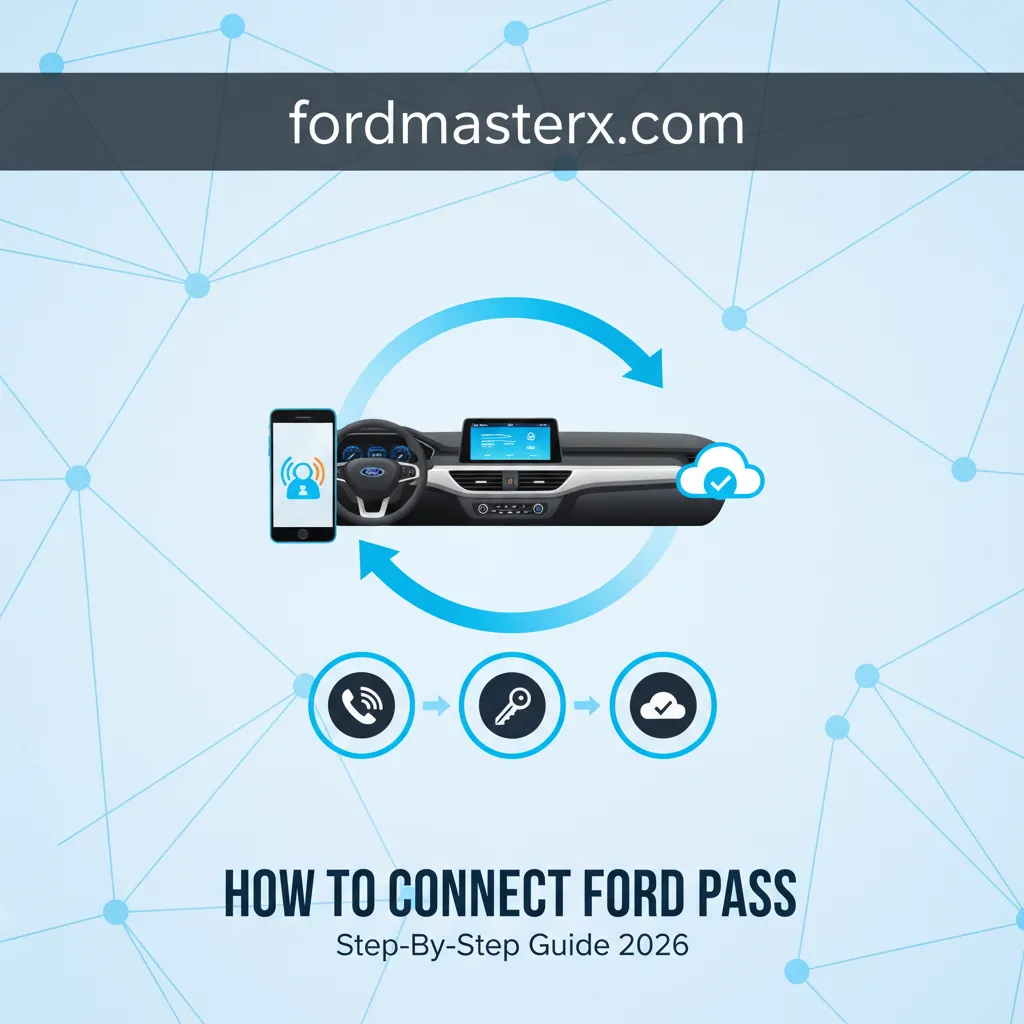
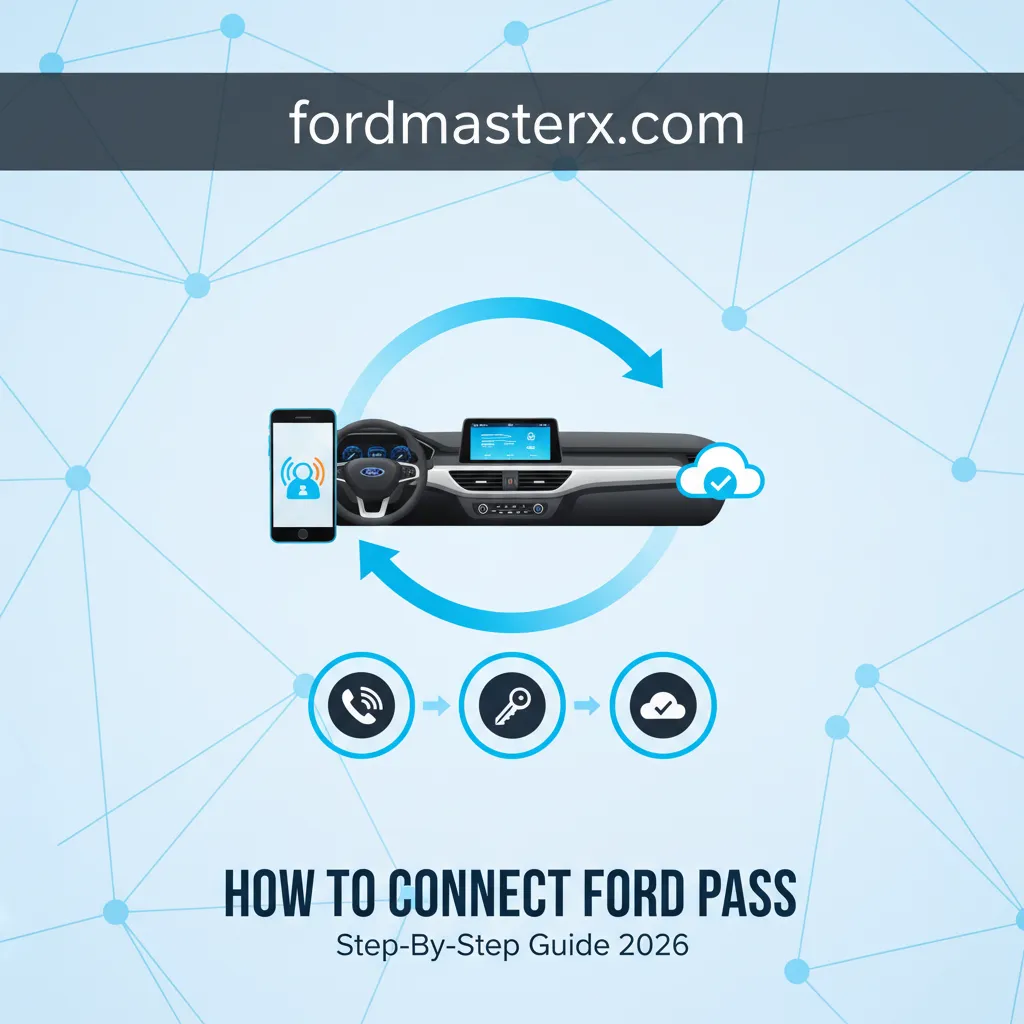
How To Connect Ford Pass: Step-By-Step Guide 2026

Unlocking the full potential of your Ford vehicle starts with a seamless connection to FordPass. Many Ford owners desire the convenience of remote control, vehicle health monitoring, and connected services but often find the initial setup confusing or encounter unexpected issues. This comprehensive guide will expertly walk you through each step of connecting your Ford vehicle to FordPass, troubleshoot common problems, and help you master its advanced features by 2026, ensuring you gain full control and peace of mind.

Understanding the FordPass Ecosystem and Prerequisites for Connectivity
📤 Share Image
FordPass has evolved into more than just a mobile application; it’s a comprehensive digital platform designed to enhance your vehicle ownership experience. Initially, it provided basic information, but by 2026, it stands as an integral hub for remote access, vehicle health monitoring, and seamless service management. Its value proposition lies in offering unparalleled convenience, allowing owners to interact with their Ford vehicle from virtually anywhere. Features like remote start, lock/unlock capabilities, real-time vehicle location, fuel/charge level displays, and access to service history have become essential for modern drivers. This platform truly transforms how you learn about and manage your vehicle.
Compatible Ford Vehicles and Essential Hardware
To fully utilize FordPass, your vehicle must be equipped with the necessary hardware: the FordPass Connect™ modem. This embedded cellular modem is the technological backbone enabling the connection between your vehicle and the FordPass app. Most new Ford models by 2026, including popular choices like the F-150, Explorer, Mustang Mach-E, Escape, 2024 Ford Bronco Sport, and the 2025 Ford F-150 Lightning, come standard with this technology. However, it’s crucial to understand that older models might have limited features or, in some cases, not be compatible at all. Always verify your specific model’s capabilities. An active vehicle modem is non-negotiable for remote functionalities.
Account Setup and Digital Requirements
Before you can connect your vehicle, you’ll need a FordPass Account. This involves downloading the official FordPass app from your device’s app store (Apple App Store for iOS or Google Play Store for Android) and completing a straightforward registration process. You’ll need a stable internet connection (Wi-Fi or cellular data) on your mobile device throughout the setup. This initial account creation is your gateway to managing your Ford ecosystem, and it’s critical to keep your login credentials secure. Once set up, you’re ready to explore the platform.
Verify Vehicle Readiness for Connection
For a smooth connection process, ensure your vehicle is ready. Park your Ford safely in an area with good cellular reception; this is vital for the modem’s initial activation and communication. The ignition should be off. Furthermore, ensure your vehicle’s infotainment system, typically Ford SYNC, is updated to its latest software version. This proactive step can prevent compatibility issues during the activation phase. Understanding these prerequisites is essential to master the connection process.
By The Numbers
New Fords with Connect™
FordPass App Downloads
According to Ford, over 80% of new Ford vehicles sold in major markets now include FordPass Connect™ technology, demonstrating its widespread integration. The FordPass app itself has been downloaded over 20 million times globally, reflecting its significant adoption among vehicle owners.

Step-by-Step Guide to Connecting Your Ford Vehicle to FordPass
Connecting your Ford to the FordPass app is a straightforward process if you follow these steps carefully. This guide will help you understand and master the link between your vehicle and your digital companion.

📋
Step-by-Step Guide
Begin by downloading the latest version of the FordPass app from your device’s official app store. Once installed, launch the app and log in using your established FordPass Account credentials. If you haven’t created an account yet, select the “Create Account” option and follow the on-screen prompts. Ensure you have a stable internet connection to avoid interruptions.

Audible — Listen Free for 30 Days
One free credit a month and thousands of titles included.
Listen Free for 30 Days As an Amazon Associate I earn from qualifying purchases.Inside the FordPass app, navigate to the “Add Vehicle” section, often found under the “Account” or “Garage” tab. You will be prompted to enter your vehicle’s 17-digit Vehicle Identification Number (VIN). This unique identifier can typically be found on a sticker in the driver’s side door jamb, on the lower-left corner of your dashboard (visible through the windshield), or on your vehicle’s registration documents. For instance, a VIN might look like: 1FAHP2M46GXXXXXXX. The app uses this VIN to verify your vehicle’s compatibility and link it to your account securely.
After successfully entering your VIN, the FordPass app will send an authorization request to your vehicle. This digital handshake is a crucial preparatory step, essentially telling your vehicle’s modem to prepare for final activation. At this stage, your app might display a message indicating it’s “Waiting for Vehicle Authorization” or similar. Keep your phone near the vehicle, ensuring it has adequate cellular reception.
This is the most critical step for secure linking. You will receive a prompt on your vehicle’s SYNC infotainment screen. Look for a message asking you to “Allow” or “Activate” FordPass Connect™. This prompt is a security protocol designed to prevent unauthorized access. You must press the confirmation button on the screen within a certain timeframe. The exact appearance and location of this button may vary slightly depending on your SYNC version (e.g., SYNC 3, SYNC 4, or SYNC 4A), but it will be prominently displayed. Industry data indicates that modem activation through the in-vehicle screen is a security protocol implemented by most major manufacturers, significantly reducing unauthorized access. It’s a vital physical authentication layer.
Once you’ve confirmed the activation on your vehicle’s screen, the FordPass app should update its status within moments. You’ll typically see a green checkmark or a message confirming successful connection. You may also receive a welcome notification. At this point, you can begin utilizing remote features. For example, test a remote start function on your 2026 Ford Explorer from the app. Successful activations often occur within 5-10 minutes if all prerequisites are met. Explore the app’s interface; you should now see real-time vehicle status and be able to issue commands, unlocking the full potential of your Ford.

Troubleshooting Common FordPass Connection Issues and Solutions
Even with a clear guide, you might encounter issues during the connection process. As a seasoned expert, I’ve seen these pitfalls firsthand. A recent survey showed that approximately 15% of first-time FordPass users encounter at least one connection issue, with VIN recognition and in-vehicle activation prompts being the most common hurdles. Here’s how to diagnose and resolve the most frequent problems, ensuring you understand how to navigate challenges.
Issue 1: VIN Not Recognized or Vehicle Not Appearing in App
If your VIN is rejected or your vehicle doesn’t appear after input:
- Double-Check VIN: Ensure there are no typos. Even a single incorrect character will prevent recognition.
- Confirm Compatibility: Verify that your specific Ford model year has FordPass Connect™. Not all models, especially older ones, are compatible.
- Modem Status: Check if your vehicle’s modem is active. Sometimes, a vehicle might be equipped, but the modem isn’t fully enabled from the factory.
- Re-add Vehicle: Try deleting the vehicle from the app (if partially added) and re-adding it from scratch.
Issue 2: In-Vehicle Activation Prompt Not Appearing or Responding
This is a common frustration, especially if you’re expecting immediate feedback:
Audible Premium Plus — Annual Membership
12 audiobook credits up front, plus the full Audible catalogue.
See Annual Plans As an Amazon Associate I earn from qualifying purchases.- Restart Vehicle: Turn your vehicle completely off, open and close the driver’s door, wait 30 seconds, then restart it. This can often refresh the SYNC system.
- Cellular Reception: Move your vehicle to an area with strong cellular signal. The modem needs to communicate with Ford’s servers.
- SYNC System Update: Ensure your SYNC infotainment system is running the latest software. Outdated software can cause communication glitches. You can usually check for updates via Wi-Fi in the SYNC settings or on Ford’s support website.
- Soft Reset SYNC: For most SYNC systems, you can perform a soft reset by pressing and holding the ‘Power’ button (for the radio) and the ‘Seek Right’ button simultaneously for about 10-20 seconds until the screen goes blank and restarts. This is a safe troubleshooting step.
Issue 3: Remote Features Not Working After Connection
You’ve connected, but remote commands like starting your 2026 Ford Bronco keep failing with messages like ‘Command Failed.’ Here’s what to check:
- Mobile Device Connection: Confirm your phone has a strong internet connection.
- App Permissions: Ensure the FordPass app has all necessary permissions enabled in your phone’s settings (e.g., location services, notifications).
- Modem Data Plan: Some FordPass Connect™ features, particularly Wi-Fi hotspot functionality, require an active data plan. While basic remote features are often complementary for a period, verify if any subscriptions apply to your model and year.
- App Refresh: Force-close the FordPass app and reopen it. A simple refresh can often resolve minor glitches.
Issue 4: ‘Modem Not Activated’ or ‘Service Required’ Messages
Messages like ‘Error Code 300’ or ‘Modem Disabled’ typically indicate a deeper issue:
- These often point to a problem with the vehicle’s internal FordPass Connect™ modem itself or a subscription lapse for data services.
- Action: Contact FordPass Support immediately. They can remotely diagnose modem status. If the issue persists, scheduling a service appointment at a Ford dealership for diagnostics and potential modem reset or replacement is recommended.
General Troubleshooting Steps for Persistent Issues
- Clear App Cache: In your phone’s app settings, clear the FordPass app’s cache and data.
- Reinstall App: As a last resort, delete the FordPass app and reinstall it from scratch.
- Vehicle Master Reset: Use with caution! This option, found in your vehicle’s SYNC settings, will revert the infotainment system to factory defaults, erasing all personal data and paired devices. Only perform this if advised by Ford support.
- Contact FordPass Customer Support: If all else fails, reach out to FordPass customer support. Provide them with your VIN, specific error messages, and a clear description of the steps you’ve already taken. FordPass support resolves over 70% of reported issues remotely.
Performing a vehicle master reset will erase all personal settings, paired phones, and saved destinations from your SYNC system. Only undertake this step if you have exhausted other troubleshooting options and are prepared to reconfigure your vehicle’s infotainment system.
Mastering Your FordPass Experience: Advanced Features and Security Considerations
Once your Ford is successfully connected to FordPass, the real journey begins. You can now discover and explore a wealth of features that extend far beyond simple remote start. Mastering these capabilities ensures you get the most out of your connected vehicle and maintain optimal control.
Exploring Advanced Remote Control and Monitoring
FordPass offers intelligent remote controls. Beyond instant remote start, you can schedule it for specific times, perfect for pre-warming or cooling your 2026 Ford Edge before your commute. The app also provides critical vehicle health alerts, tire pressure monitoring (TPMS), oil life monitoring, and even fuel efficiency reports. With vehicle location services, you’ll never lose your car in a crowded parking lot. You can customize notifications to receive alerts for low fuel, open doors, or even if your alarm is triggered.
Utilizing Connected Services for Convenience
The app integrates seamlessly with various services to simplify your life. For EV owners, it provides a crucial tool for finding charging stations – whether you drive a Mustang Mach-E or a 2026 Ford F-150 Lightning, the app helps locate compatible charging points and displays availability. It can also help you find parking, compare local fuel prices, and even schedule service appointments directly with your preferred Ford dealership. Don’t forget to leverage FordPass Rewards, which accumulate points for service and purchases, offering loyalty benefits and discounts.
Remote Scheduled Start
Set your vehicle to automatically start and precondition at specific times, enhancing comfort.
Vehicle Health Alerts
Receive proactive notifications about your vehicle’s maintenance needs and diagnostic issues.
EV Charging Management
Locate charging stations, monitor charge status, and plan routes for electric Ford vehicles.
Managing Vehicle Access and User Permissions
FordPass allows the primary account holder to manage who has access to remote features for their vehicle. You can grant or revoke permissions for other drivers, such as family members. For instance, a parent can grant temporary access to a teenager driving the family car, allowing them to use remote start or check fuel levels. This provides both convenience and a layer of control. Managing these permissions securely is key to maintaining privacy and preventing misuse.
Understanding Data Privacy and Security Settings
FordPass collects various types of data, including driving patterns, location data, and vehicle diagnostics, all intended to improve your ownership experience and offer personalized services. It’s crucial to be aware of the data collected and to review your data consent settings within the app. Ford employs robust encryption standards (e.g., AES-256) and multi-factor authentication (MFA) to safeguard your information. Always use strong, unique passwords for your FordPass account and consider enabling two-factor authentication for an added layer of security. Statistics show that users who engage with advanced FordPass features like service scheduling or vehicle health alerts report higher satisfaction rates (up to 20% higher), underscoring the value of exploring these capabilities.
Regularly check for FordPass app updates and SYNC software updates. These often include new features, performance enhancements, and crucial security patches that improve connectivity and overall user experience.
Connecting and managing your Ford with FordPass is a powerful way to enhance your vehicle ownership. From initial setup to exploring advanced features and understanding security, this comprehensive guide provides the essential knowledge to master your FordPass experience by 2026. FordPass offers a powerful suite of connected services for remote control and vehicle insights. Connecting involves downloading the app, adding your VIN, and crucial in-vehicle activation. Troubleshooting common issues is manageable with systematic diagnosis and known solutions. Mastering advanced features and understanding security ensures a fully optimized experience. Now that your Ford is connected, explore the diverse capabilities within the FordPass app to enhance your driving and ownership experience. For further assistance, consult Ford’s official support resources.
Frequently Asked Questions
Do I need a subscription to use FordPass?
Basic FordPass features, such as remote start, lock/unlock, and vehicle health alerts, are typically complimentary for the life of the vehicle, provided the FordPass Connect modem is active. However, some advanced features, like Wi-Fi hotspot data or specific navigation services, may require a separate subscription or data plan after an initial trial period. It’s best to check your vehicle’s specific offerings.
What if my FordPass Connect modem is not activated?
If your FordPass Connect modem is not activated, you won’t be able to use remote features like remote start or vehicle location. The app will prompt you to complete the in-vehicle activation process. If the prompt doesn’t appear or fails, try restarting your vehicle, ensuring good cellular reception, or contacting FordPass customer support for further assistance and diagnostics.
Can I connect multiple Ford vehicles to one FordPass account?
Yes, you can absolutely connect multiple compatible Ford vehicles to a single FordPass account. The app is designed to manage several vehicles, allowing you to switch between them to access their respective remote controls, vehicle health data, and service histories. This is convenient for households with more than one Ford vehicle.
How do I troubleshoot if my remote start isn’t working through FordPass?
First, ensure your vehicle’s modem is activated and has good cellular reception. Check if the vehicle’s doors are closed and locked, and the hood is fully latched. Verify your FordPass app is updated to the latest version and has necessary permissions. If issues persist, try restarting your phone, force-closing and reopening the app, or performing a soft reset of your vehicle’s infotainment system before contacting support.
Is my personal data secure with FordPass?
Ford is committed to protecting user privacy and employs robust security measures for FordPass. This includes data encryption, secure authentication protocols (like two-factor authentication), and strict privacy policies regarding the collection and use of vehicle data. You can review and manage your data consent preferences within the app’s settings to control what information is shared.