
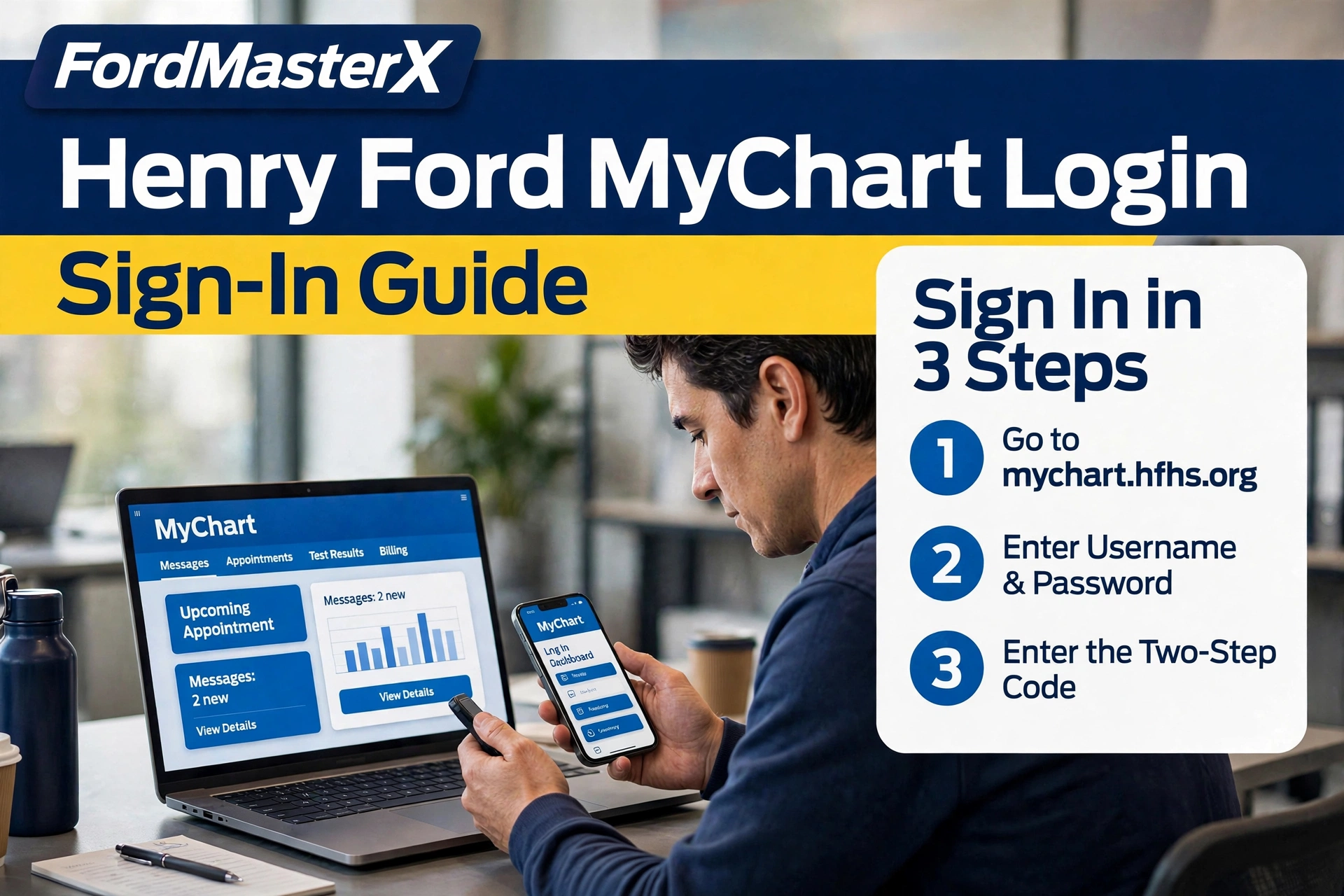
Henry Ford MyChart Login: Complete 2026 Guide to Sign In Fast

The official Henry Ford MyChart login is at the official Henry Ford MyChart portal, and you can also reach it from Henry Ford Health’s MyChart page on henryford.com. Type the address yourself instead of clicking a login link from a search ad or an unfamiliar website.
This guide walks you through the sign-in steps for a computer and for the mobile app. It also covers account activation, password recovery, and the fixes for the login problems patients run into most often.
One point matters before anything else. This page is a guide only, and it will never ask you for your username, password, or any other personal information.
What Henry Ford MyChart Is
Henry Ford MyChart is the main patient portal for Henry Ford Health, the Michigan health system. Henry Ford Health describes it as an online tool that helps you manage your healthcare, and it is completely secure and free to use.
MyChart is available 24 hours a day. You can use it in a web browser on a computer, or in the free MyChart app on your phone.
MyChart is the same account on both routes. A username and password you create on the website also work in the app, and the other way around.
Who Henry Ford MyChart Is For
MyChart is for people who receive care from Henry Ford Health. If you are a Henry Ford patient, the portal holds your Henry Ford health information in one place.
Each person must have their own MyChart account. Spouses cannot share one account, even when they see the same doctors.
Family access works differently, through a feature called proxy access. A patient can grant another person access to their record, and parents and guardians can hold proxy access for a child under the rules Henry Ford sets out in its portal terms.
If you have never received care at Henry Ford, you will not have a Henry Ford record to sign in to yet. Your account starts when Henry Ford creates your patient record and gives you a way to activate MyChart.
What You Need Before You Sign In
You need the username and password you created when you activated your account. You sign in with that username every time, on the website and in the app.
You also need access to the email address or mobile phone number on your account. Henry Ford sends a verification code by email or text message as part of signing in, on top of your username and password.
A supported browser matters on a computer. Henry Ford lists Mozilla Firefox, Google Chrome, Apple Safari, and Microsoft Edge for MyChart, and an outdated browser can log you straight back out.
Keep your activation code handy only if you are signing in for the very first time. Once an account is activated, everyday sign-ins need just the username, the password, and the verification code.
How to Sign In on the Web
The web route is the simplest one on a computer or laptop. Follow these steps in order.
- Open your browser and type
mychart.hfhs.orginto the address bar yourself. Press Enter and wait for the Henry Ford MyChart login page to load. - Check the address bar before you type anything. It should show the hfhs.org domain, because that is the domain Henry Ford itself prints for the portal.
- Enter your MyChart username in the username field. Type it exactly as you created it.
- Enter your password in the password field. Passwords are case-sensitive, so check that Caps Lock is off.
- Select the sign-in button to continue. The portal then asks for the verification code step described below.
- Enter the code Henry Ford sends to your email or text messages. Enter it exactly as it arrives.
- Confirm that the name and home screen you see are yours. If anything looks like a stranger’s account, sign out and call Henry Ford for help.
After you sign in, the home screen is your starting point for appointments, messages, results, and billing. Use the menu to search for the feature you need instead of guessing where it sits.
Official Patient Portal Guide
Henry Ford MyChart Login — The Safe, Official Route
MyChart is Henry Ford Health’s free, secure patient portal, available 24 hours a day on the web and in the free MyChart app.
Start Only Here
- Web Portal mychart.hfhs.org Type this address yourself. Every real Henry Ford MyChart page sits on the hfhs.org domain.
- Henry Ford Website henryford.com/mychart The MyChart page on Henry Ford Health’s official website links to the portal and the app.
- Mobile App MyChart App Free in the Apple App Store and Google Play. After installing, select “Henry Ford MyChart” as your provider.
Sign In on the Web — 5 Steps
- Type the address. Enter mychart.hfhs.org in your browser’s address bar and check the hfhs.org domain before typing anything.
- Enter your username. Use the exact username you created when you activated your account.
- Enter your password. Passwords are case-sensitive, so check that Caps Lock is off.
- Enter the verification code. Henry Ford sends a code by email or text message as a second identity check.
- Confirm it is your account. Check that the name and appointments on the home screen are yours before you continue.
- Built-In Protection Sign-in combines your username and password with a one-time code. MyChart also logs you out after 15 minutes of inactivity, for your safety and privacy.
- New Account or Expired Code? Activate at henryford.com/mychart with your activation code, medical record number and date of birth. Activation codes expire after 60 days and work only once.
- Locked Out? Get Official Help Use the “forgot password” link on the login page — only the patient can reset the password. For password or activation help, call Henry Ford at (313) 876-7951.
Safety note: never enter your MyChart password on a page a search ad, email link or social media post sent you to. Source: Henry Ford Health, official MyChart page and MyChart FAQ (henryford.com), checked 2026-11-17.
How to Sign In With the MyChart App
On a phone or tablet, Henry Ford points patients to the MyChart app. The app is free, and it is published by Epic Systems Corporation, the company behind MyChart.
Download and set up the app
- Open the Apple App Store or the Google Play store on your device. Search for “MyChart” and install the app, such as the MyChart app on Google Play.
- Open the app once it has installed. Accept the license agreement to continue.
- Answer the location prompt in the way you prefer. Allowing location shows nearby healthcare organizations automatically.
- Select Henry Ford MyChart as your healthcare provider. If you declined location, type “Henry Ford” or “Michigan” in the provider search and select “Henry Ford MyChart” from the list.
- Keep this provider selection saved in the app. The app remembers it, so later sign-ins start at the Henry Ford login screen.
Sign in inside the app
- Enter the same username you use on the website. The app and the website share one account.
- Enter your password and tap the log in button. Do not let a password manager for a different hospital’s portal fill these fields for you.
- Enter the verification code sent to your email or text messages when the app asks for it. This second step protects the account even if someone learns your password.
- Review the home screen to confirm you are in the right record. Your upcoming appointments are a quick way to confirm it is really your account.
If your phone offers fingerprint or face sign-in for the app, turn it on only on a phone that belongs to you. Never enable it on a shared or borrowed device.
How to Sign Up and Activate Your Account
A first-time user has to activate an account before the first login. Activation connects your sign-in to your Henry Ford medical record, which is why it asks for more than an email address.
If you have an activation code
- Go to
henryford.com/mychartin your browser. Henry Ford’s instructions start the activation from this page. - Select “Activate Your Account.” This opens the activation form on the official portal.
- Enter your activation code exactly as it was given to you. The code works only once, so use it in one sitting.
- Enter your medical record number, often shortened to MRN, and your date of birth. These details must match the information Henry Ford has on file.
- Create your username and password when the form prompts you. Choose a username you will remember and a password you do not use anywhere else.
- Finish the remaining prompts and sign in with your new details. You can then use the same sign-in on the website and in the app.
If you do not have an activation code
Start from the same official pages and look for the sign-up option on the portal. The login page itself offers a way to get started, and Henry Ford’s MyChart page explains the current options.
You can also ask for help activating by phone. Henry Ford’s FAQ gives (313) 876-7951 as the number to call for help activating a MyChart account.
Never buy an activation code, and never accept one from a third-party website. Activation codes come only from Henry Ford, and they are free.
Activation code problems
Activation codes expire after 60 days, for security. A code also stops working after the first time you use it, so an old code from a past sign-up will not work again.
If your code has expired or does not work, call (313) 876-7951. Henry Ford can help you activate your account with a fresh code.
Forgot Your Password or Username
A forgotten password is the most common login problem, and it has an official fix. Henry Ford’s own FAQ answers it directly.
Reset a forgotten password
- Go to the official login page at
mychart.hfhs.org. Use the typed address, not a bookmark you do not recognize. - Select the “forgot password” link on the login page. This starts the official reset flow.
- Follow the prompts to verify your identity and set a new password. Only the patient can reset a MyChart password, so a spouse or family member cannot do this step for you.
- Sign in again with the new password. Enter the verification code when the portal sends one.
- Call (313) 876-7951 if the reset flow does not work. Henry Ford lists this number for password help as well.
Recover a forgotten username
Use the recovery options shown on the official login page if you cannot remember your username. Those options sit on the same page as the password reset link.
If the on-page options do not bring your username back, call (313) 876-7951. Support can confirm the safest way to recover access for your account.
Do not keep guessing at a username and password combination. Repeated failed attempts waste time, and official recovery is faster and safer.
Two-Step Verification and Automatic Logout
Henry Ford adds a code step to the sign-in for a reason. Access to MyChart is controlled through secure activation codes, personal usernames, and passwords, and the sign-in code sent by email or text message is a second check that the person signing in is really you.
Treat that code like a password. Henry Ford sends it for your sign-in only, and no Henry Ford staff member needs you to read it out over the phone.
MyChart also logs you out automatically after 15 minutes without activity. Henry Ford does this for your safety and privacy, and it is normal behavior rather than an error.
If you are logged out the moment you log in, suspect your browser first. Henry Ford says an immediate logout can be a browser problem, and it recommends Firefox, Chrome, Safari, or Edge.
Common Login Problems and Fixes
Most login failures come from a small set of causes. Work through the table before you call for help, because several fixes take under a minute.
| Problem | Likely cause | Fix |
|---|---|---|
| Password is rejected | Typing error or an old password | Check Caps Lock, retype slowly, then use the “forgot password” link on the login page |
| You forgot your username | Forgotten or mistyped username | Use the recovery options on the official login page, or call (313) 876-7951 |
| Verification code never arrives | Wrong email or phone on file, or a delayed text | Check spam and junk folders, confirm the contact details on your account, then request a new code |
| You are logged out immediately | Unsupported or outdated browser | Switch to Firefox, Chrome, Safari, or Edge and sign in again |
| MyChart logs you out while reading | 15 minutes of inactivity | Sign in again; the automatic logout is a safety feature, not a fault |
| Activation code does not work | Code is older than 60 days or was already used | Call (313) 876-7951 for help activating with a fresh code |
| The app shows a different hospital | The wrong provider is selected in the app | Search providers for “Henry Ford” or “Michigan” and select “Henry Ford MyChart” |
| The page does not look like the real portal | A lookalike or third-party site | Leave the page, type mychart.hfhs.org yourself, and start again |
If none of these fixes work, stop retrying and get official help. Henry Ford’s official MyChart FAQ covers these technical questions, and the support line is (313) 876-7951.
Do not use MyChart messages for an emergency. Henry Ford is explicit on this point: call 911 or go to the nearest emergency department instead.
Stay Safe: Use Only the Official Links
Patient portal logins are a favorite target for phishing, because a health record is valuable and patients are often in a hurry. A few habits remove almost all of the risk.
Type the portal address yourself every time. The two official starting points are mychart.hfhs.org for the portal and henryford.com for Henry Ford Health’s website, and every real MyChart page sits on the hfhs.org domain.
Check the domain before you enter a password, every single time. Lookalike addresses add letters, swap words, or use a different ending, and they exist only to capture your sign-in.
Be suspicious of emails and texts that push you to sign in urgently. Open the app or type the address instead of tapping the link in the message.
Never enter your MyChart password on a site that a search ad or a social media post sent you to. Ads and posts can be imitated, and the real portal never needs them.
Use a password for MyChart that you do not reuse elsewhere. A reused password turns someone else’s data breach into access to your health record.
Sign out when you finish on a shared computer. The 15-minute automatic logout helps, but signing out yourself is faster and surer.
What You Can Do After You Log In
The sign-in is only the doorway. Henry Ford’s own how-to guide highlights the features patients use most, and all of them start from the home screen menu.
Select “Visits” to see upcoming and past appointments. From the same area you can schedule a visit with a doctor you have already seen, and complete eCheck-In before an appointment to update personal information, insurance, and questionnaires.
Select “Messages” to send a message to your doctor or care team, or to read older messages. Henry Ford says you will usually get an answer within 2 business days, with longer waits over weekends and holidays.
Select “Test Results” to view your results and choose the one you want to read. Signing up for MyChart also enrolls you in paperless test results, so the portal becomes the main place your results arrive.
Select “Medications” to view your current medicine list and request renewals. Henry Ford reminds patients to contact their pharmacy to refill a current prescription.
The menu also holds billing information, immunizations, and the Sharing Hub for sharing your medical information. You can update how Henry Ford contacts you under “Communication Preferences,” and update your email, password, and other personal details under Menu, “Account Settings,” then “Personal Information.”
A Quick Clarification: Henry Ford Health Is Not Ford Motor Company
The name causes real confusion, and this site covers Ford vehicles, so the distinction is worth stating plainly. Henry Ford Health is a Michigan health system, and its MyChart portal has nothing to do with Ford cars, trucks, or the FordPass vehicle app.
A Henry Ford MyChart login will not open any vehicle account. Likewise, a Ford vehicle account will not open a hospital record, and the two systems do not share passwords or support teams.
If you arrived here looking for a patient portal, you are in the right guide. If you arrived looking for help with a vehicle, that help lives in vehicle topics rather than in this health-portal article.
Frequently Asked Questions
What is the official Henry Ford MyChart login page?
The official portal is at mychart.hfhs.org, and Henry Ford’s eCheck-In instructions print the full address as mychart.hfhs.org/mychart/. You can also start from the MyChart page on henryford.com and follow its access links.
Is Henry Ford MyChart free to use?
Yes. Henry Ford Health describes MyChart as completely secure and free to use, and the MyChart app is a free download as well.
How do I sign up for Henry Ford MyChart?
You activate an account with an activation code from Henry Ford. Go to henryford.com/mychart, choose “Activate Your Account,” enter the code with your medical record number and date of birth, and then create your username and password.
What should I do if I forgot my MyChart password?
Select the “forgot password” link on the official login page and follow the reset prompts. Only the patient can reset the password, and Henry Ford offers help at (313) 876-7951.
Why does MyChart ask for a code after my password?
That code is a second identity check sent to your email or phone. Henry Ford uses it in addition to your username and password to keep health information private and secure.
Why did MyChart log me out on its own?
MyChart logs you out after 15 minutes of inactivity, for safety and privacy. If it logs you out immediately after login instead, Henry Ford suggests a browser problem and recommends Firefox, Chrome, Safari, or Edge.
Can my spouse and I share one MyChart account?
No. Henry Ford states that each person must have their own account, and couples can request proxy access for each other instead of sharing a login.
Who do I call for Henry Ford MyChart help?
Call (313) 876-7951. Henry Ford prints this number on its MyChart page for questions, and its FAQ gives the same number for password and activation help.