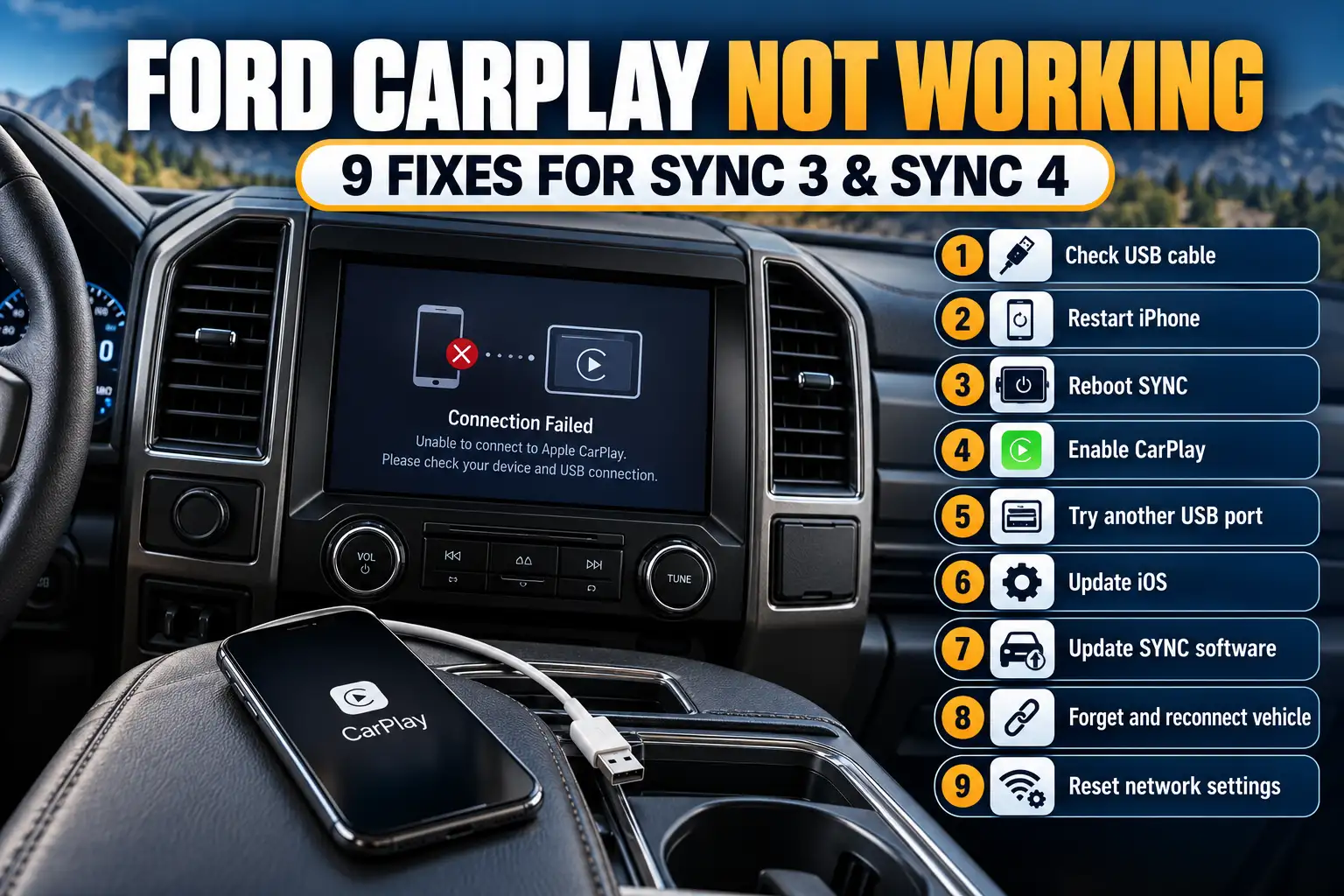
Ford CarPlay Not Working? Fix SYNC 3 and SYNC 4 Issues

Ford CarPlay not working usually points to a connection, permission, compatibility, or SYNC software issue. The fix depends on whether your Ford uses wired SYNC 3 or wireless-capable SYNC 4 or 4A.


Confirm CarPlay compatibility, then match the symptom below. An iPhone that charges without launching CarPlay needs different checks from one that disconnects wirelessly. Follow the relevant branch before resetting SYNC or replacing parts.
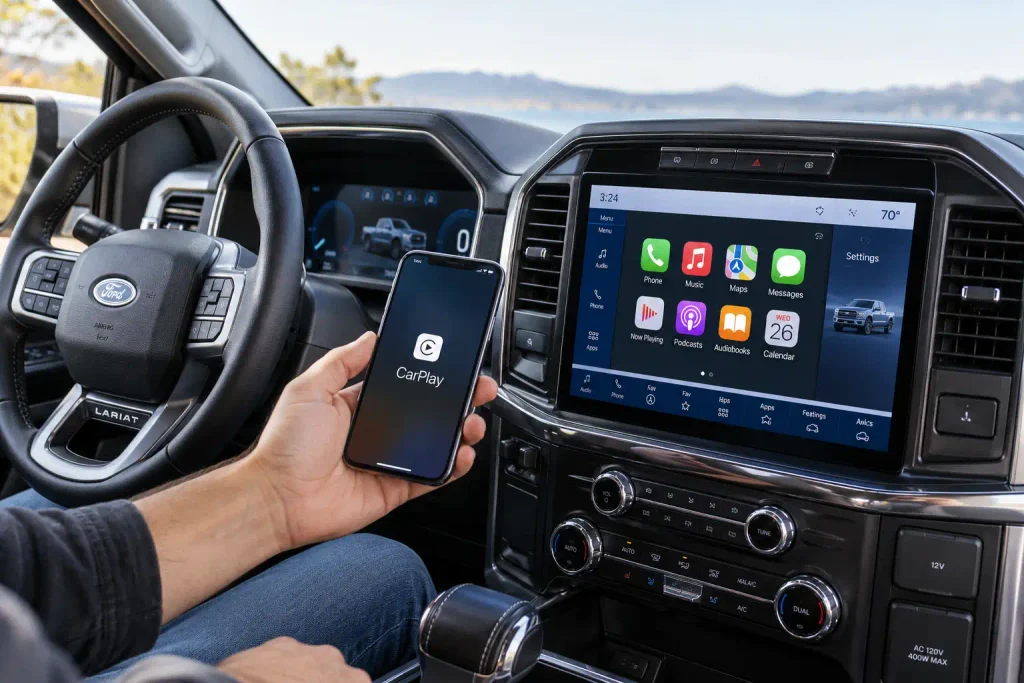
Find the right first test for your Ford. Choose your factory connection type, then follow the recovery path only if needed.
SYNC 1/2: no native CarPlay • SYNC 3: wired USB • Equipped SYNC 4/4A: wireless CarPlay
iPhone charges, but CarPlay will not open?
- Try a data-capable cablePlug directly into a CarPlay-capable USB port.
- Check CarPlay preferencesLook in SYNC settings and allow the paired iPhone.
- Test a second compatible iPhoneSee whether the problem follows the phone or the Ford.
Phone pairs, but CarPlay will not start?
- Turn on Bluetooth and Wi-FiEnable Siri and allow CarPlay on the iPhone.
- Check the Ford Phone ListConnect to Apple CarPlay if the option appears.
- Forget the pairing and reconnectRemove the saved car from both devices, then pair again.
Use your model’s non-erasing system restart procedure.
Look for approved, VIN-specific SYNC updates.
A factory reset erases saved connections and settings.
If several phones fail or other SYNC functions freeze, request vehicle-specific testing before replacing an APIM or USB hub.
How to Check Ford CarPlay Compatibility Before Troubleshooting
SYNC 1 and SYNC 2, including MyFord Touch, do not support native CarPlay. Compatible SYNC 3 systems use wired USB; equipped SYNC 4 and 4A systems support wireless CarPlay.
| Ford System | Factory CarPlay Connection | What to Verify |
|---|---|---|
| SYNC 1 or SYNC 2 | Not supported natively | Confirm your system is not an aftermarket retrofit |
| SYNC 3 | Wired USB | Software, compatible data port, CarPlay preferences |
| SYNC 4 or SYNC 4A | Wireless on equipped vehicles; USB may also be available | Phone List, wireless permissions, vehicle configuration |
Identify Your SYNC Generation
On SYNC 3, try Settings > General > About SYNC. SYNC 4 menus vary, so check the vehicle’s owner’s manual if this path differs.
Equipment varies by year and trim. Use our Ford SYNC version chart by year as a guide, then confirm the installed system.
Confirm Factory CarPlay Support
Check the phone or settings menus for Apple CarPlay. If it never appeared, verify factory hardware before repairs. Aftermarket screens or wireless adapters require separate troubleshooting.
Once compatibility is confirmed, identify the failure you can actually observe.
Why Is Ford CarPlay Not Working on Your SYNC
A CarPlay error can have several causes. Use the symptom to choose the next test.
| What You Notice | Test First | Go To |
|---|---|---|
| iPhone charges, but CarPlay does not open | Data-capable cable and correct USB port | Wired SYNC 3 fixes |
| Phone pairs, but wireless CarPlay will not start | Wi-Fi, Bluetooth, CarPlay permission | Wireless SYNC 4 fixes |
| CarPlay opens and then disconnects | Connection stability and phone pairing | Wireless or wired branch |
| CarPlay is black or has no sound | Whether native SYNC display and audio still work | Display and audio fixes |
| A 2016 SYNC 3 Ford has never shown CarPlay | Software version and media hub | 2016 compatibility check |
| Several SYNC functions fail together | System restart and available updates | Software recovery and service checks |
A failure across several compatible iPhones points toward different checks than a single-phone failure.
What to Try First When Ford CarPlay Fails
Park safely and retest after each action. These checks follow Apple’s CarPlay troubleshooting guidance.
- Update and restart the iPhone. In Settings > General > Software Update, check for an available iOS update. Restart after any update.
- Confirm Siri is enabled. Look under Siri or Apple Intelligence & Siri, depending on your iOS version.
- Check CarPlay restrictions. Open Settings > Screen Time > Content & Privacy Restrictions > Allowed Apps & Features and confirm CarPlay is permitted. Wording varies by iOS version.
- Verify the connection method. Wired users should check the cable and appropriate USB port. Wireless users should turn on both Bluetooth and Wi-Fi.
- Restart the infotainment system safely. Use the procedure for your specific Ford model. Do not jump straight to a factory reset.
If you are trying to establish CarPlay for the first time rather than restore a lost connection, follow the basic Ford SYNC phone connection setup before proceeding.
How to Fix Wired CarPlay on Ford SYNC 3
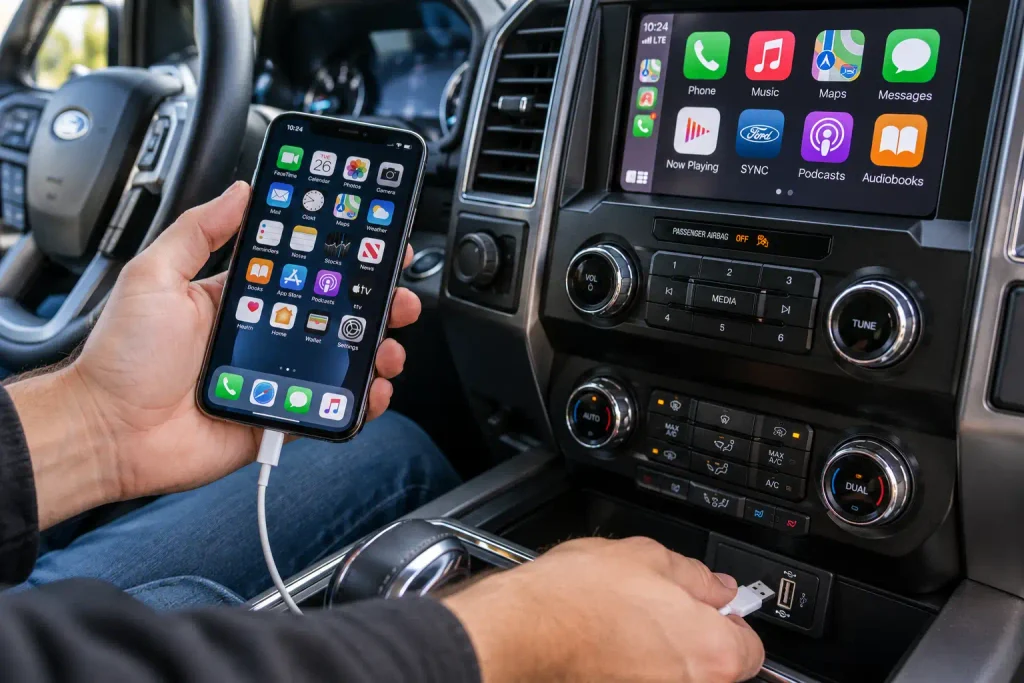
If an iPhone charges but CarPlay will not launch, the USB data connection, settings, or compatible hub may be the issue.
Test the USB Cable and Port
- Disconnect your iPhone and reconnect it directly with a known-good data-capable cable. Avoid extension cables, splitters, and aftermarket wireless adapters during the test.
- Try another USB port only if that port supports smartphone data or CarPlay. Some ports are for charging only.
- Unlock the iPhone and accept any trust or CarPlay prompts that appear.
- Check whether the CarPlay icon launches or whether SYNC now recognizes the device.
If another cable works, replace the old one. If charging still works without CarPlay, inspect the port and settings next.
Check CarPlay Preferences in SYNC
On compatible SYNC 3 systems, open Settings > Apple CarPlay Preferences. You may need to swipe through the settings pages. Select the connected iPhone and make sure CarPlay has not been disabled.
If this menu is missing on a 2016 SYNC 3 Ford that never ran CarPlay, see the 2016 compatibility section.
Compare Another Compatible iPhone
Try another compatible iPhone with the same cable and port. If it works, check the original phone’s settings and software.
If neither works, investigate vehicle-side USB or SYNC software. This alone does not prove hub failure.
How to Fix Wireless CarPlay on Ford SYNC 4
Wireless CarPlay uses Bluetooth for pairing and Wi-Fi for connectivity. Appearing in Ford’s Phone List does not guarantee CarPlay has started.
Verify Bluetooth and Wi-Fi Settings
- On the iPhone, turn Bluetooth and Wi-Fi on in Settings.
- In Wi-Fi settings, find the vehicle’s CarPlay network, if shown, and check Auto-Join.
- Confirm Siri is enabled and CarPlay is not restricted in Screen Time.
- On the Ford screen, open Settings > Phone List, select your iPhone, and choose Connect to Apple CarPlay if that option appears.
- Temporarily turn off the iPhone’s Personal Hotspot and retry if wireless pairing is unreliable.
These checks appear in Ford’s CarPlay troubleshooting manual. Menus vary by model.
Remove and Pair the iPhone Again
If permissions are correct but wireless CarPlay will not start, remove the saved pairing on both devices.
- On your iPhone, open Settings > General > CarPlay, choose your Ford, and tap Forget This Car.
- In iPhone Bluetooth settings, forget the Ford connection if it remains listed.
- Remove the phone from the Ford Phone List, then restart the phone and infotainment system.
- Pair again through Ford’s phone menu and approve both Bluetooth and CarPlay prompts.
If pairing works, verify that CarPlay reconnects after the next ignition cycle.


Diagnose Repeated Wireless Disconnects
For dropouts, note whether failure follows startup or affects multiple phones. Remove duplicate pairings and retest.
If several phones disconnect, investigate approved SYNC software before suspecting APIM hardware.
How to Fix a Ford CarPlay Black Screen
A blank CarPlay window differs from a frozen SYNC screen. Try opening native SYNC menus.
CarPlay Screen Is Blank
If SYNC menus work but the CarPlay window is black, disconnect and reconnect the phone. For wired systems, repeat the USB cable test. For wireless systems, remove and restore the CarPlay pairing.
If the whole screen freezes or reboots, proceed to SYNC software checks.
CarPlay Has No Sound
First check volume, mute, and whether the audio is routed to the Ford system. Play audio from a native Ford source such as AM/FM radio, then try a different CarPlay app.
If radio audio works but every CarPlay app is silent, re-pair or reconnect the iPhone. If all audio sources fail, the problem is broader than CarPlay and needs separate SYNC or audio-system diagnosis. Avoid assuming the iPhone speaker setting is the only cause.
What 2016 Ford SYNC 3 Owners Must Check
Ford’s April 2017 upgrade guidance requires SYNC 3 version 2.0 or later and a CarPlay-compatible Media/USB hub on applicable 2016 vehicles.
Not every 2016 Ford needs a replacement hub.
- Open Settings > General > About SYNC and identify the software version.
- Establish whether CarPlay has ever worked on this vehicle. A previously working system is more likely facing a new connection or software problem.
- If CarPlay has never worked, verify the installed media hub and update eligibility against the exact vehicle configuration.
- Have a Ford parts department or qualified technician confirm the compatible replacement hub by VIN before buying one.
The 2016 Ford CarPlay upgrade bulletin explains the missing CarPlay menu with an incompatible hub. Verify today’s applicable parts by VIN.
For eligible vehicles, follow the Ford SYNC USB update procedure using Ford’s VIN-specific download. Software cannot replace an incompatible hub.
When to Restart Reset or Update Ford SYNC
Try non-destructive recovery before erasing settings.
Restart SYNC Without Erasing Settings
Use the system restart procedure specified in your Ford owner’s manual. Depending on the installed controls, the button sequence may differ. A normal restart is intended to reboot SYNC without deleting saved phones or personal preferences.
Retest CarPlay after restarting; record any recurring failure.
Check the Latest Ford Software
Check approved updates by VIN. Another Ford model’s software may not apply to yours.
SYNC 3 may support USB updates; SYNC 4 may use over-the-air or dealer updates. Never interrupt installation or use unofficial files.
Use Factory Reset Only When Necessary
A factory or master reset removes saved connections and various personalized settings. Save important preferences first, confirm the exact vehicle-specific procedure, and expect to pair your phone again afterward.
Use our Ford SYNC reset guide by model for background, but follow the vehicle’s official procedure. Do not routinely pull fuses or disconnect the battery for CarPlay faults.
If a complete reset and approved updates do not help, move to the final diagnostic checks.
Which Other CarPlay Symptoms Need Different Fixes
If the issue started after an iOS update: Recheck Siri, CarPlay permissions, and the saved vehicle connection. Look for a subsequent iOS fix and retest before purchasing hardware.
If CarPlay works once but fails after the next startup: Remove the saved connection on both devices, pair again, and check whether the issue occurs consistently after an ignition cycle.
If you use a wireless CarPlay adapter with SYNC 3: Remove the adapter and test factory wired CarPlay first. If the direct connection works, investigate the adapter, not the Ford APIM.
If Maps or one music app fails while other CarPlay functions work: Test another app and update the affected app. That pattern does not establish a complete CarPlay connection failure.
Ford CarPlay Fixes by Symptom and Next Step
Use this matrix to find the next test; it does not diagnose a faulty part.
| Symptom | First Test | Next Action If It Fails |
|---|---|---|
| iPhone charges but no CarPlay | Known-good data cable and CarPlay-capable USB port | Check SYNC 3 preferences and compatible hub |
| Wireless CarPlay will not connect | Bluetooth, Wi-Fi, Auto-Join, and Ford Phone List | Forget the car and pair again |
| CarPlay goes black | Check whether native SYNC menus still display | Reconnect phone or restart SYNC |
| CarPlay has no audio | Compare Ford radio with CarPlay apps | Re-pair phone or diagnose broader audio fault |
| CarPlay never worked in a 2016 SYNC 3 Ford | Software version and media hub compatibility | Verify VIN-specific upgrade requirements |
| Several SYNC features freeze or restart | Approved software and system restart | Request Ford diagnostics |
The next escalation point is a repeatable problem that persists after these tests.
When to Get Ford APIM or USB Hub Checked
Seek diagnostics when several phones fail, multiple SYNC functions malfunction, or the USB port remains unusable.
Provide the technician with VIN, SYNC version, phone models, connection type, and repeatable symptoms.


Ford’s June 2024 SSM 52574 linked certain SYNC 4 CarPlay, audio, and stability symptoms to possible APIM software issues and warned against replacing the module for those cases. See the manufacturer communication record. It does not establish the cause of a current fault.
Require VIN-specific diagnostic checks before authorizing APIM or hub replacement.
How to Keep Ford CarPlay Working Reliably
If Ford CarPlay is not working, the best starting point is the exact symptom, not the most expensive potential repair. Confirm that your vehicle supports CarPlay, then identify whether the connection is wired through SYNC 3 or wireless through a compatible SYNC 4 system.
Check phone permissions and the connection first. Move to pairing recovery, approved software updates, and a factory reset only when earlier checks fail. The 2016 SYNC 3 media hub exception deserves special attention when CarPlay has never worked.
If multiple phones and native SYNC features still malfunction after those checks, document the behavior and request vehicle-specific diagnostics. That is a more reliable next step than guessing which module to replace.
Ford CarPlay Not Working Frequently Asked Questions
Why Is My Ford CarPlay Not Working All of a Sudden?
A sudden CarPlay failure can follow a changed iPhone setting, cable problem, lost wireless pairing, or software fault. Start with a phone restart and the correct wired or wireless connection checks. If several Ford SYNC features fail too, move to system diagnostics rather than treating it as an iPhone-only problem.
Why Is My iPhone Charging but CarPlay Not Connecting?
Charging confirms the USB port supplies power, not that the cable and port can exchange CarPlay data. Test a known-good data cable connected directly to a CarPlay-capable USB port. If your 2016 SYNC 3 Ford has never supported CarPlay, also verify the original media hub and software configuration.
Does Ford SYNC 3 Support Wireless Apple CarPlay?
Factory SYNC 3 CarPlay uses a wired USB connection, not native wireless CarPlay. Aftermarket wireless adapters can add wireless functionality, but they introduce another possible failure point. For diagnosis, unplug any adapter and confirm that direct wired CarPlay works first.
How Do I Reset Ford CarPlay Without Losing Settings?
Start with an iPhone restart and a Ford SYNC system restart that preserves personal data. Removing only the saved CarPlay pairing is another option, although you will need to pair the phone again. A factory or master reset is different because it erases saved settings and connections.
Why Does Ford CarPlay Keep Disconnecting?
Repeated disconnections may involve an unstable USB data connection, wireless pairing, iPhone software, or SYNC software. Test the appropriate connection path and compare another compatible iPhone if possible. If the problem remains repeatable across phones, have a technician check current vehicle-specific software and diagnostic information.