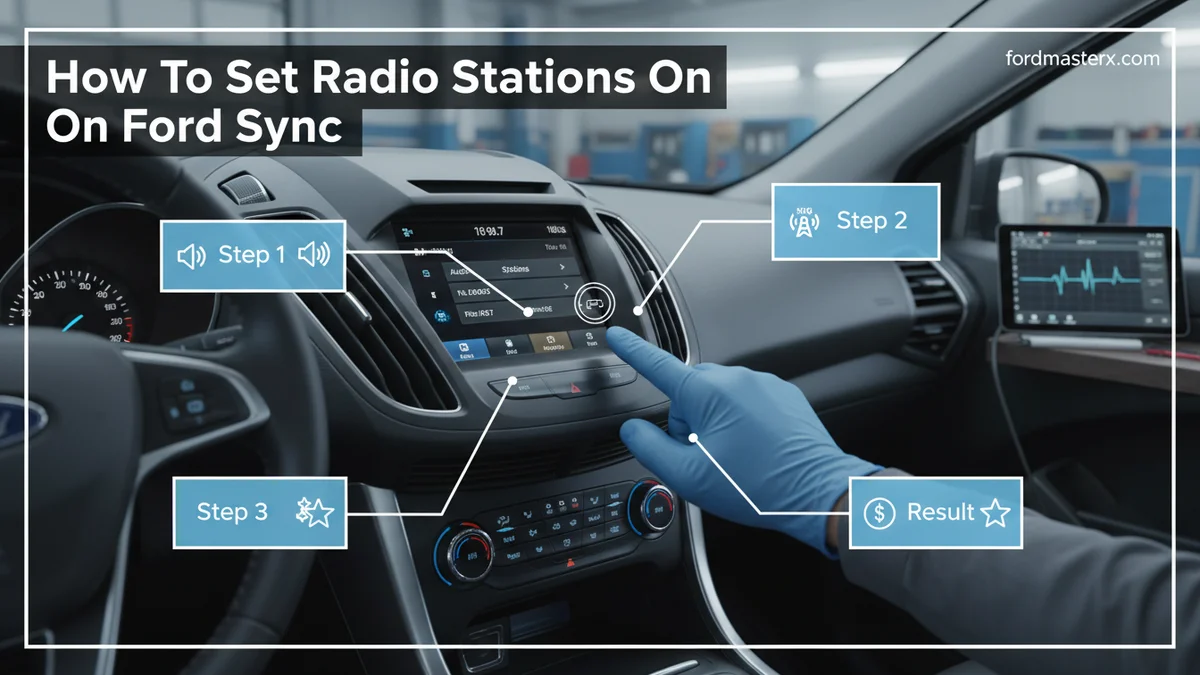
How To Set Radio Stations On Ford Sync 3 Set Radio 2026

Setting radio stations on your Ford Sync 3 system involves navigating to the Audio menu, selecting your desired band, tuning to a station, and then pressing and holding a preset button. This guide provides a comprehensive walkthrough for tuning, saving, and managing all your favorite AM, FM, and SiriusXM stations quickly and easily.
The first step to enjoying your drive is knowing how to set radio stations on Ford Sync 3, allowing you to quickly access your favorite music or talk shows. We understand that navigating new vehicle technology can sometimes feel daunting. Our guide for 2026 makes the process straightforward for every Ford owner.

Prime for Young Adults — 6 Months Free
Students and 18–24s get six months of Prime free, then half price.
Start 6 Months Free As an Amazon Associate I earn from qualifying purchases.We provide a comprehensive walkthrough for tuning, saving, and managing all your favorite AM, FM, and SiriusXM stations. You will quickly master your vehicle’s audio system. We will begin with the essential steps for tuning and saving your first few stations, ensuring you get started smoothly.
Key Takeaways
Recommended Best Deal Products


- Tune stations via manual input or scan.
- Save favorites by holding preset buttons.
- Manage presets for AM, FM, and SiriusXM.
- Troubleshoot common Sync 3 radio issues.
- Sync 3 radio setup is simple and quick.
How to Tune and Save Stations in 4 Steps

Mastering your Ford Sync 3 radio starts with understanding how to tune and save stations effectively. This simple four-step process helps you get your preferred audio content ready for every journey. Follow these instructions to personalize your listening experience.
Access Radio Source
Your journey begins by accessing the “Audio” menu on your Sync 3 touchscreen. Look for the “Audio” icon, which often appears at the bottom or top of the main screen. Tapping this icon will bring you to your primary audio source controls. From there, select “Radio” to enter the radio interface. You may see options for AM, FM, and SiriusXM bands directly.
Find Your Station
Once in the radio interface, you have several ways to find stations. You can use the “Seek” buttons (up/down arrows) to scan for the next available strong signal. Alternatively, tap the “Tune” button to manually enter a frequency using the on-screen numeric keypad. For a broader search, the “Scan” function will briefly play each strong station it finds. You might also explore a “Browse” feature, which can list available stations by genre or number, depending on the band.
Save Favorite Presets
Saving a station is simple. Once you are tuned to a station you like, you will see a series of empty preset buttons, usually labeled with numbers (e.g., 1-6) at the bottom of the screen. To save the current station, press and hold one of these empty preset buttons for about two seconds. You will hear a confirmation tone, and the station’s frequency or name will appear on that preset button.
Verify Saved Channels
After saving, briefly tap each new preset button you just configured. This confirms that the correct station is assigned and that the system has successfully stored your selection. We recommend saving your most frequently listened-to stations across the available presets for easy access while driving. These steps ensure your favorite channels are always just a tap away. Once you have the basics down, you might want to explore specific instructions for different radio bands.
How to Manage Different Radio Bands Easily
Recommended Best Deal Products

Ford Sync 3 supports various radio bands, each with slightly different management approaches. Understanding these nuances helps you fully utilize your vehicle’s audio capabilities. We will walk you through setting up AM, FM, and SiriusXM.
Configure FM Channels
FM radio offers a wide range of local music and talk stations. To select FM, tap the “FM” button on the radio screen. You can then use the “Seek” or “Tune” functions as described earlier to find your desired stations. FM stations often support HD Radio, providing clearer sound. If an HD signal is present, you will see an “HD” indicator on the screen. [VISUAL CUES NEEDED: Describe the appearance of HD Radio indicators on the Sync 3 screen.] Saving FM stations follows the same press-and-hold method as for general presets.
Set AM Stations
AM radio, while generally offering fewer local options, is excellent for news, sports, and distant signal reception, especially at night. Tap the “AM” button on your Sync 3 screen to switch to the AM band. Use the “Seek” or “Tune” functions to find your preferred AM frequencies. Due to signal characteristics, AM stations might require more precise tuning. Save your AM favorites to the preset buttons using the standard press-and-hold technique.

Audible — Listen Free for 30 Days
One free credit a month and thousands of titles included.
Listen Free for 30 Days As an Amazon Associate I earn from qualifying purchases.Add SiriusXM Presets
SiriusXM Satellite Radio provides a vast selection of channels across North America. To access it, tap the “SiriusXM” button on your radio screen. If you are a new subscriber, you may need to activate your service. Tune to channel 0 to find your Radio ID, then visit the SiriusXM website or call their support line to subscribe. Once activated, you can browse channels by category or number. Saving SiriusXM presets works identically to AM/FM: tune to the channel, then press and hold an empty preset button. [SPECIFIC STEPS NEEDED: Provide exact menu steps for activating a SiriusXM trial or subscription through Sync 3 if possible.]
Utilize HD Radio
Many modern FM stations broadcast in HD Radio, which means superior sound quality and often additional sub-channels. Your Ford Sync 3 system automatically detects and switches to an HD signal if available when you are tuned to a compatible FM station. You will see an “HD” logo appear on your screen. There are usually no extra steps required to “enable” HD Radio. Enjoy the enhanced clarity without needing to adjust specific settings. Now that you can navigate different radio bands, let’s look at how to organize and refine your preset list.
How Do You Edit Existing Radio Presets
Keeping your radio presets organized on Ford Sync 3 enhances your listening experience. While Sync 3 offers good functionality, some advanced management options might not be directly available. We will guide you through what is possible.
Remove Unwanted Channels
To remove a station from your presets, you typically overwrite it. There is usually no direct “delete” button for individual presets. Tune to a different station that you do want to save. Then, press and hold the preset button corresponding to the unwanted channel. The new station will replace the old one. If you want a preset button to be empty, you might need to perform a master reset, which clears all personal data, including radio presets. This is often an extreme measure.
Reorder Favorites List
Ford Sync 3 does not natively support dragging and dropping to reorder your radio presets. The order of your saved stations is generally determined by the sequence in which you saved them. If you wish to change the order, you will need to overwrite the presets in your desired new sequence. For example, if you want a station to be on preset 1, save it there first, then proceed with other stations. [SPECIFIC SYNC 3 LIMITATIONS: Clarify specific Sync 3 software limitations regarding preset renaming or reordering based on available documentation.]
Rename Station Labels
Unfortunately, Ford Sync 3 typically does not allow users to manually rename radio station labels. The system pulls station names directly from broadcast data (for FM/AM) or from the SiriusXM service. If a station’s name appears incorrectly, it is usually due to the broadcast data itself rather than a setting you can change in Sync 3. We cannot directly edit these labels.
Transfer Presets
Transferring presets between different Sync 3 systems or vehicles is not a standard feature. Your presets are stored locally within your vehicle’s Sync 3 unit. If you get a new Ford with Sync 3, you will need to manually re-enter and save all your favorite radio stations. This ensures a fresh start with your new vehicle’s system. Even with perfectly organized presets, issues can sometimes arise, so knowing how to troubleshoot common problems is essential.
5 Most Common Radio Problems to Fix
Occasionally, you might encounter issues with your Ford Sync 3 radio, but many common problems have straightforward fixes. We aim to help you resolve these quickly. This section covers five frequent problems and their solutions.
Station Signal Loss
Sudden loss of radio signal can be frustrating. This often happens due to environmental factors like tunnels or remote areas. However, if it occurs frequently in well-covered areas, check your vehicle’s antenna. Ensure it is securely attached and not damaged. A loose or faulty antenna can significantly impair reception. [TYPICAL STEPS NEEDED: Outline typical steps to check a vehicle’s antenna connection for common Ford models.]
Presets Vanish Quickly
If your radio presets disappear unexpectedly, it might be due to a power interruption or a minor software glitch. A common fix is to perform a soft reset of your Sync 3 system. Hold down the power button and the right-seek (>>|) button simultaneously for about 10-15 seconds until the screen goes blank and the Ford logo reappears. This often restores lost settings.
Audible Premium Plus — Annual Membership
12 audiobook credits up front, plus the full Audible catalogue.
See Annual Plans As an Amazon Associate I earn from qualifying purchases.Volume Inconsistencies
Experiencing fluctuating or inconsistent radio volume can be annoying. First, check the “Speed Compensated Volume” setting in your Sync 3 audio preferences. If enabled, it automatically adjusts volume based on road noise. Disabling or adjusting this setting might resolve the issue. If the problem persists, ensure your vehicle’s software is updated.
Sync 3 Freezes
A frozen Sync 3 screen impacting radio functions is a common software glitch. The soft reset (power button + right-seek button) is the primary solution. This reboots the system without erasing your data. If freezing becomes chronic, consider checking for available Sync system updates. Keeping your software current is vital for optimal performance. [INTERNAL LINK: Anchor text “Sync system updates” to a page discussing how to update Sync 3.]
Antenna Issues
Physical damage to your antenna can lead to poor radio reception across all bands. Visually inspect the antenna on your vehicle’s exterior for bends, breaks, or missing parts. For shark fin antennas, look for cracks. If the antenna is damaged, it may need professional replacement. This ensures your radio receives the strongest possible signal. By following these steps, you can ensure your Sync 3 radio experience remains enjoyable.
How Do I Factory Reset Radio Presets on Sync 3?
To factory reset radio presets on Sync 3, you typically need to perform a master reset of the entire Sync system. Navigate to Settings> General> Master Reset. This action will clear all personal data, including your radio presets, and restore the system to its original factory settings. Be aware this also clears phone pairings and navigation history.
Can I Reorder Radio Stations on Ford Sync 3?
No, directly reordering radio stations on Ford Sync 3 is not an available feature. The system usually organizes presets by the order in which they were saved. To change the order, you would need to delete and re-save them in your preferred sequence. This method allows you to customize your preferred arrangement.
Why Did My Ford Sync 3 Radio Presets Disappear?
Ford Sync 3 radio presets can disappear due to a few reasons, including a low car battery, a Sync system software glitch, or a recent system update. Performing a soft reset (holding power and seek forward buttons) often resolves minor software issues and restores them. Always ensure your vehicle’s battery is in good health.
How Do I Activate SiriusXM on My Ford Sync 3?
To activate SiriusXM on your Ford Sync 3, first tune to channel 0 and note your Radio ID. Then, visit the SiriusXM website or call their activation line to subscribe and provide your Radio ID. The service should activate in your vehicle within minutes after subscription. You can then begin saving your favorite channels.
Is HD Radio Automatically Enabled on Ford Sync 3?
Yes, HD Radio functionality is typically automatically enabled on Ford Sync 3 systems where available and when tuned to a compatible station. You will usually see an ‘HD’ indicator on the screen when receiving an HD Radio signal, signifying enhanced sound quality. No manual activation steps are generally required.
Enhance Your Driving With Sync 3 Radio
We have guided you through how to set radio stations on Ford Sync 3, making sure your favorite audio is always at your fingertips. You now know the simple steps for tuning and saving stations, covering everything from local FM to satellite SiriusXM. We also provided specific instructions for managing AM, FM, and SiriusXM settings. Moreover, you are equipped with solutions for managing presets and troubleshooting common radio issues. By mastering these functions, your daily commute or road trips in 2026 will be more enjoyable. Use these insights to personalize your Ford Sync 3 radio experience today.